Creating Secrets
Secrets store sensitive information such as login credentials, API keys, certificates, SSH keys, and notes. Each secret is assigned to a collection for organization and access control.
Note
Available Secret Types:
Login: Username/password credentials with domain and URL information
SSH Key: SSH private keys for server access
Note: Plain text notes for storing non-credential information
API Key: API tokens and keys for service authentication
Certificate: Digital certificates and private keys
Select > .
Click .
Select the collection where the secret will be stored by clicking the Collection dropdown.
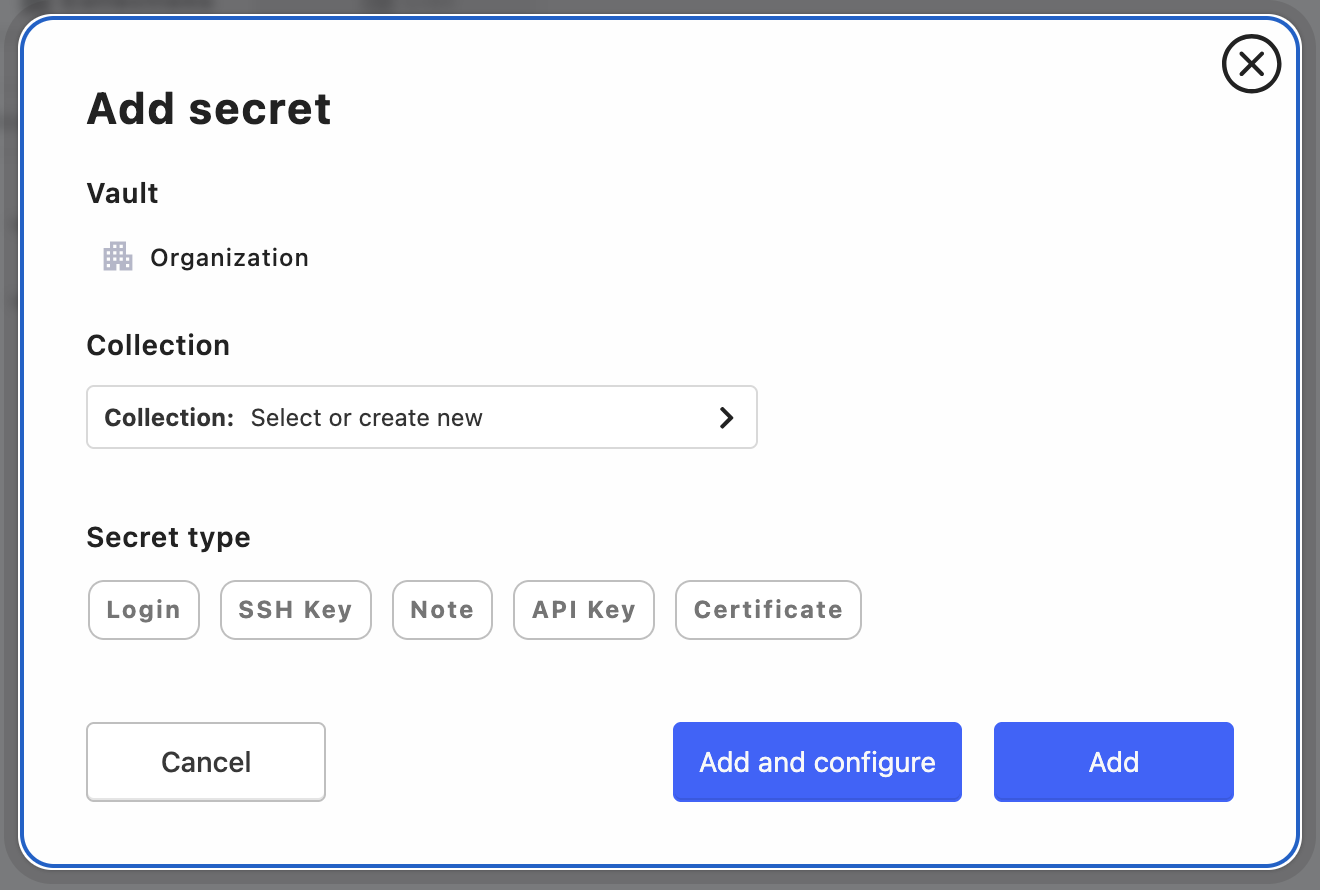
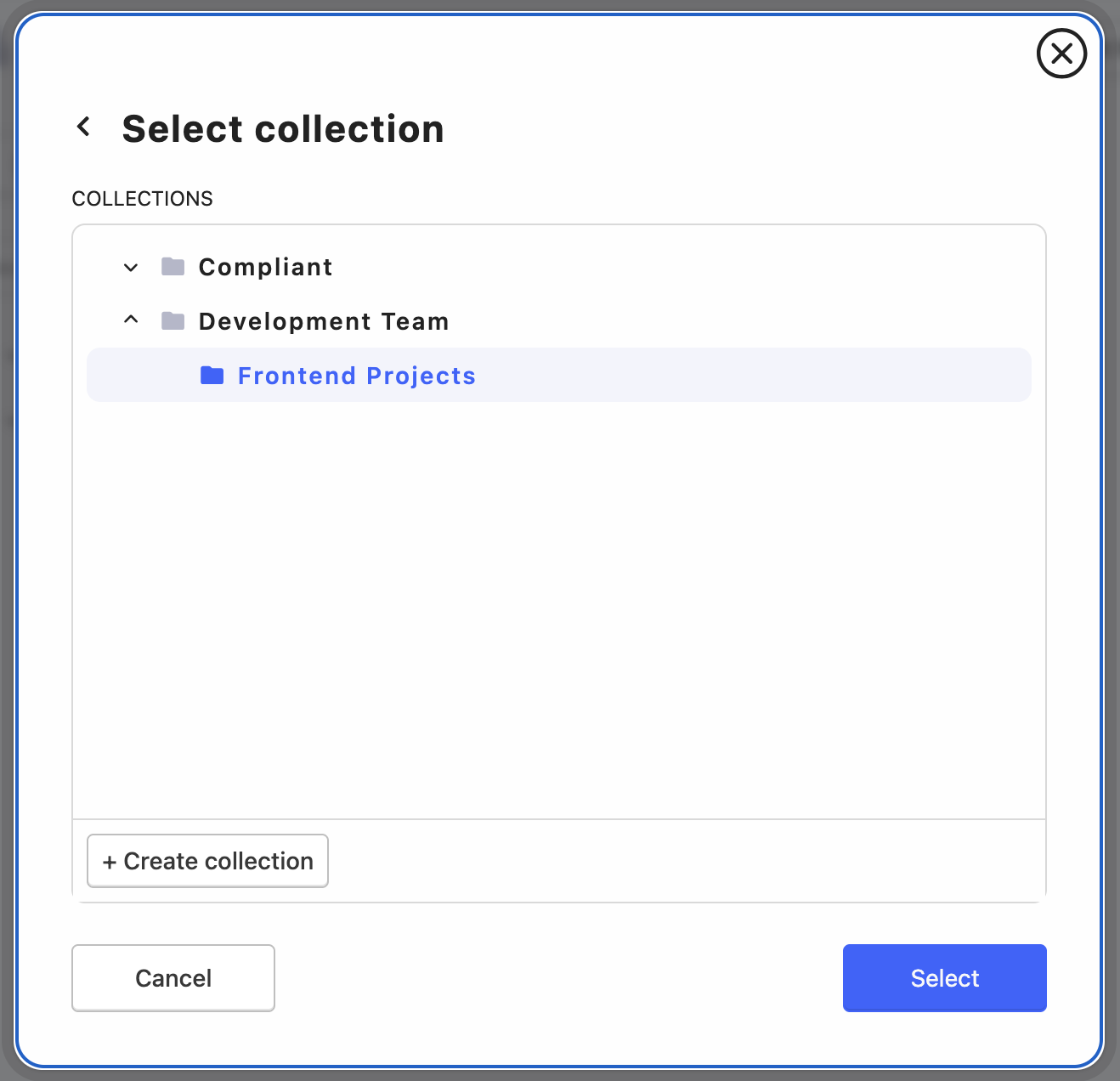
Click .
Choose the appropriate secret type: Login, SSH Key, Note, API Key, or Certificate.
For Login Secrets:
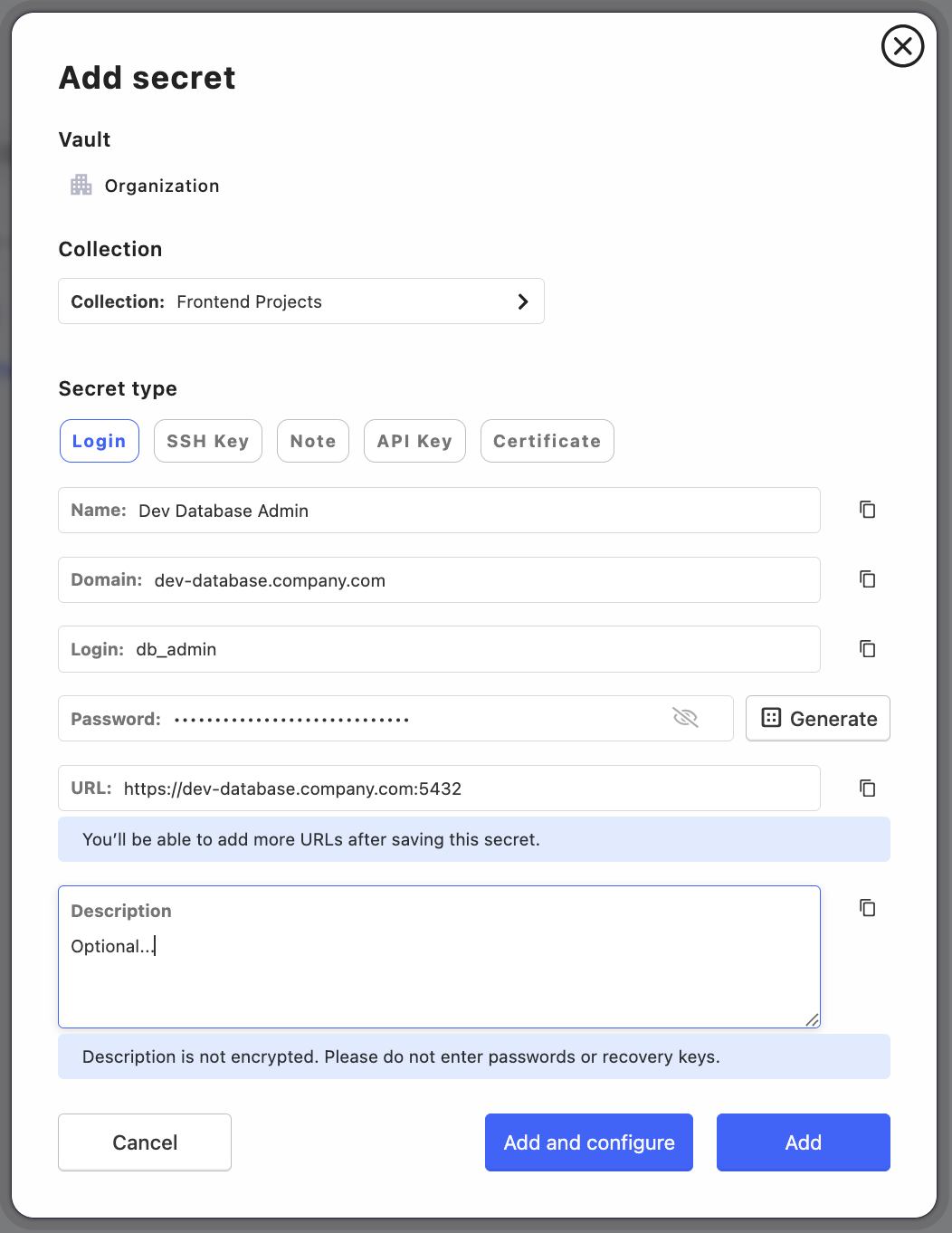
Fill in the required fields:
Name: Enter a descriptive name for the secret
Domain: Enter the target domain or server address
Login: Enter the username or account name
Password: Use the button for secure passwords
URL: Enter the related website or service URL
Description: Optional additional information (not encrypted)
Note
Password Generator:
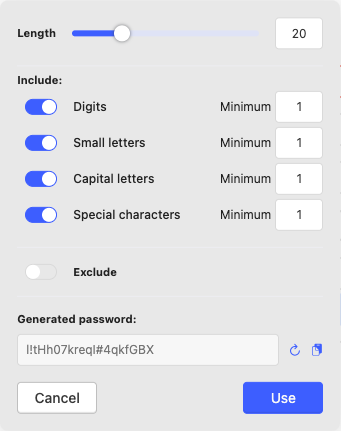
The integrated password generator ( button) provides secure password creation with customizable options:
Length: Set password length (default: 20 characters)
Character Types: Include digits, small letters, capital letters, special characters
Minimum Requirements: Set minimum count for each character type
Exclude Options: Exclude ambiguous or specific characters
Generated Password: Preview and copy the generated password
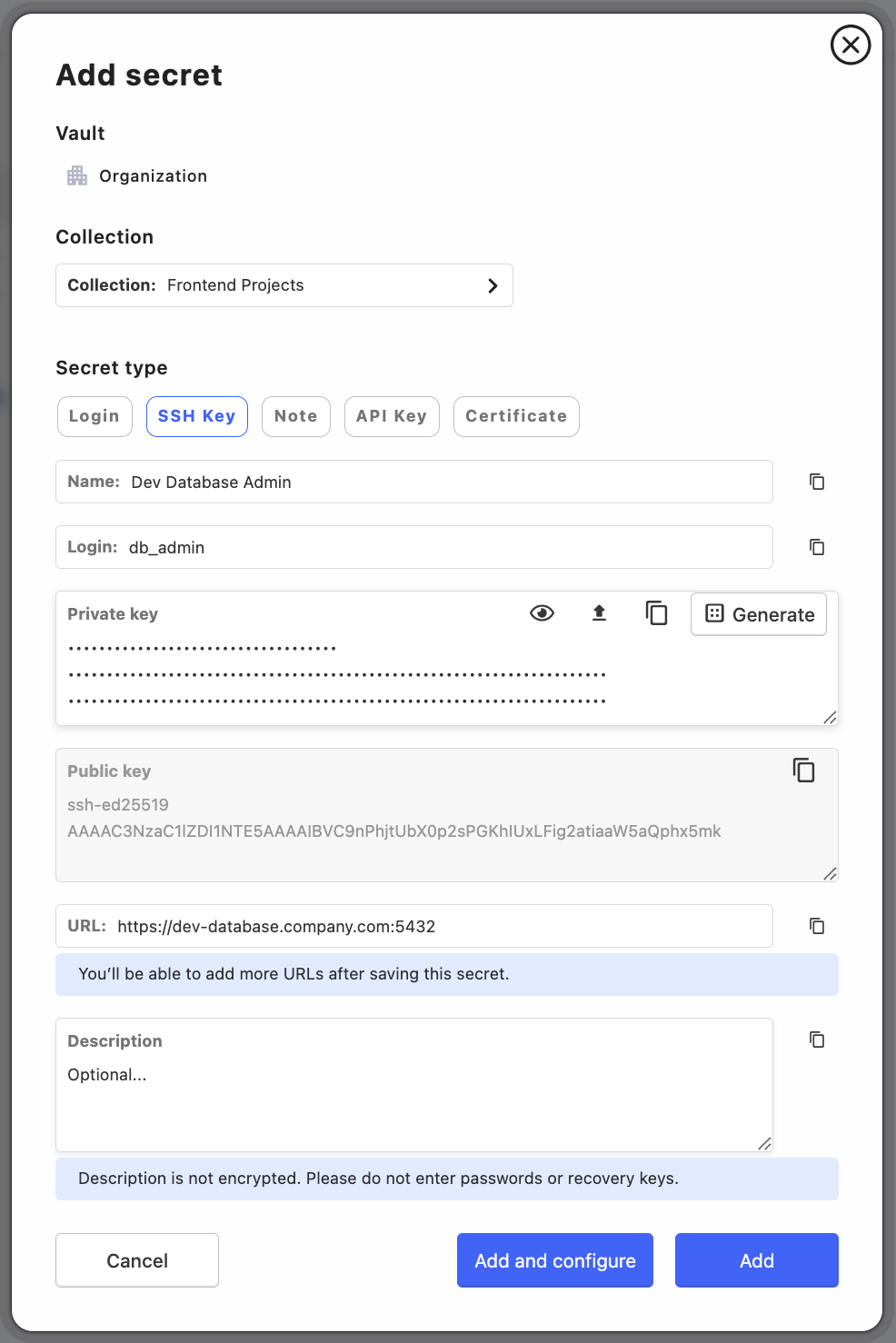
For SSH Key Secrets:
Fill in the required fields:
Name: Enter a descriptive name for the secret
Login: Enter the username or account name
Private key: Enter the private key, or click to generate both private and public keys
URL: Enter the related website or service URL
Description: Optional additional information (not encrypted)
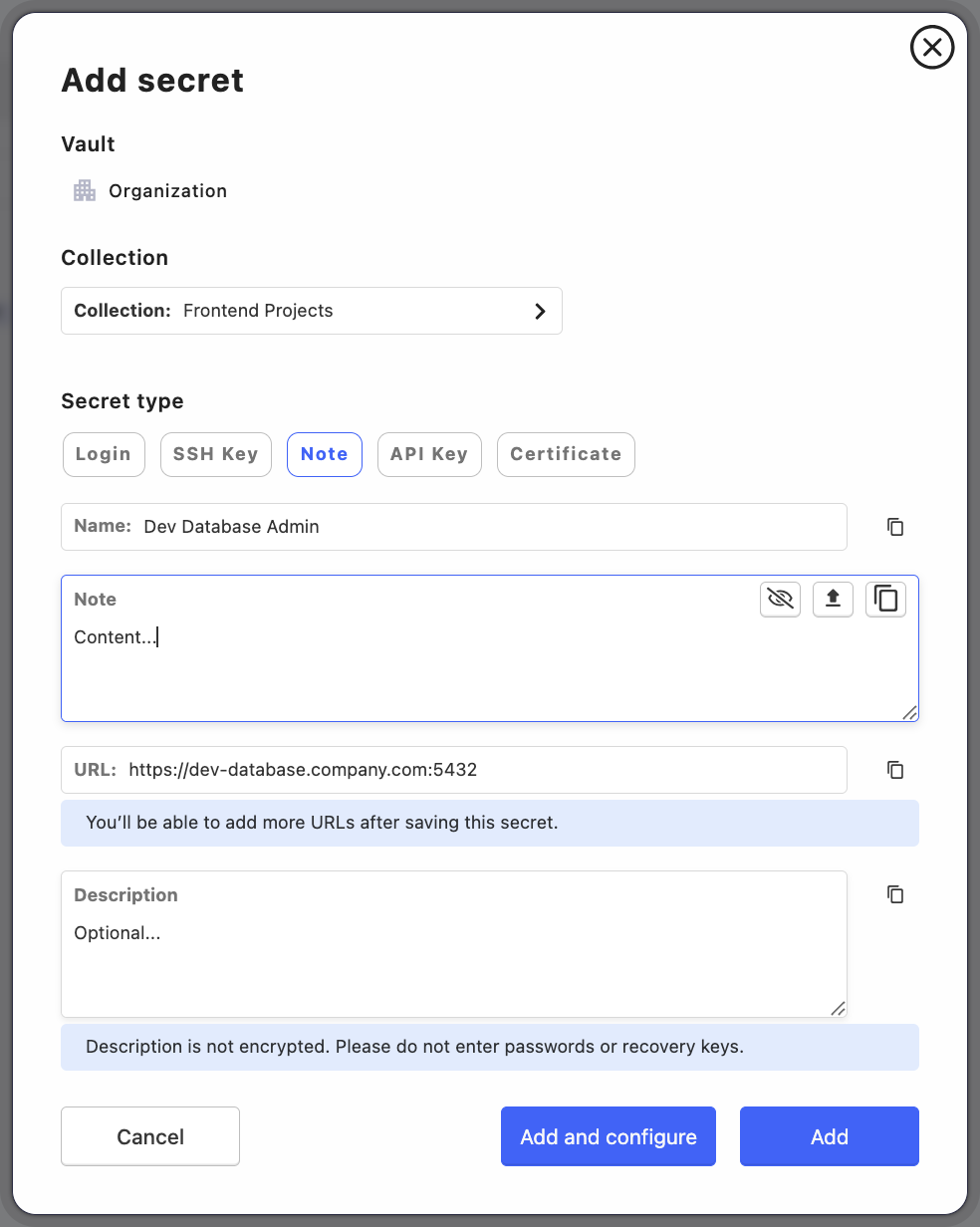
For Note Secrets:
Fill in the required fields:
Name: Enter a descriptive name for the secret
Note: Enter the note content
URL: Enter the related website or service URL
Description: Optional additional information (not encrypted)
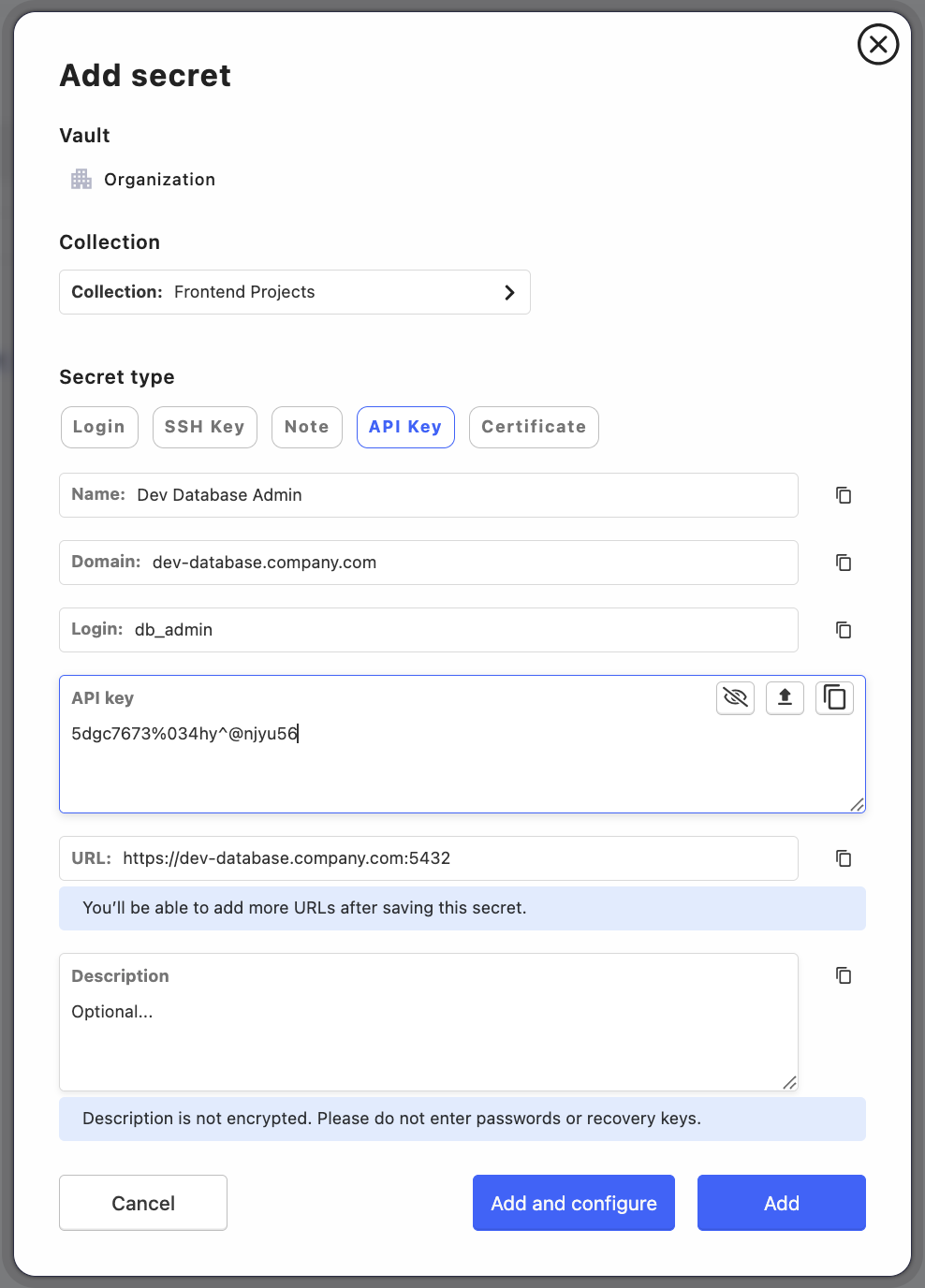
For API Key Secrets:
Fill in the required fields:
Name: Enter a descriptive name for the secret
Domain: Enter the target domain or server address
Login: Enter the username or account name
API key: Enter or upload the API key
URL: Enter the related website or service URL
Description: Optional additional information (not encrypted)
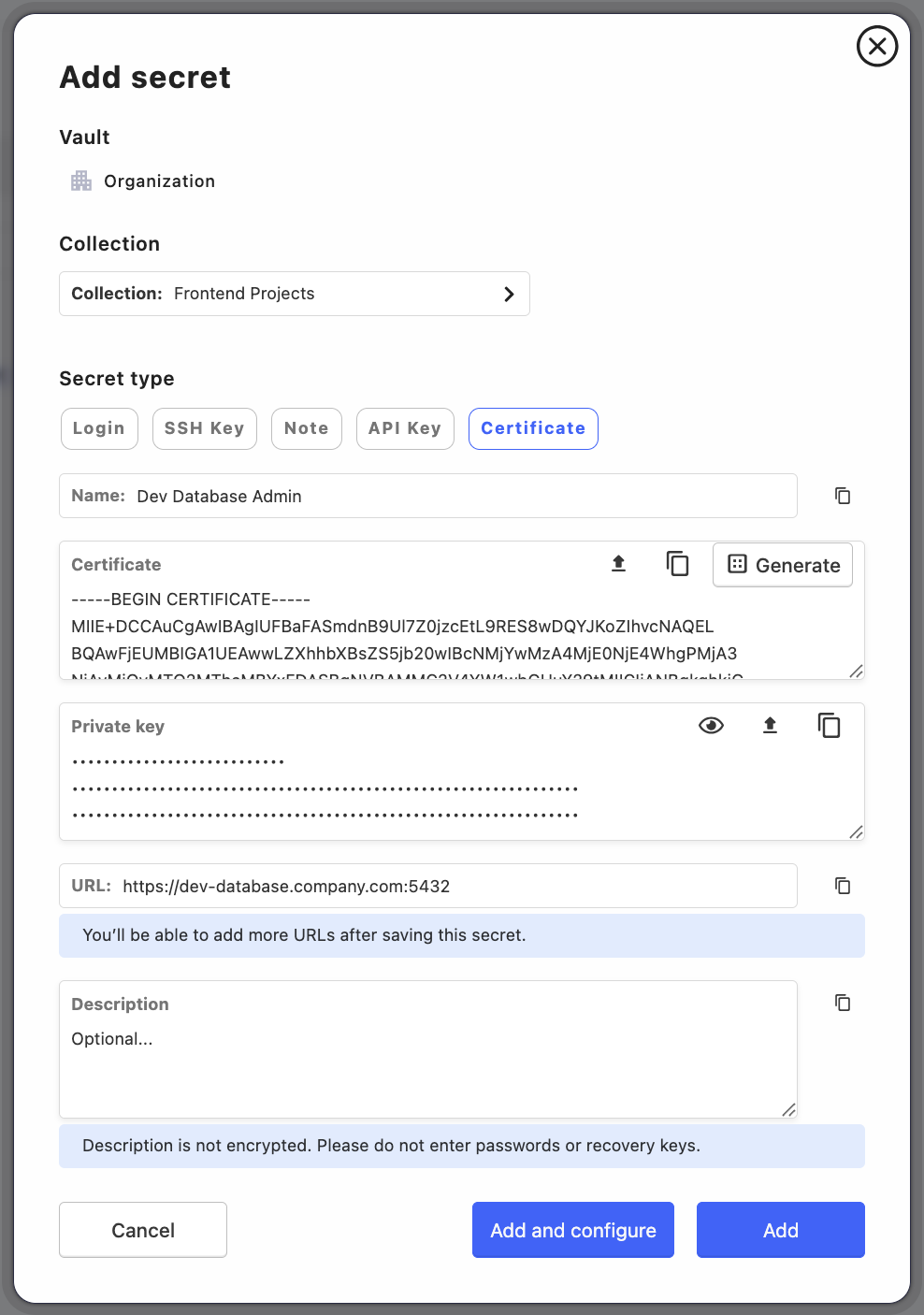
For Certificate:
Fill in the required fields:
Name: Enter a descriptive name for the secret
Certificate: Upload or generate certificate
Private Key: Upload your Private Key
URL: Enter the related website or service URL
Description: Optional additional information (not encrypted)
Click to create the secret and close the window, or to create the secret and open its configuration window, where you can continue the setup.
Success Confirmation:
After creating a secret, you will see a confirmation message and the collection’s secret count will be updated:
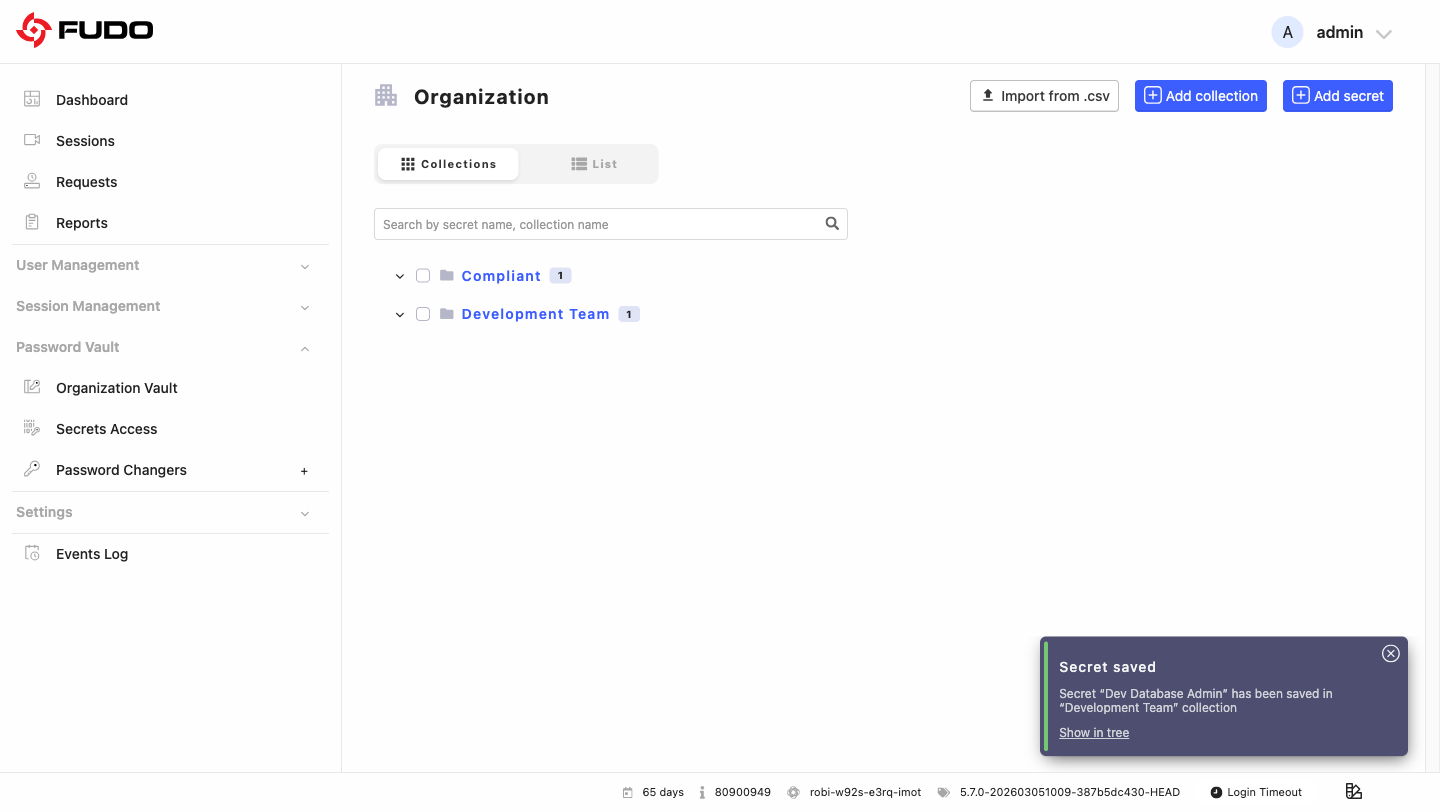
Alternative Creation Methods:
You can also create secrets using quick actions:
From Collection Hover Menu: Hover over a collection and click
From Context Menu: Click the three-dot menu (…) on a collection and select + Add Secret
Related topics: