Setting up the Oracle Listener [BETA]
This section describes how to setup Oracle listener. To learn first steps of creating listener, please follow Creating a listener section.
Warning
Encrypted connections are supported with the Oracle SQL*Plus client. Other client applications do not support TLS with Fudo Enterprise, so do not enable TLS enabled if your users connect with a different client.
Oracle native encryption (Advanced Security Option) is refused. Configure clients so that they do not negotiate it.
Note
The Oracle listener supports the proxy connection mode only. In the Bastion mode the user passes the Fudo Enterprise user name and the target server together with the login, and the Oracle protocol has no field that could carry them.
Go to Settings tab, press the
Show allbutton to expand supported protocols list.
Press button in the Protocol field.
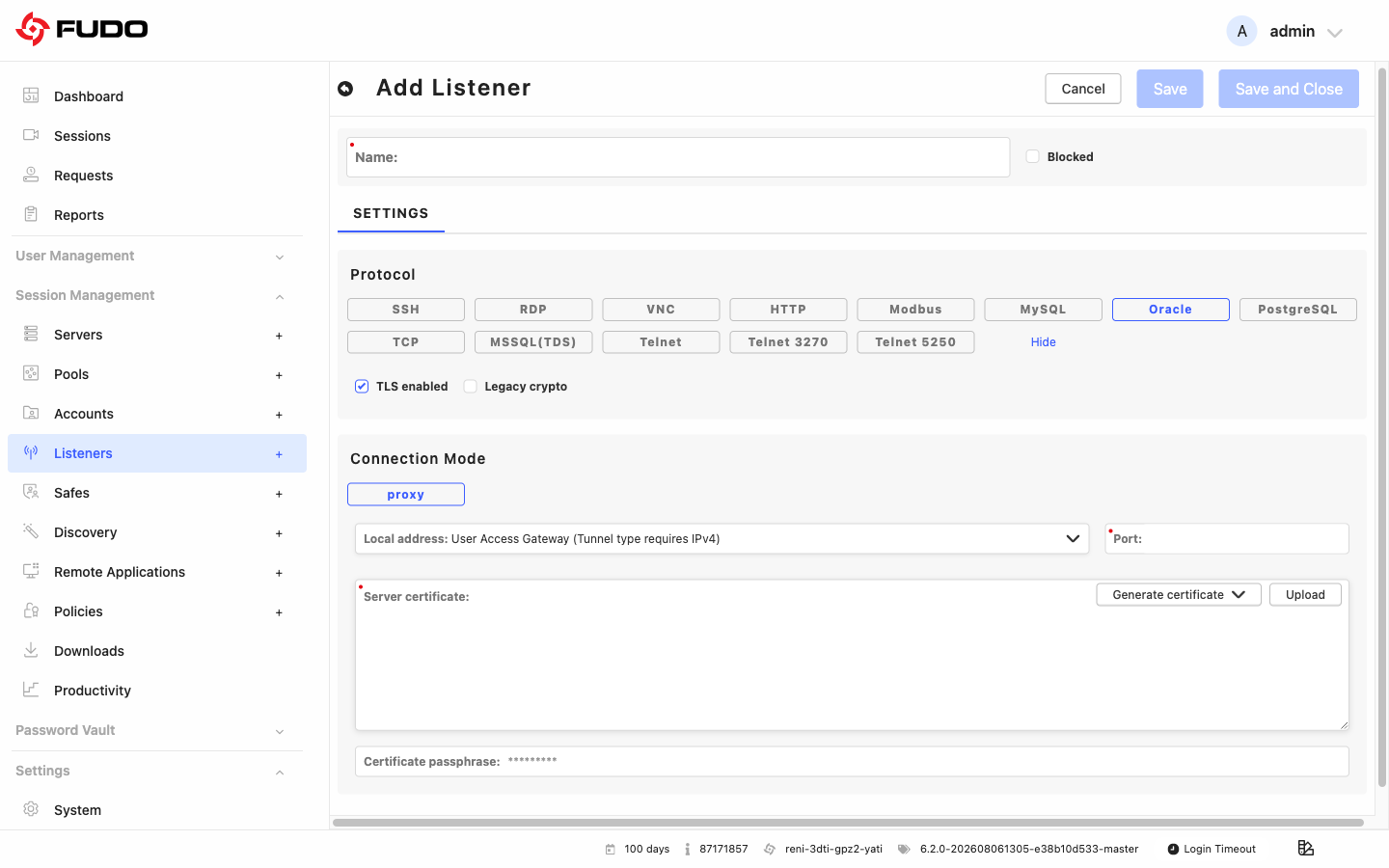
Select the TLS enabled option to allow clients to connect over TLS.
Select the Legacy crypto option to allow negotiating older encryption algorithms when establishing connections.
Note
The Legacy crypto option is shown only when TLS enabled is selected.
In the Connection mode section, the proxy mode is already selected.
Mode: proxy
Note
User connects to the target host by providing Fudo Enterprise IP address and port number which unambiguously identifies target host.
Select button in the Connection mode field.
Select the the IP address from the Local address drop-down list and enter port number.
Note
The Local address drop-down list elements are IP address defined in the Network configuration menu (Network Interfaces Configuration) or labeled IP addresses (Labeled IP Addresses).
Selecting the
Anyoption will result in Fudo listening on all configured IP addresses.When a Listener is configured with User Access Gateway as the local address, only one connection option is displayed after login to User Access Gateway for clarity, and the connection uses the address from the browser’s address bar together with the listener’s configured port.
In case of cluster configuration, select a labeled IP address from the Local address drop-down list and make sure that other nodes have IP addresses assigned to this label. For more information refer to the Labeled IP Addresses topic.
If you enabled TLS, in the Server certificate field, click to generate TLS certificate by choosing key algorithm and providing Common Name (server name where the certificate is installed), or click to upload server certificate file with private key pasted at the end of the file. The rest of the required fields will be filled automatically. Allowed format of the server certificate file is PEM, although besides
.pem, accepted file extensions are.txtand.cert.Click .
Related topics: