RDP in Bastion Mode
This chapter contains an example of a basic Fudo Enterprise configuration, to monitor RDP access to a remote server. In this scenario, the user connects to the remote server in bastion mode by specifying the user name along with account login on the target server and target server address in the login string. Bastion mode enables facilitating privileged accounts monitoring while preserving default protocols port numbers.

Prerequisites
Description below assumes that the system has been already initiated. The initiation procedure is described in the System initiation topic.
Configuration

Adding a server
is a definition of the IT infrastructure resource, which can be accessed over one of the specified protocols.
Select > .
Click .
Provide essential configuration parameters:
Parameter |
Value |
|---|---|
Name |
|
Description |
|
Blocked |
|
Protocol |
|
TLS enabled |
|
NLA enabled |
|
Legacy crypto |
|
Inform about existing connection |
|
Bind address |
|
Permissions |
|
Granted users |
|
Destination |
|
Address |
|
Mask |
|
Port |
|
Server verification |
|


Click or
Adding a user
User defines a subject entitled to connect to servers within monitored IT infrastructure. Detailed object definition (i.e. unique login and domain combination, full name, email address etc.) enables precise accountability of user actions when login and password are substituted with a shared account login credentials.
Select > .
Click .
Provide essential user information:
Parameter |
Value |
|---|---|
General |
|
Name |
|
Role |
|
Blocked |
|
Account validity |
|
Settings Tab |
|
Safes |
|
Authentication section |
|
Authentication failures |
|
Enforce password complexity |
|
Add authentication method: |
|
Password |
|
User Data Tab |
|
Fudo domain |
|
AD Domain |
|
LDAP Base |
|
Full name |
|
|
|
Organization |
|
Phone |
|
Permissions Tab |
|
Granted users |
|
Click .
Adding a listener
determines server connection mode (proxy, gateway, transparent, bastion) as well as its specifics.
Select > .
Click .
Provide essential configuration parameters:
Parameter |
Value |
|---|---|
General |
|
Name |
|
Blocked |
|
Protocol |
|
Security |
|
Announcement |
|
Permissions |
|
Granted users |
|
Connection |
|
Mode |
|
Local address |
|
Port |
|
External address |
|
External port |
|
Click i to generate the proxy server’s private key or i to upload the .PEM file private key definition.
Note
For security reasons the form displays server’s public key derived from the generated or uploaded private key.
Click .
Adding an account
defines the privileged account existing on the monitored server. It specifies the actual login credentials, user authentication mode: anonymous (without user authentication), regular (with login credentials substitution) or forward (with login and password forwarding); password changing policy as well as the password changer itself.
Select > .
Click .
Provide essential configuration parameters:
Parameter |
Value |
|---|---|
General |
|
Name |
|
Blocked |
|
Type |
|
Session recording |
|
OCR sessions |
|
OCR Language |
|
Notes |
|
Data retention |
|
Override global retention settings |
|
Delete session data after |
|
Permissions |
|
Granted users |
|
Server |
|
Server |
|
Credentials |
|
Domain |
|
Login |
|
Replace secret with |
|
Password |
|
Repeat password |
|
Password change policy |
|
Click .
Defining a safe
directly regulates user access to monitored servers. It specifies available protocols’ features, policies and other details concerning users and servers relations.
Select > .
Click .
Provide essential configuration parameters:
Parameter |
Value |
|---|---|
General |
|
Name |
|
Blocked |
|
Notifications |
|
Login reason |
|
Require approval |
|
Policies |
|
Note access |
|
Protocol functionality |
|
RDP |
|
SSH |
|
VNC |
|
Select Users tab.
Click .
Find John and click ..
Click .
Select Accounts tab.
Click .
Find the
admin_rdp_serverobject and click ..Click .
Click in the Listeners column.
Find the
rdp_listener_bastionobject and click ..Click .
Click .
Establishing an RDP Connection with a Remote Host
Launch RDP client of your choice.
Enter destination host IP address and RDP service port number.
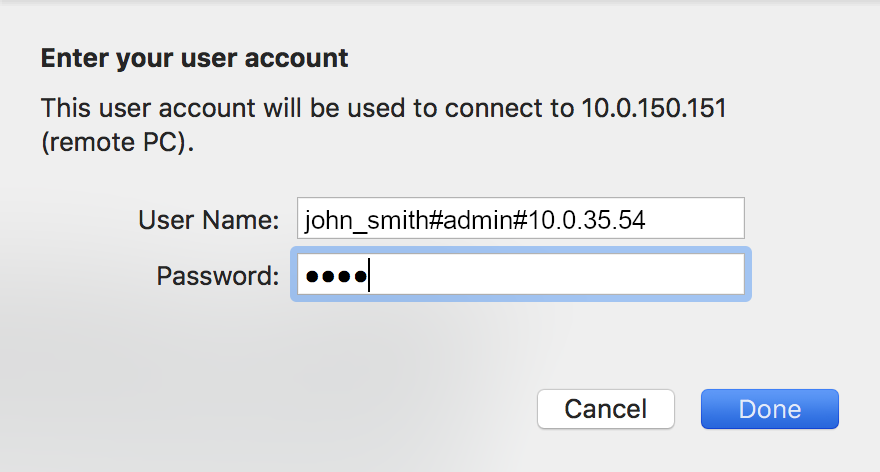
Enter user name along with account login on the target server (server login) and target server address (
john_smith#admin#10.0.35.54) and provide password.
Note
When connecting using the forward account, where the user name and server login are identical, the server login field may be omitted (e.g., john_smith##10.0.35.54).
Note
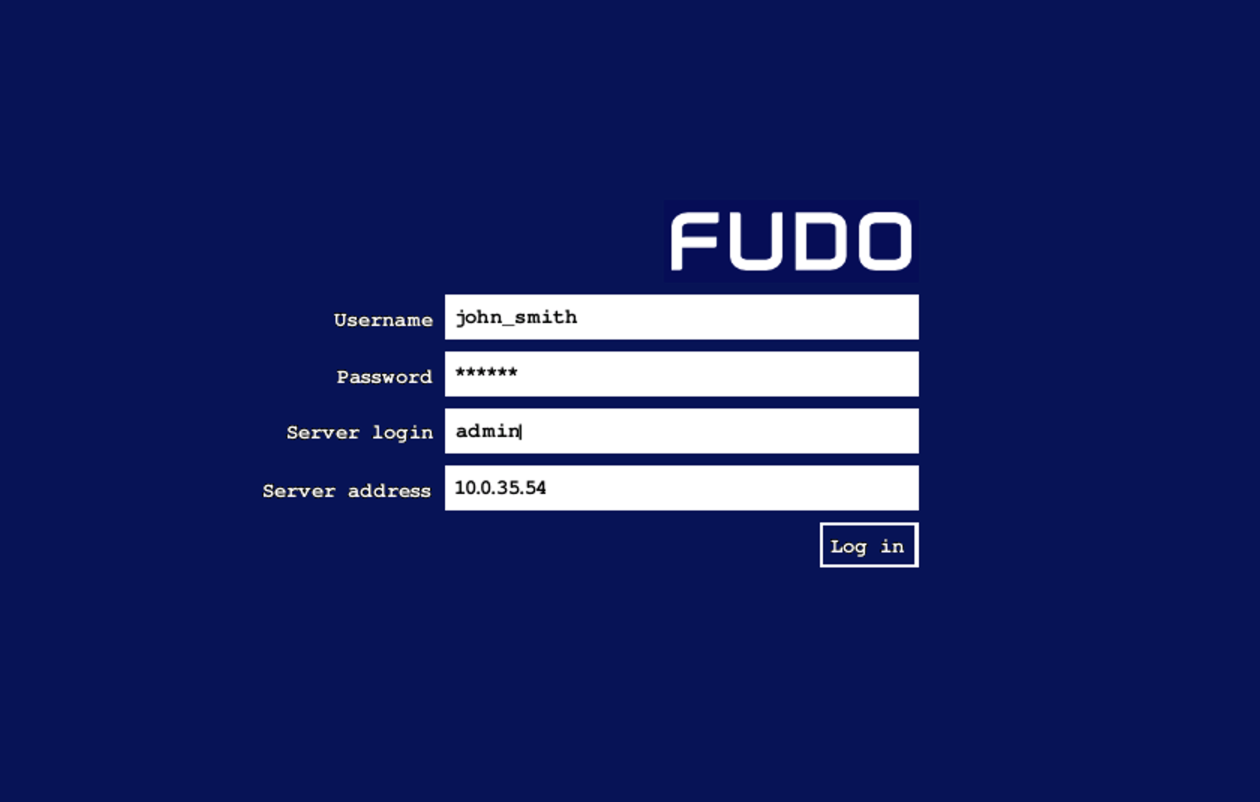
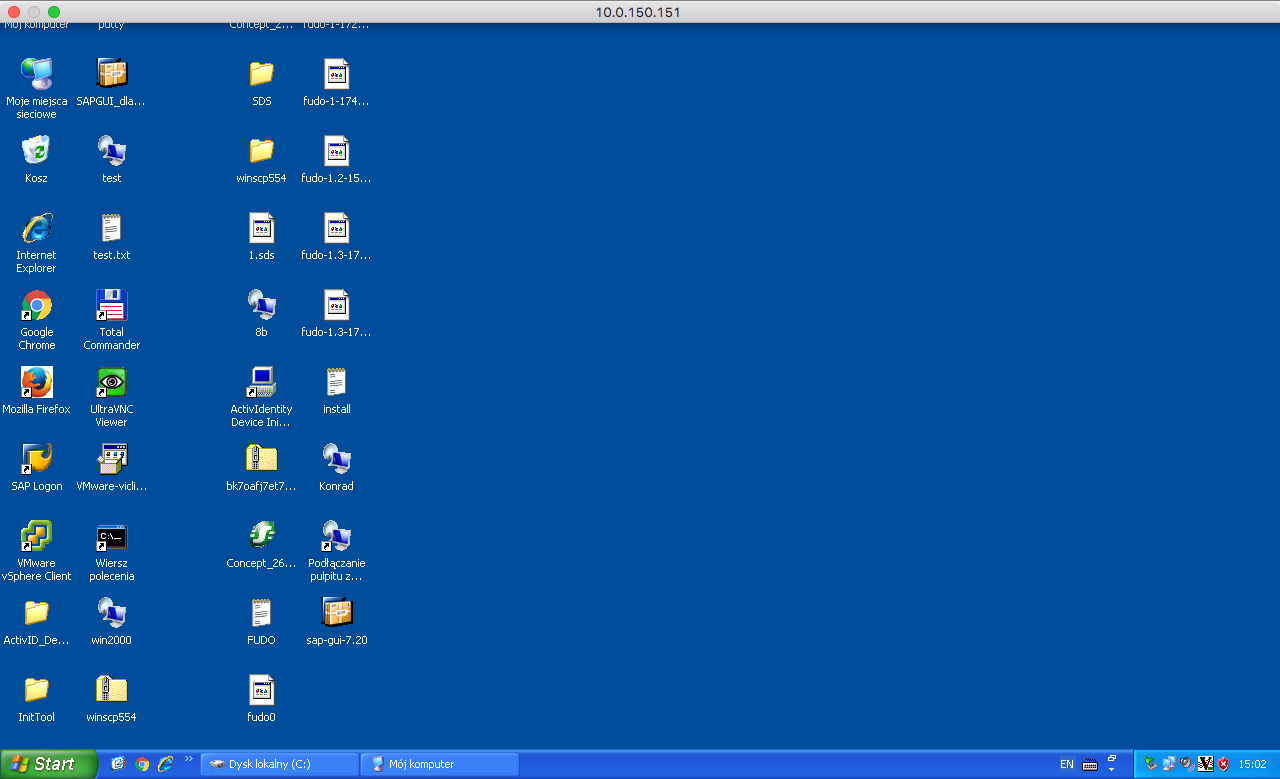
In case you do not specify login credentials, Fudo Enterprise will display the internal login screen to enter the account name along with the username and password.
When connecting using the forward account, where the Username and Server login are identical, the Server login field may be omitted on the login screen.
In case the specified account is not found, Fudo Enterprise will try to match the name with a server object. If a matching server is not found, system tries to match the string to a host’s DNS name.
Fudo Enterprise enables using a custom logo on the login screen for RDP and VNC connections. For more information refer to the Resources topic.
Viewing User Session
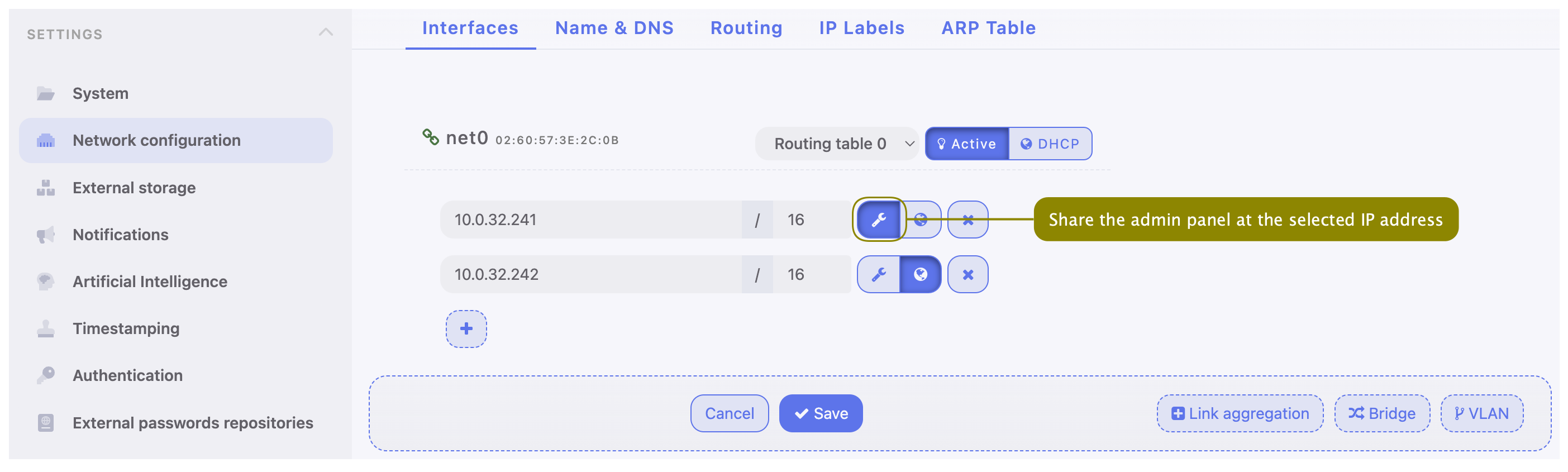
Open a web browser and enter the Fudo Enterprise administrator panel IP address.
Note
Make sure that the entered IP address has the control panel sharing option enabled in the settings.
Enter the login and password to login to the Fudo Enterprise administration panel.
Select > .
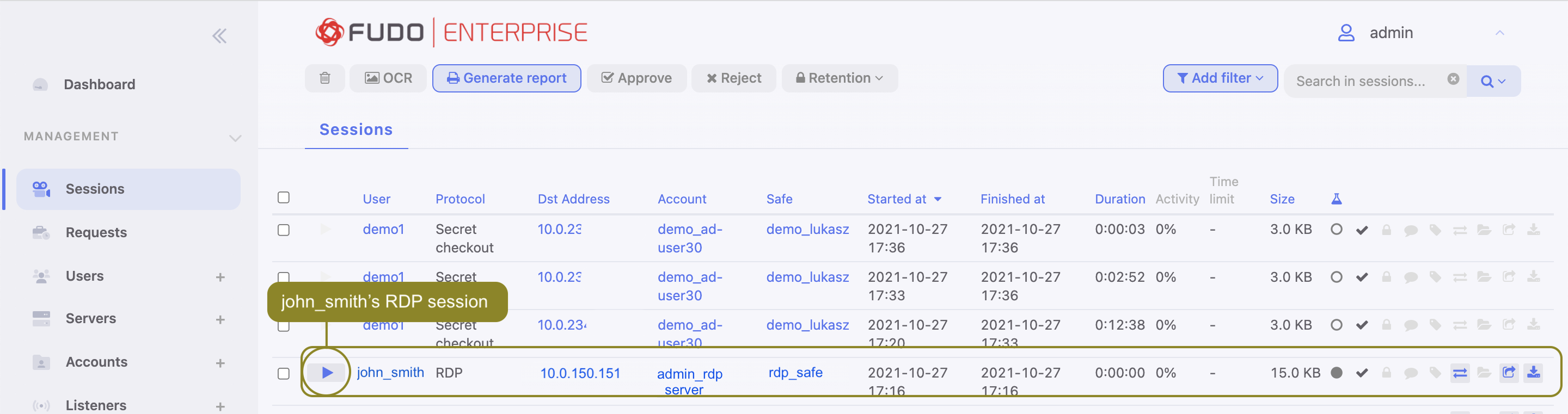
Find John Smith’s session and click i.
Related topics: