Thycotic Secret Server
Adding a new passwords repository
- Select > .
- Click .
- Specify object’s name.
- Provide the URL to the passwords server’s API.
Note
Specify HTTPS protocol within the URL so that communication with the server is encrypted.
- In the Server certificate field, provide the SSL certificate, or click the button to obtain it from the provider’s server.
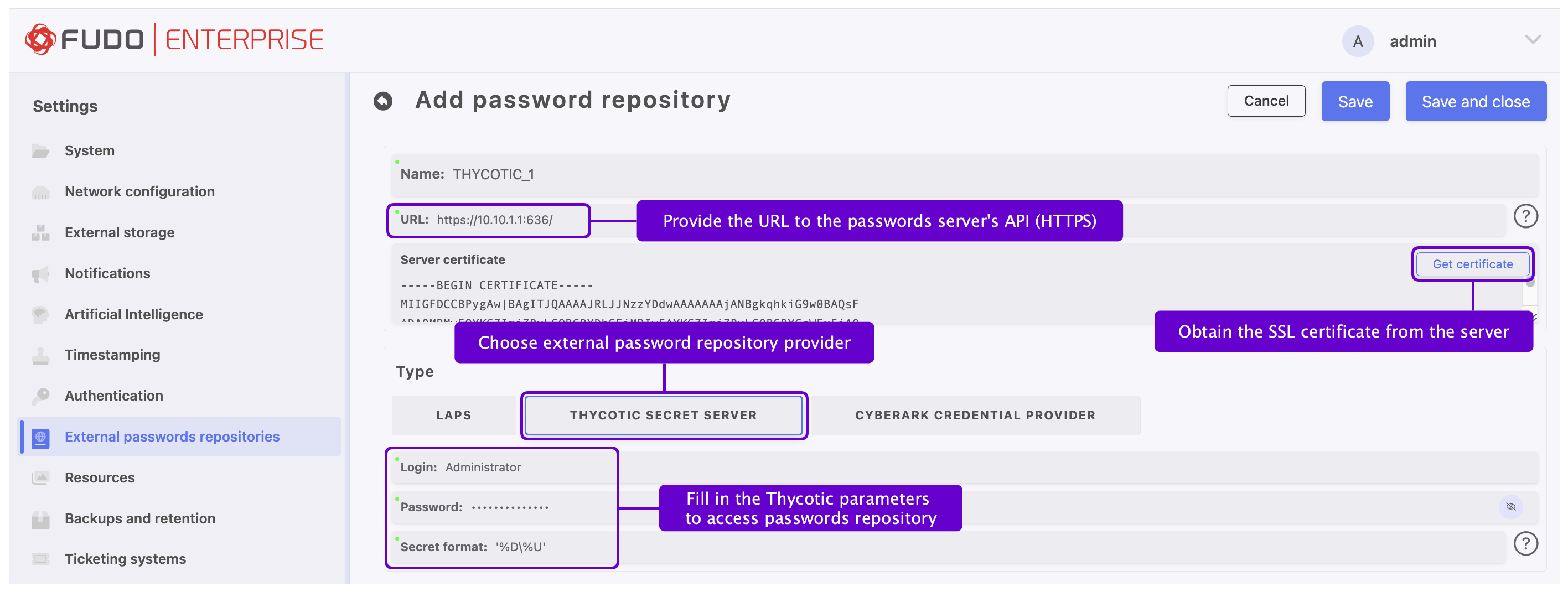
- Select button in the Type section.
- Enter user login allowed to access passwords repository.
- Provide user password in the Password field.
- Define secret string format used for identifying objects on Thycotic Secret Server.
Note
Secret format can be defined by using variables: %U - user name, %D - user domain, %S - server name., e.g., ‘%D%U’.
Click .
Assign external password repository to an account.
- Select > .
- Browse objects and click an account to access the settings form.
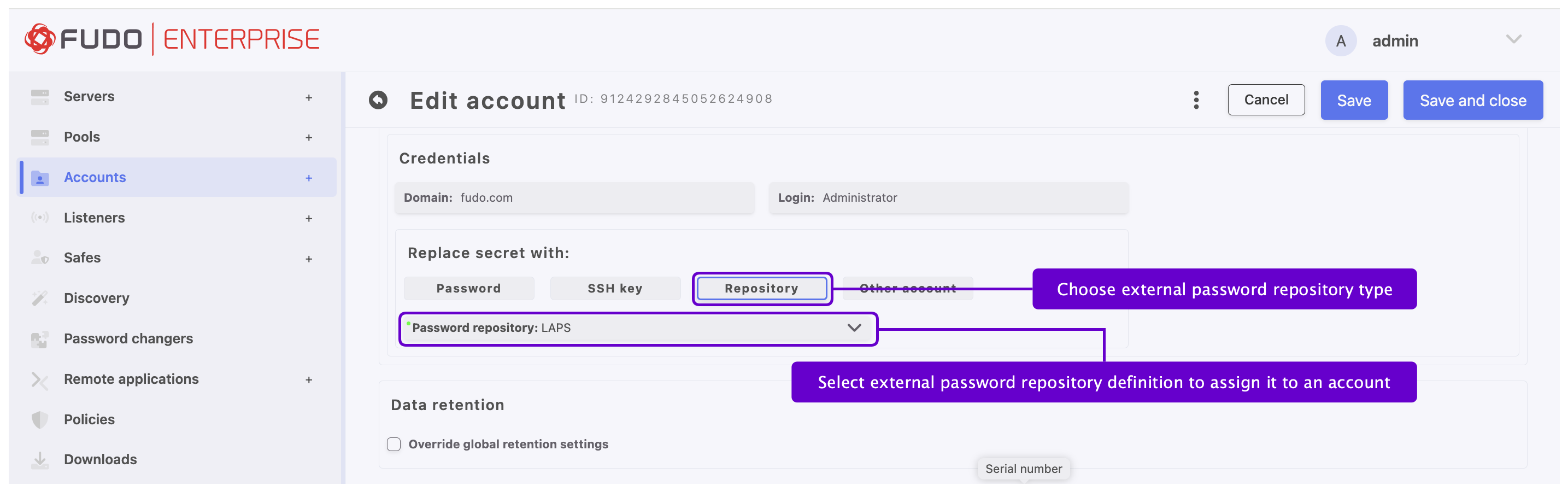
- In the Credentials section, on the Replace secret with field, select button.
- From the Passwords repository drop-down list select one of the previously defined password repositories.
- Click .
Editing a passwords repository
To edit a passwords repository definition, proceed as follows.
- Select > .
- Locate the repository definition and click on its name to edit its configuration as needed.
- Click .
Deleting a passwords repository
To delete a passwords repository definition, proceed as follows.
- Select > .
- Find desired repository definition, select it, and click the button.
- Click .
Note
You cannot delete password repository definition if it is assigned to any account.
Related topics: