Configuration Encryption
The Master key enables encrypting sensitive configuration parameters, system backups and external storage volumes. It also allows for recovering internal storage encryption key in case the pen drives containing encryption key are lost or damaged.
Note
The Master key is exported to PEM format and it is encrypted with SMIME using administrator’s public key/certificate.
It is essential to have the Master key exported and stored in a safe location.
In case the Master key has been compromised, you can invalidate it, which will result in generating a new one and re-encrypting the data.
Exporting Master Key
Select > .
Select the General tab.
In the Master Key section click
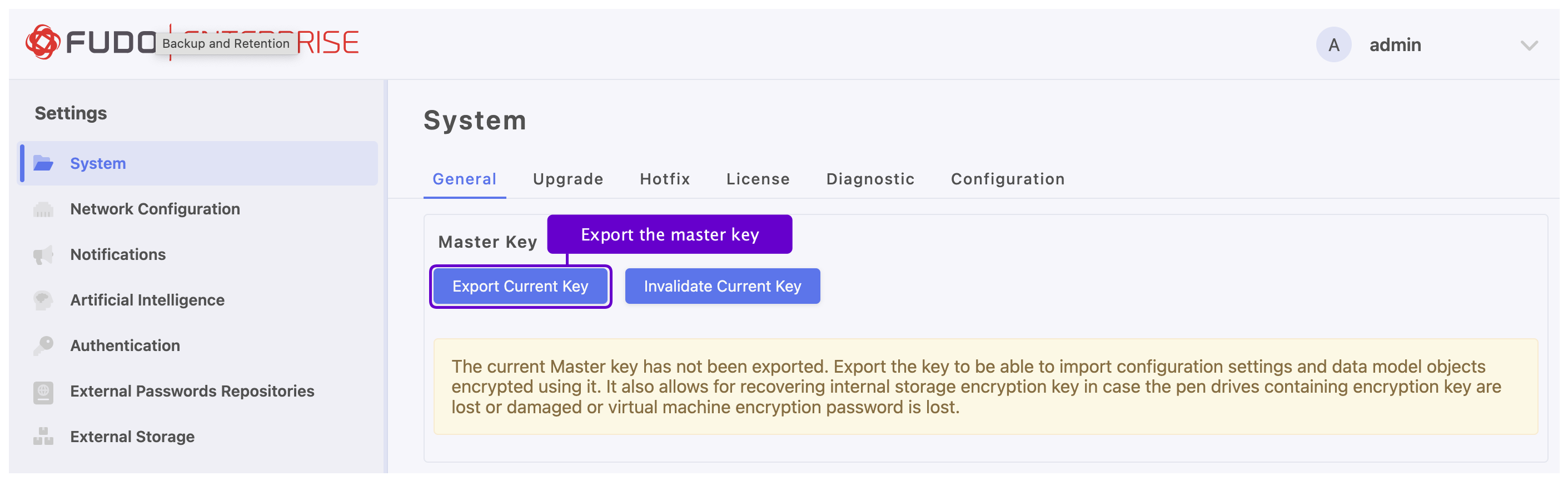
Click and browse the file system to find the certificate that will be used to encrypt the Master key.
Note
Generate the keys and the CSR (Certificate Signing Request) using openssl:
openssl req -newkey rsa:4096 -keyout privkey.pem -out req.pem
openssl req -nodes -newkey rsa:4096 -keyout privkey.pem -out req.pem # Do not prompt for a password.
Sign the CSR:
openssl x509 -req -in req.pem -signkey privkey.pem -out cert.pem
Click to save the the Master key file.
Invalidating current master key
In case the current Master key has been compromised, you can invalidate it. Invalidating the current Master key generates a new one and triggers data re-encryption.
Select > .
Select the General tab.
In the Master Key section click .
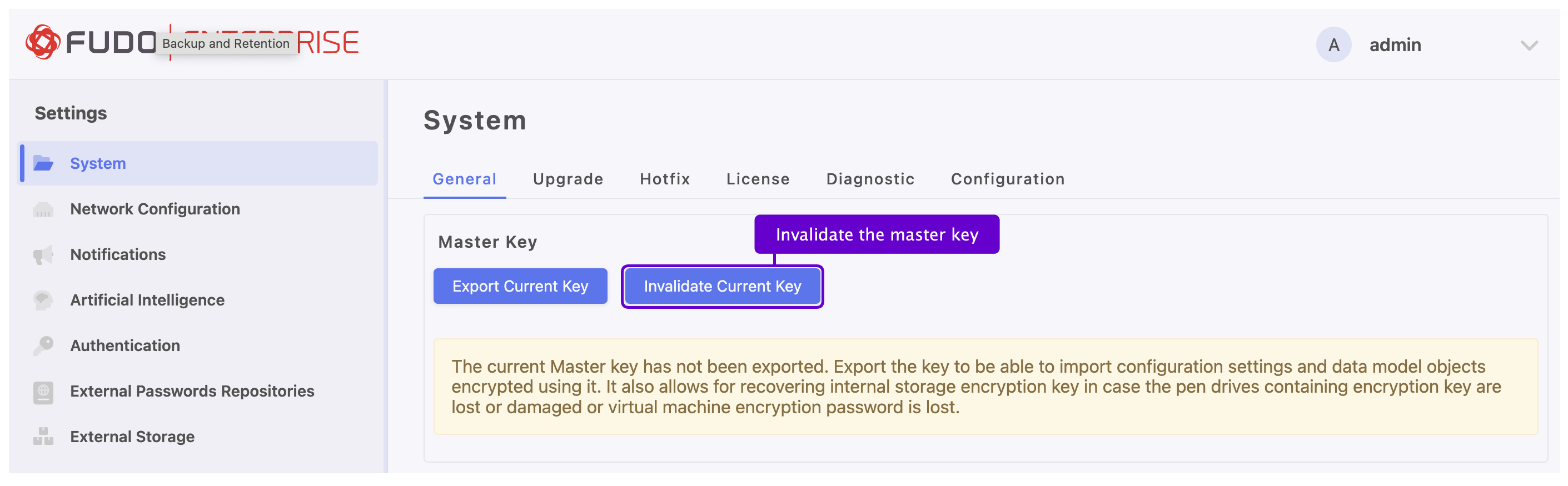
Click to proceed with invalidating the current key and re-encrypting the data.
Make sure to export the newly generated key.
Storing the master key in an HSM
Fudo Enterprise can use a Hardware Security Module (HSM) to provide hardware-backed protection for the Master key. HSM integration is optional - by default, Fudo Enterprise protects the Master key with its standard software-based mechanism.
Enabling HSM integration does not replace the Master key with an HSM-generated key. Fudo Enterprise keeps using its own Master key, which is protected using key wrapping: a Key Encryption Key (KEK) is generated and stored on the HSM as a non-exportable key, and the Master key is stored in a wrapped form, encrypted with that KEK. When Fudo Enterprise starts, it contacts the HSM over the PKCS#11 interface to unwrap the Master key, and the KEK remains protected within the HSM throughout the operation.
Note
Fudo Enterprise supports network-accessible HSM providers that provide a Linux x86-64 PKCS#11 client.
To configure HSM integration you need the PKCS#11 client package prepared for Fudo Enterprise (a
.tararchive), the token/partition label and the corresponding Crypto Officer (CO) PIN. Preparing the HSM, its application partition, the authentication policy and the client credentials is the responsibility of the administrator of the HSM environment.For a step-by-step guide covering the preparation of a Thales Luna Cloud HSM or Thales Luna Network HSM client package, refer to Master Key Protection with a Thales Luna HSM.
Enabling HSM protection
Note
Fudo Enterprise requires a CPU supporting the x86-64-v2 microarchitecture level (SSE4.2, SSSE3, POPCNT, CMPXCHG16B). Every physical x86 CPU since ~2009 (Intel Nehalem, AMD Bulldozer) supports x86-64-v2. If you are unable to see the Set up HSM configuration button in System > Settings, the hypervisor is presenting a generic vCPU model that masks these instructions.
Select > .
Select the General tab.
In the Master Key section click .
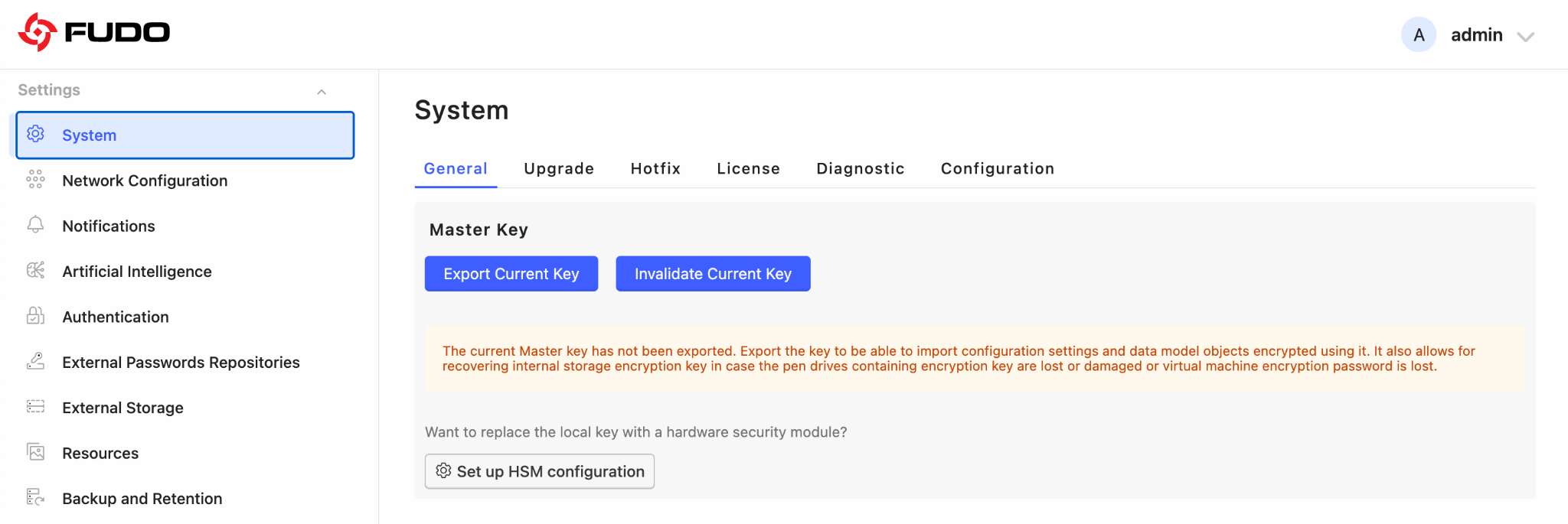
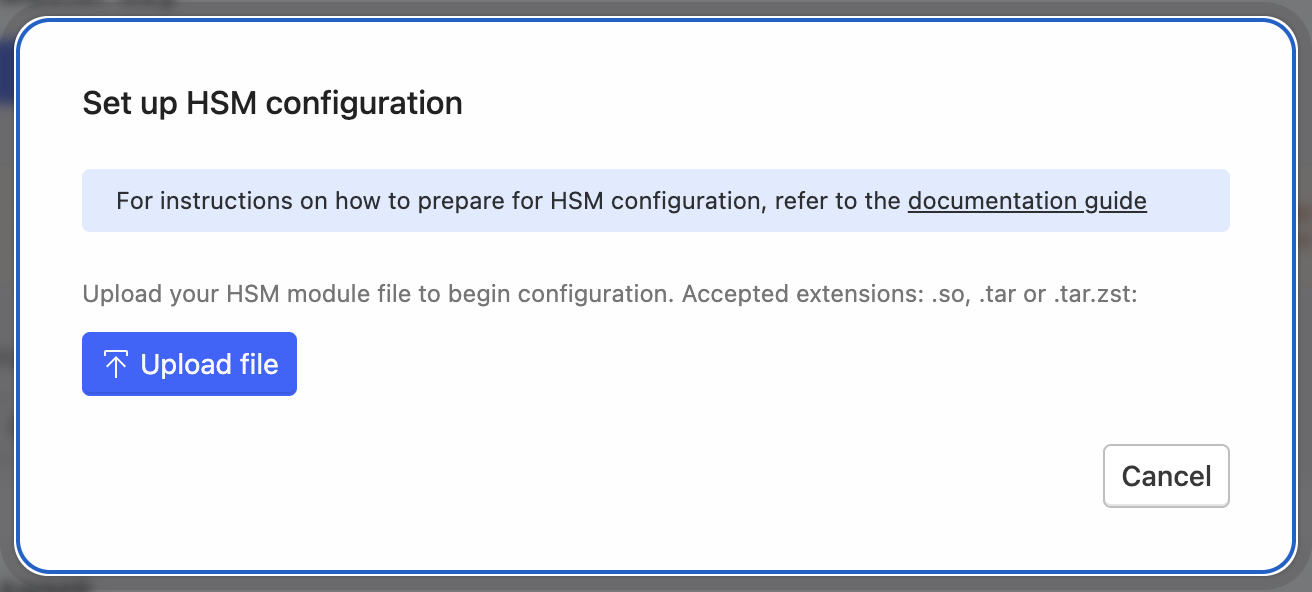
Click and select the archive prepared for your HSM client. Accepted file extensions are
.so,.tarand.tar.zst.
Configure the following fields:
Module - select the PKCS#11 library included in the uploaded package. For a standard Luna HSM client this is
libs/64/libCryptoki2.so.Token label - enter the label of the HSM partition prepared for Fudo Enterprise.
PIN - enter the Crypto Officer (CO) PIN associated with the partition.
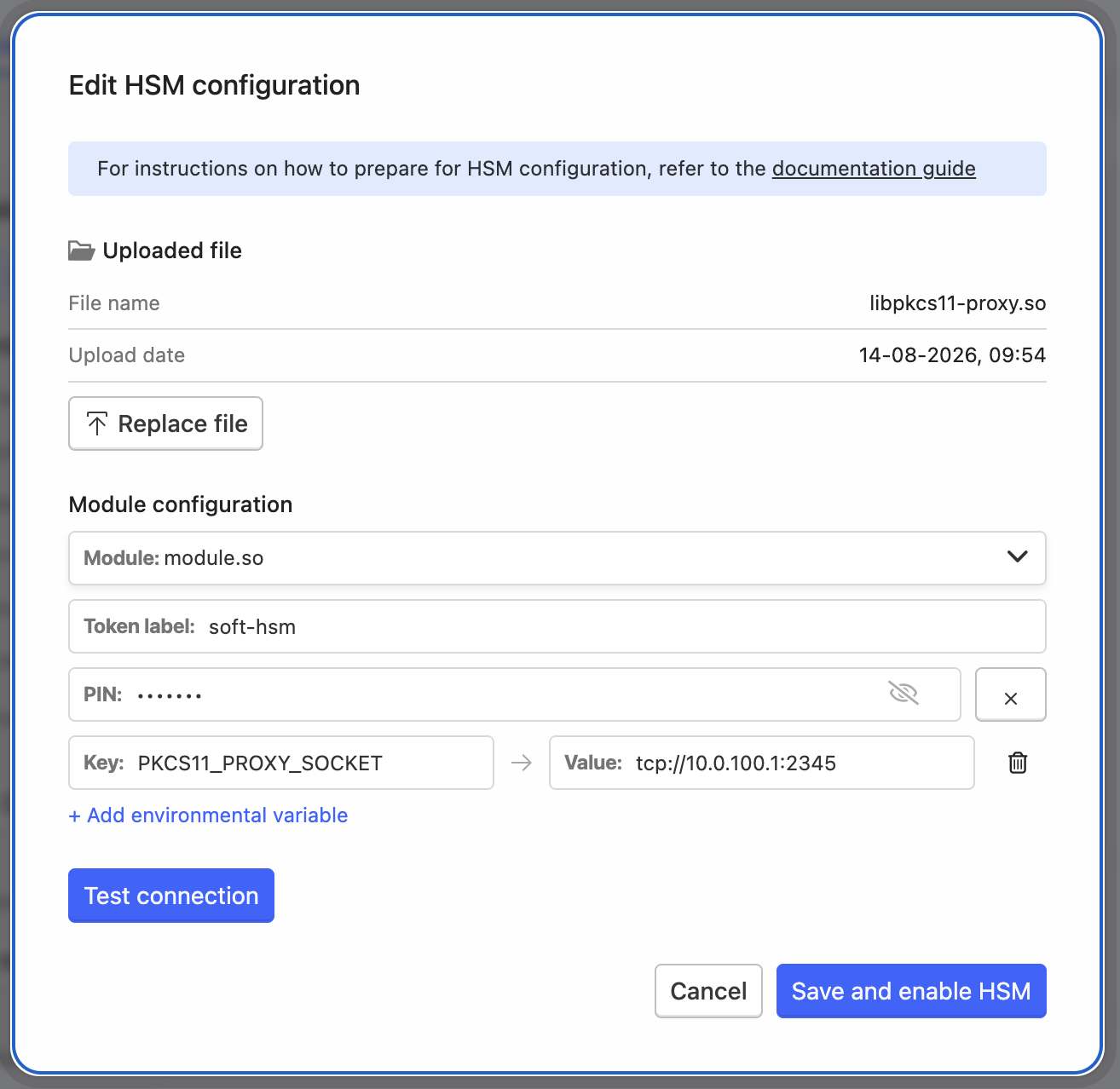
If the PKCS#11 module requires environment variables, click + Add environmental variable and provide them as Key and Value pairs.
Note
The names and values of the environment variables are defined by the documentation of the PKCS#11 module vendor.
Click to verify that Fudo Enterprise can reach the HSM with the provided credentials.
Once the test succeeds, click .
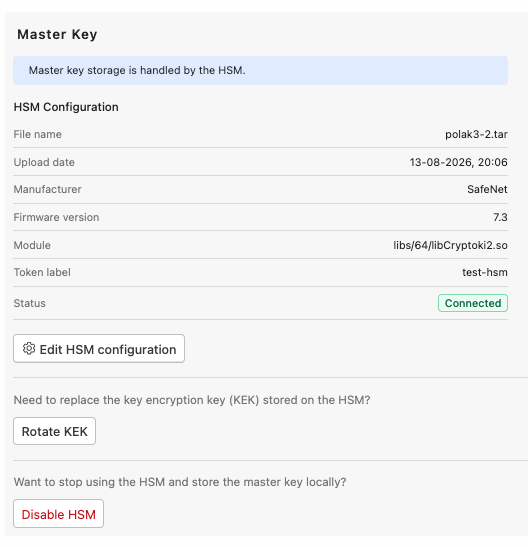
The Master Key section now displays the details of the uploaded package, the module and token label in use, and the connection status.
Rotating the key encryption key
The KEK (Key Encryption Key) is the HSM-protected key used to wrap the Master key. Rotating the KEK generates a new key encryption key on the HSM and re-wraps the Master key with it.
Note
Rotating the KEK does not change the Master key itself, so the data encrypted with the Master key is not re-encrypted.
Select > .
Select the General tab.
In the Master Key section click .
Disabling HSM protection
Disabling HSM protection unwraps the Master key and stores it locally again.
Warning
Disabling HSM protection requires access to the currently configured HSM. Do not decommission or disconnect the HSM before HSM protection has been disabled in Fudo Enterprise.
Select > .
Select the General tab.
In the Master Key section click .
Related topics: