Users Synchronization - User Directory
User is one of the fundamental data model entity. Only defined users are allowed to connect to monitored servers. Fudo Enterprise features automatic users synchronization service which enables importing users information from Active Directory servers or other servers compatible with the LDAP protocol.
Warning
It is required that LDAP server supports a memberOf parameter - an attribute that specifies the distinguished names of the groups to which this object belongs.
New users definitions and changes in existing objects are imported from the directory service periodically every 5 minutes. Deleting a user object from an AD or an LDAP server requires performing the full synchronization to reflect those changes on Fudo Enterprise. The full synchronization process is triggered automatically once a day at 00:00, or can be triggered manually.
Configuring Users Synchronization Service
Note
When Kerberos is enabled in Fudo Enterprise, synchronization with Active Directory uses the Kerberos protocol by default. This setup requires proper configuration of domain services and accurate system time synchronization. For more information, refer to the Kerberos Support for Active Directory section.
If you do not plan to use Kerberos, disable it in the Settings > Authentication > Global tab to continue using simple bind for synchronization. For more information, refer to the Kerberos Authentication Settings section.
To enable users synchronization feature, proceed as follows.
Select > .
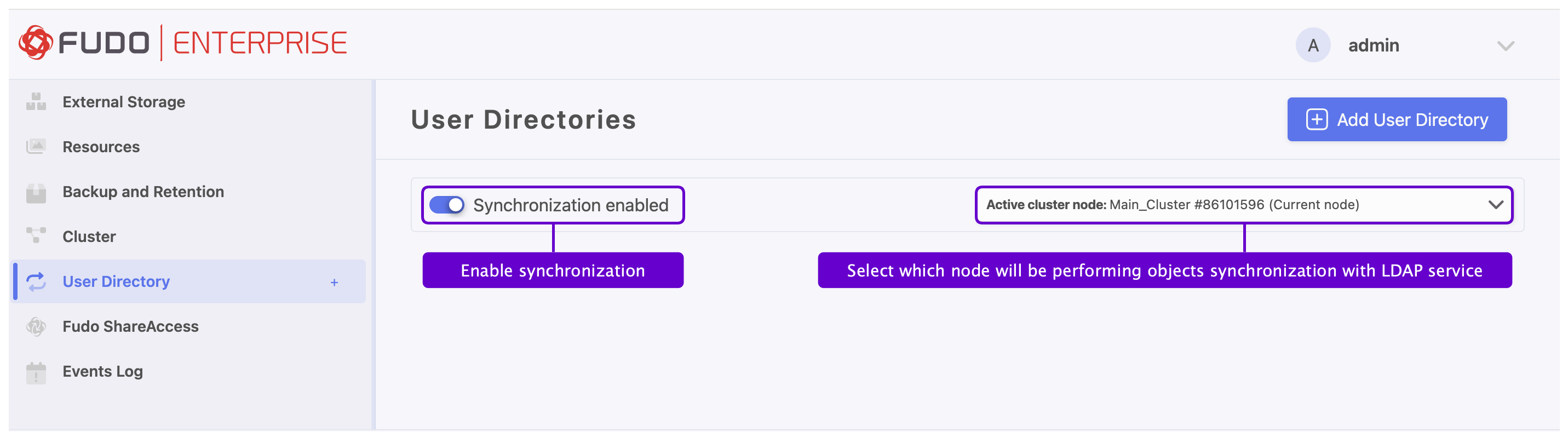
Select Synchronization enabled.
In case of cluster configuration, from the Active cluster node drop-down list, select which node will be performing objects synchronization with LDAP service.
Click .
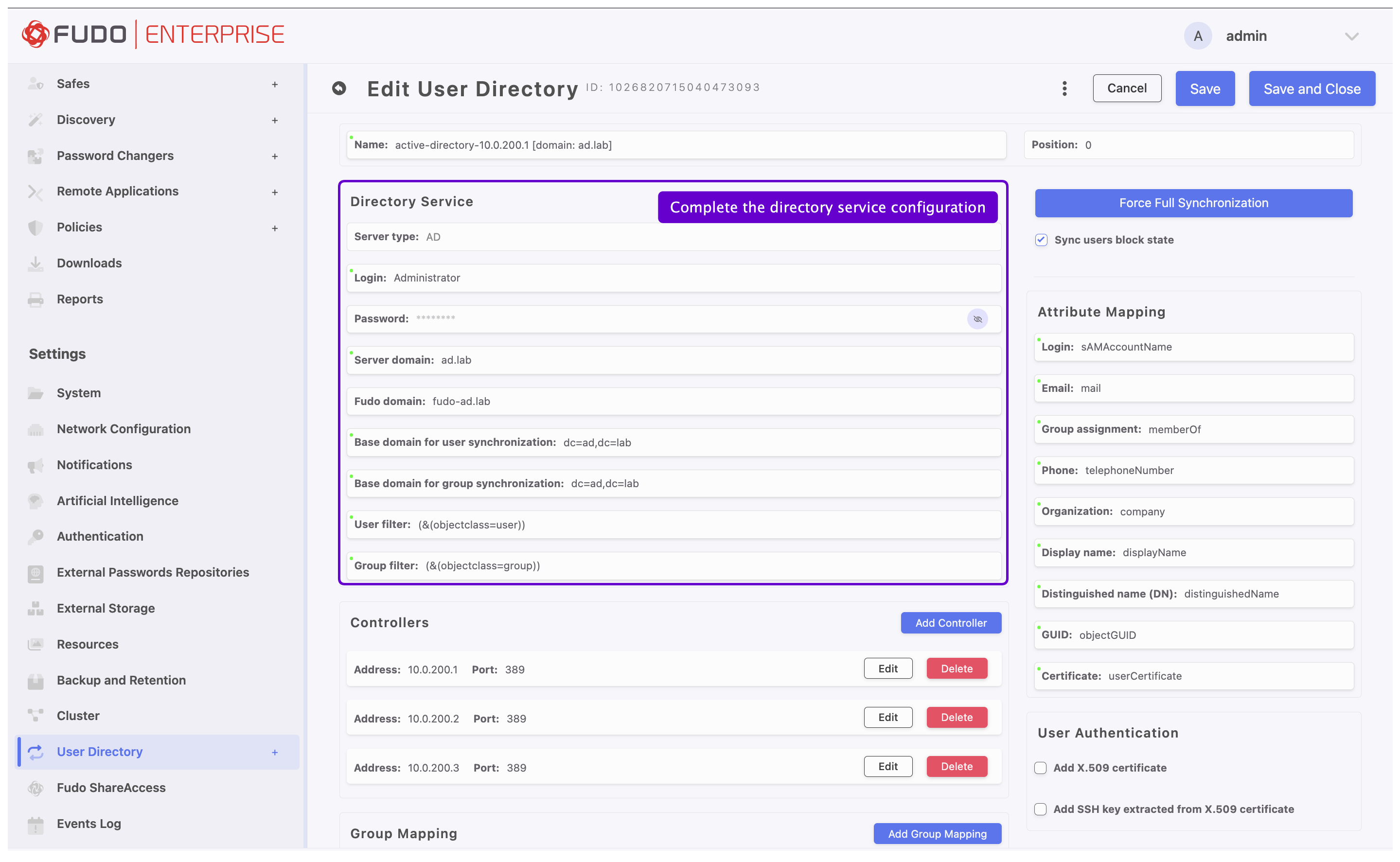
Enter a unique name for this configuration.
In the Position field, define the priority that determines the order in which the domains are queried.
Note
A lower number indicates a higher priority.
In the Directory Service section, select data source type from the Server type drop-down list.
Provide the user authentication information (login and password) to access user data on given server.
Enter domain name, to which imported users are assigned to.
Provide base DN parameter for users’ objects (eg.
DC=devel,DC=whl).Provide base DN for parameter groups’ objects (eg.
DC=tech,DC=whl).
Note
Do not include any whitespace characters in the DN parameter.
Define filter (or leave the default value) for user records, which are subject to synchronization.
Define filter (or leave the default value) for user groups, which are subject to synchronization.
Defining Directory Service Server
In the Controllers section, click to define directory service server.
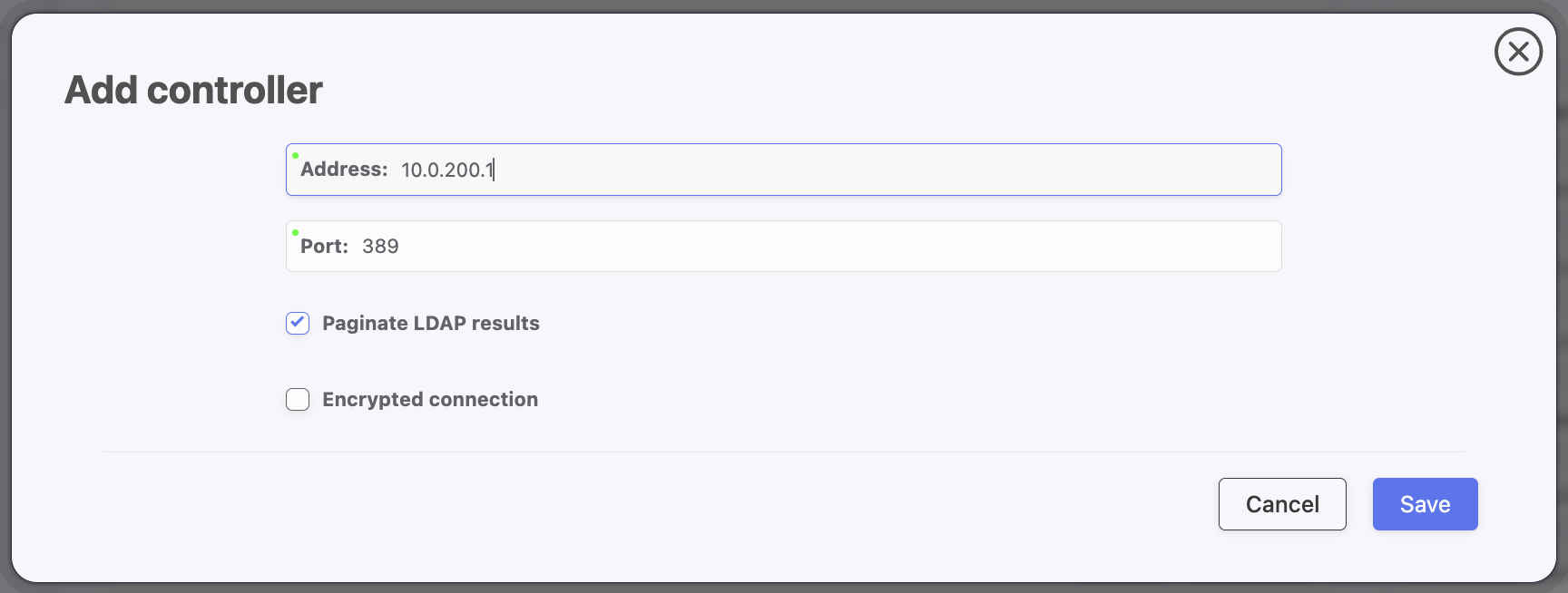
Provide IP address and port number.
Note
In case of TLS-encrypted connection, define LDAP server’s address using its full domain name (e.g. tech.ldap.com) instead of an IP address, to ensure the certificate is verified properly. Make sure that the given server name is included in certificate’s Common Name field.
Select the Page LDAP results option to enable paging.
Select the Encrypted connection option to enable encryption and upload the CA certificate.
Click .
Note
To add multiple controllers, repeat the steps described above.
Defining User Information Mapping
Note
Fields mapping enables importing users information from nonstandard attributes, e.g. telephone number defined in an attribute named mobile instead of the standard telephoneNumber.
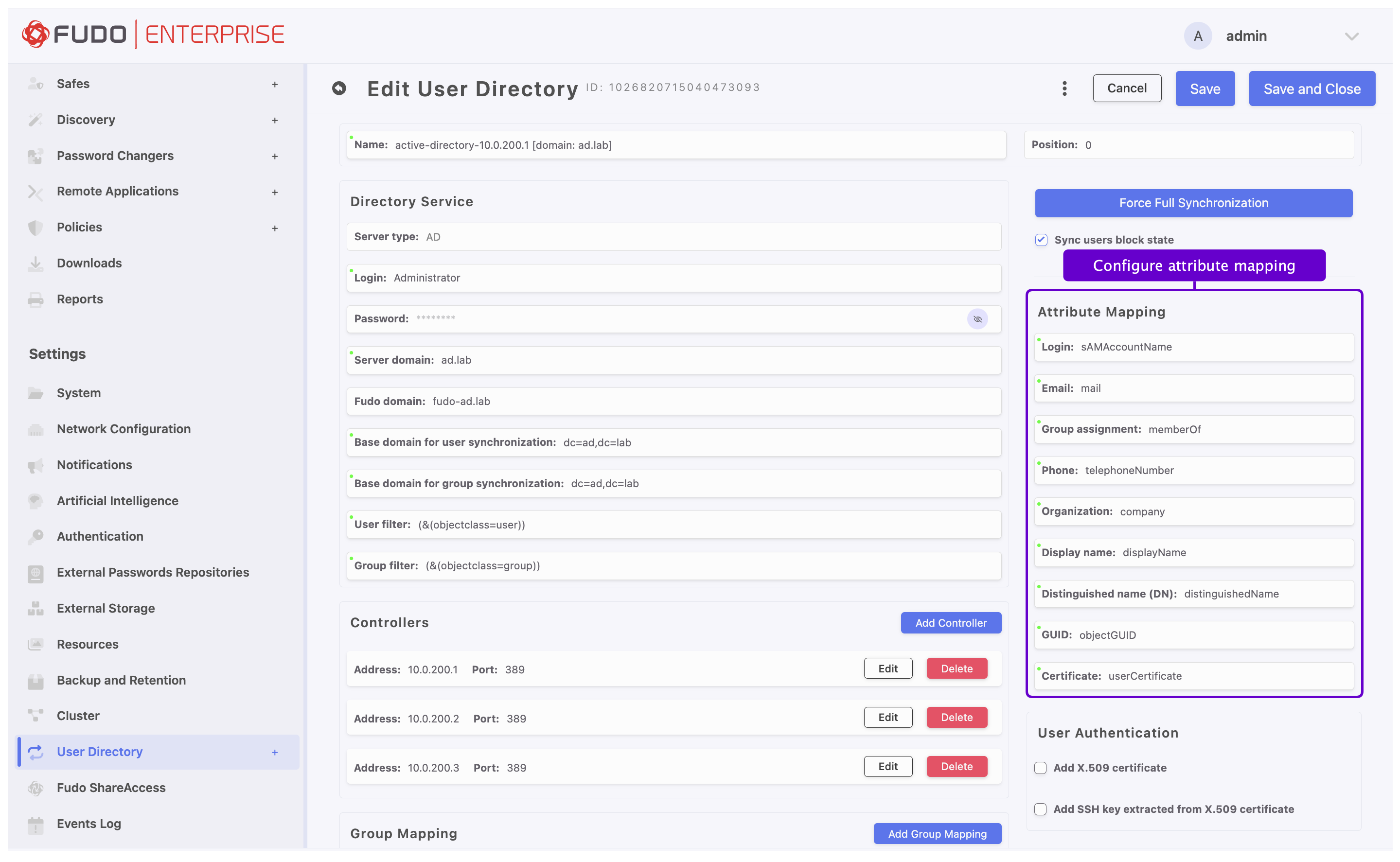
Select Sync users block state to automatically block local users’ accounts blocked in the directory.
Mapping External Groups to User Roles
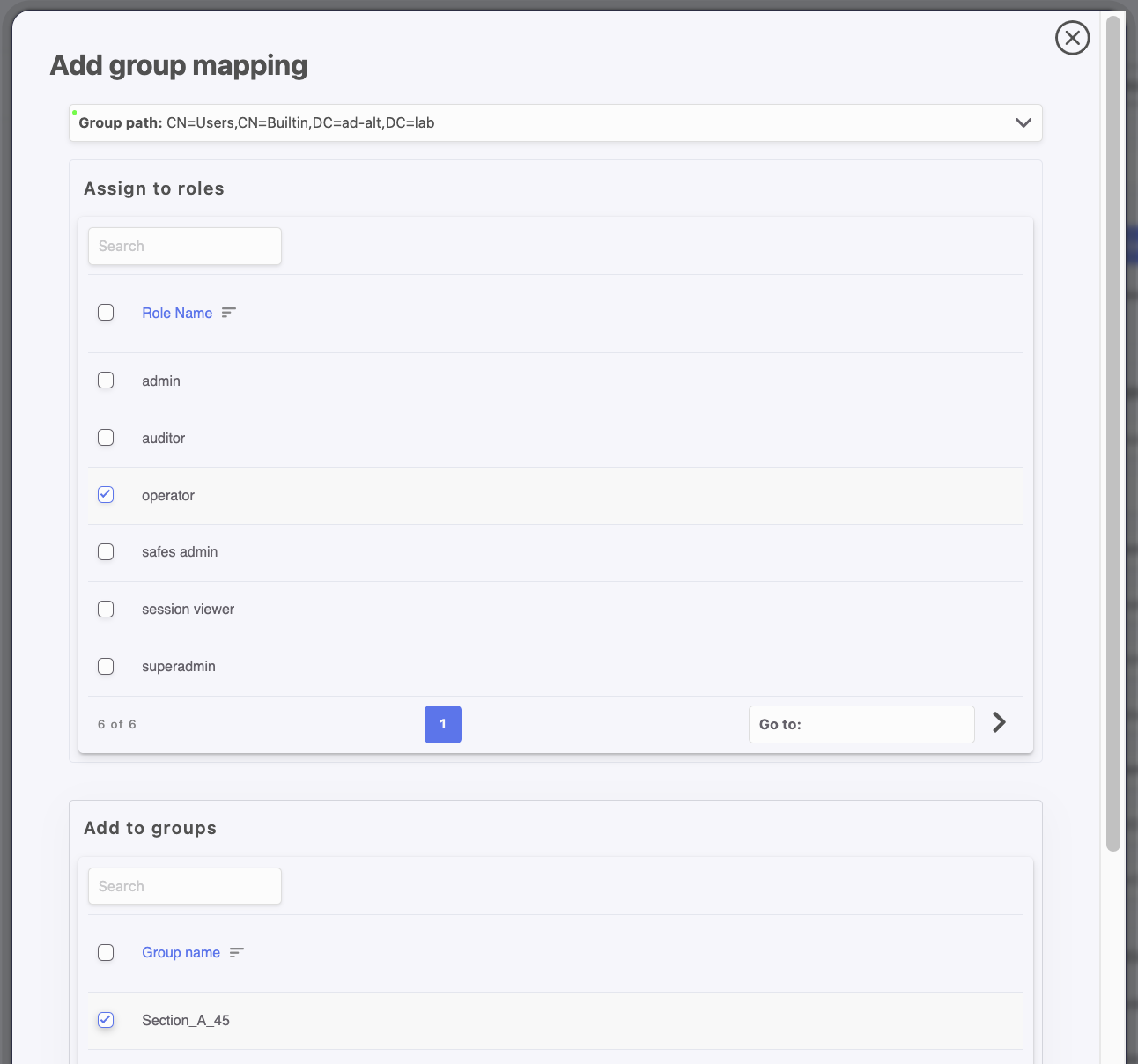
In the Group Mapping section, click to assign user groups to Fudo roles, Fudo groups, and external authentication methods.
In the Group path field, select the distinguished name (DN) of the group.
In the Assign to roles section, select the Fudo Enterprise roles to assign to users from this group.
In the Add to groups section, select the Fudo Enterprise groups to assign to users from this group.
In the Authentications section, select external authentication source to assign to users from this group.
Click .
Note
External authentication sources are assigned to users in the exact sequence they are defined in groups mapping. Thus if the same user is present in more than one group, Fudo Enterprise will be authenticating him against external authentication sources starting from those defined in the first group mapping defined.
For example:
A user is assigned to groups A and B. Group B is mapped to Safe RDP and has CERB and Radius authentication sources assigned. Group A is second in order and it is mapped to Safe SSH and has AD authentication source assigned.
Authenticating a user, Fudo Enterprise will send requests to external authentication sources in the following order:
CERB.
Radius.
AD.
In the User Authentication section, select the Add X.509 certificate option to retrieve user’s certificate and assign it as one of user’s authentication methods.
Select the Add SSH key extracted from X.509 certificate option to retrieve user SSH key from certificate and assign it as one of user’s authentication methods.
To save the configuration, click in the upper-right corner of the screen.
Note
The option enables processing changes in directory structures which cannot be processed during periodical synchronization, eg. deleting a defined group or deleting a user.
The full synchronization process is triggered automatically once a day at 00:00, or can be triggered manually.
Use diagnostics tools to troubleshoot problems with LDAP configuration.
Fudo Enterprise supports nested LDAP groups.
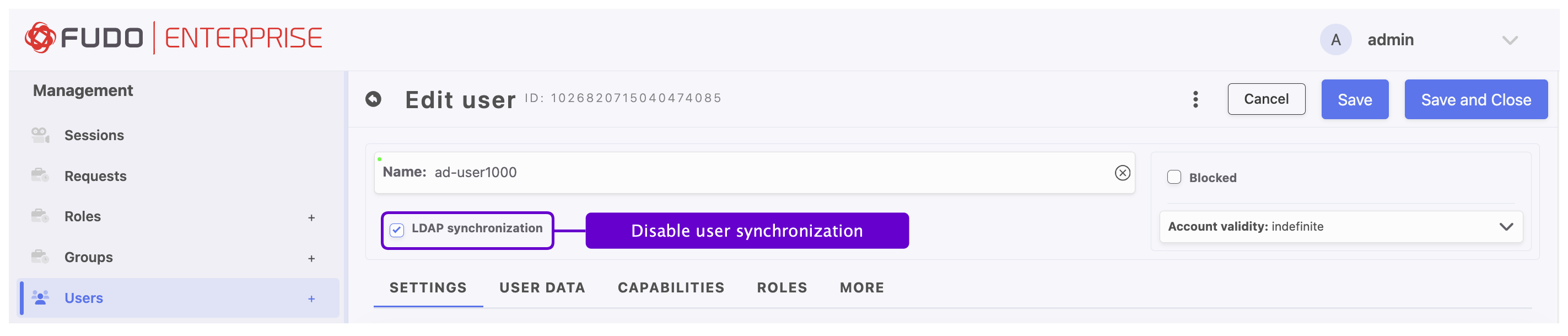
Disabling Data Synchronization for User
Fudo Enterprise allows synchronizing the user’s data with the LDAP service source. The Synchronize with LDAP option is responsible for this process. When this option is checked for the given user, an administrator can’t edit the user’s data manually but can add or edit their authentication methods. If the Synchronize with LDAP option is unchecked, the user is no longer synchronized with LDAP source, and can be edited by an administrator. The administrator can still check the option and reinstate synchronization with LDAP, but any change made manually will disappear with the next synchronization attempt. Only the added authentication methods won’t change.
Kerberos Support for Active Directory
When Kerberos authentication is enabled in Settings > Authentication > Global and the User Directory server type is set to AD (Active Directory), synchronization uses the Kerberos protocol.
Note
If you do not plan to use Kerberos, disable it in the Settings > Authentication > Global tab to continue using simple bind for synchronization. For more information, refer to the Kerberos Authentication Settings section.
If you plan to use Kerberos authentication for User Directory synchronization, ensure the following:
Port 88 (Kerberos) is open on the firewall — otherwise, synchronization will fail.
The Fudo hostname includes the appropriate domain suffix (eg.
fudo.qa.kerberos).The DNS server from the same domain is properly configured.
The controller address matches the SPN (Service Principal Name) of the LDAP server defined in the domain.
If your current configuration uses an IP address instead of a hostname, update it to use the correct hostname.
Warning
Fudo Enterprise supports only the 0 and/or 1 options for the following LDAP security policies on Windows domain controllers:
Domain controller: LDAP server channel binding token requirements (Registry Setting: LdapEnforceChannelBinding)
Domain controller: LDAP server signing requirements (Registry Setting: LDAPServerIntegrity)
If either policy is set to value 2, synchronization will fail.
Related topics: