FIDO2 Authentication Settings
Note
FIDO2 authentication functionality enables secure passwordless login using hardware keys, biometrics, or device-based methods.
FIDO2 is supported for logging into the Admin Panel and User Access Gateway.
Each user can only configure the FIDO2 method for their own account.
Configure Global FIDO2 Settings
To configure FIDO2 settings:
Select > > tab.
Go to the FIDO2 section.
In the User Verification field, select the user verification level:
Preferred - The system prefers user verification but will accept authentication without it
Required - User verification is mandatory (fingerprint, PIN, key touch)
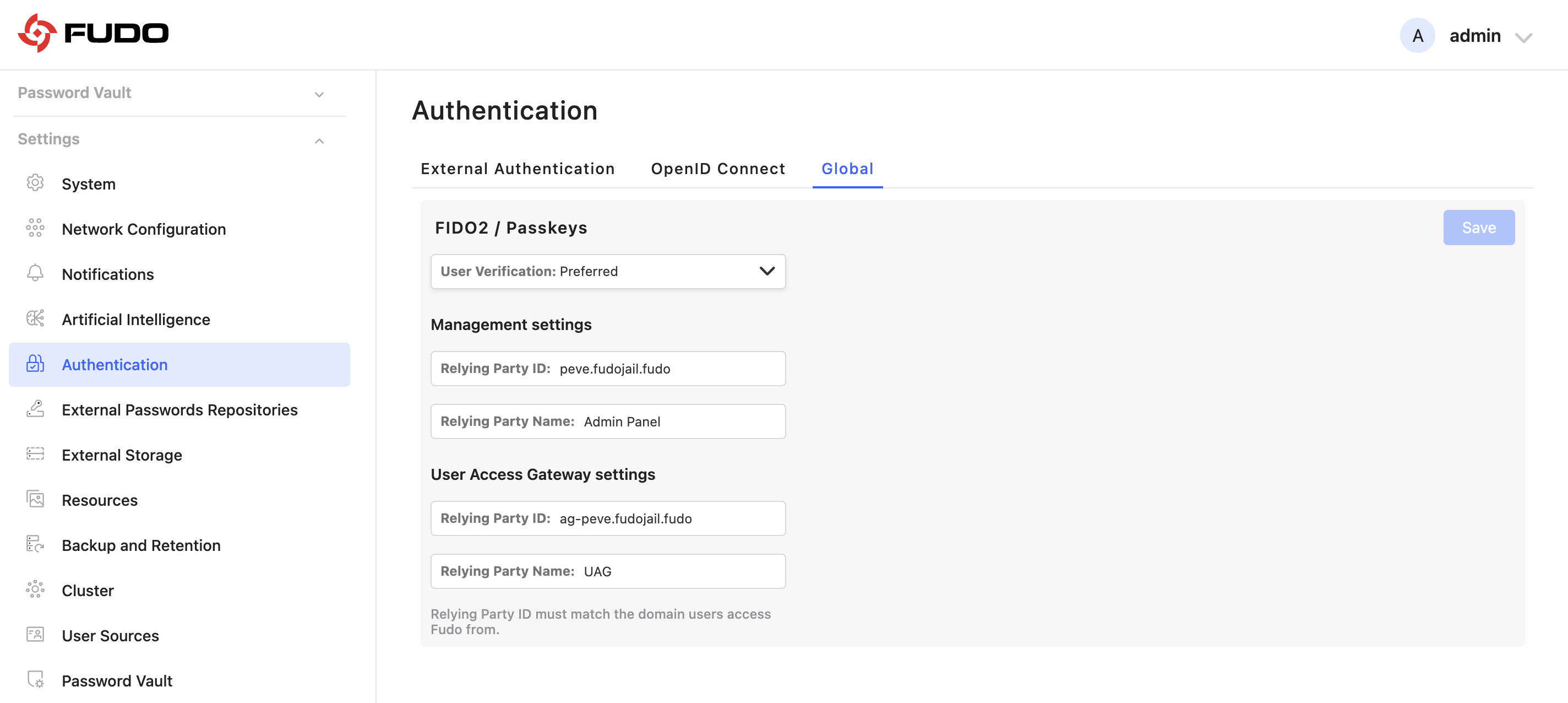
In the Relying Party field, enter the full hostnames for which the SSL certificate is issued.
Click .
Warning
The HTTPS certificate must be valid for all hostnames used to open the Admin Panel and the User Access Gateway. Certificates are uploaded under Settings > System, in the Fudo Admin Panel HTTPS certificate and User Access Gateway HTTPS certificate fields (see Certificates).
If floating IP addresses are used, the certificate must include all hostnames under which the system may be reachable - otherwise FIDO2 login will only work for some of the addresses.
For clusters, deploy the same certificate to all nodes - it is not automatically copied.
If the list of Access Gateway allowed hosts is filled, the host names used for FIDO2 login in the User Access Gateway must be on it.
Note
FIDO2/Passkey works only when the login page is opened using a hostname (FQDN), not an IP address. For example, it works at https://fudo.example.com/ but not at https://192.168.1.10/ - an IP address is not a valid Relying Party ID, so the browser will not register or use a Passkey.
The value in the Relying Party field (Relying Party ID) must be identical to the hostname the user opens the login page on in the browser, or a parent domain of it. Enter the hostname only, without the https:// prefix and without a port number (e.g. fudo.example.com).
If the Relying Party value does not match the current address, the browser rejects the login with a message similar to:
“The relying party ID is not a registrable domain suffix of, nor equal to the current domain.”
In this case, adjust the Relying Party field to match the address the login page is actually served from.
Warning
Changing the Relying Party value invalidates all previously registered Passkeys - they are cryptographically bound to the previous Relying Party ID. After changing the address, users must register their keys again.
Add Passkey Method for User
To add a FIDO2/Passkey method for a user:
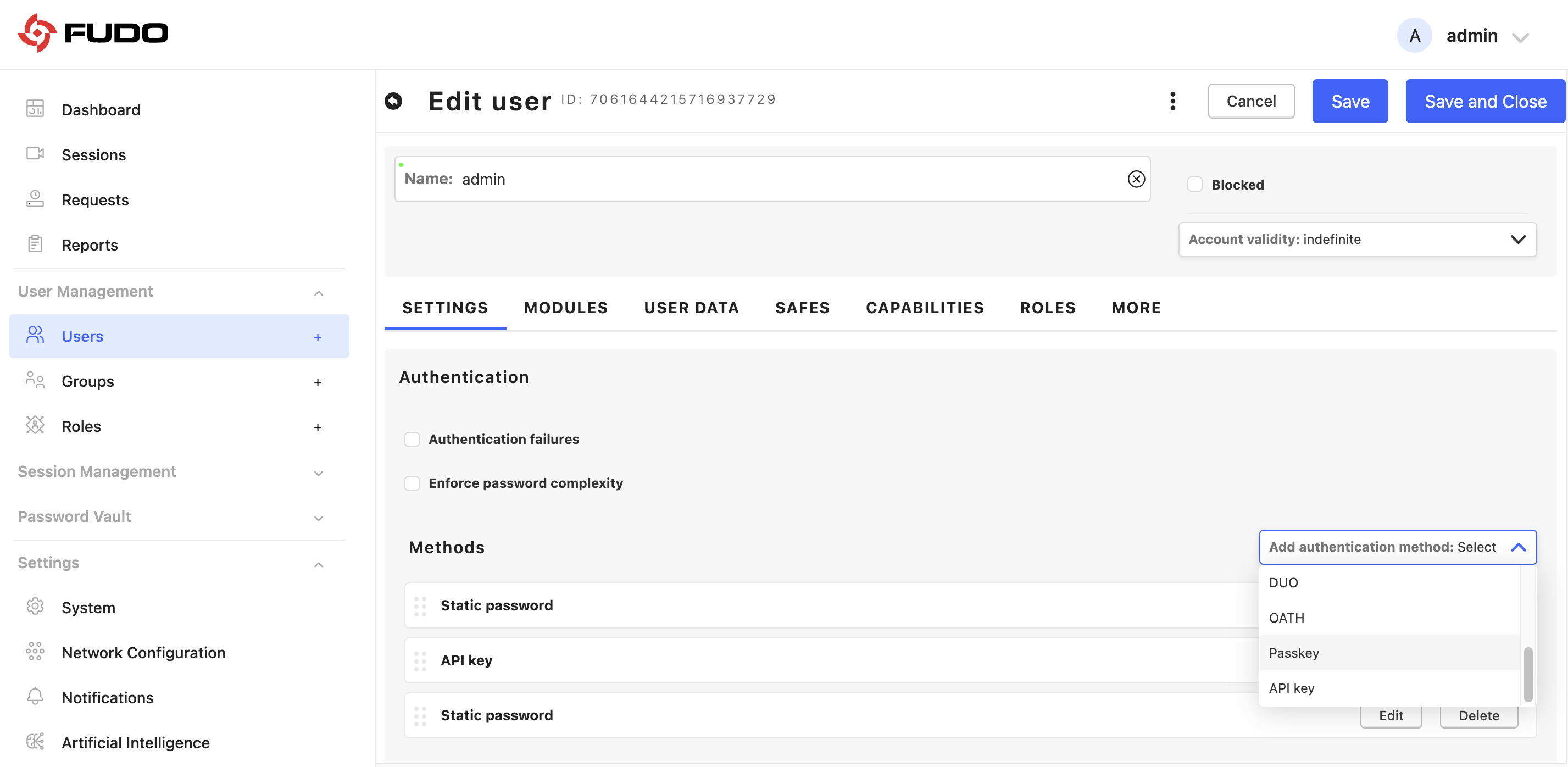
Navigate to > .
Edit the user account.
In the authentication methods section, click .
Select Passkey.
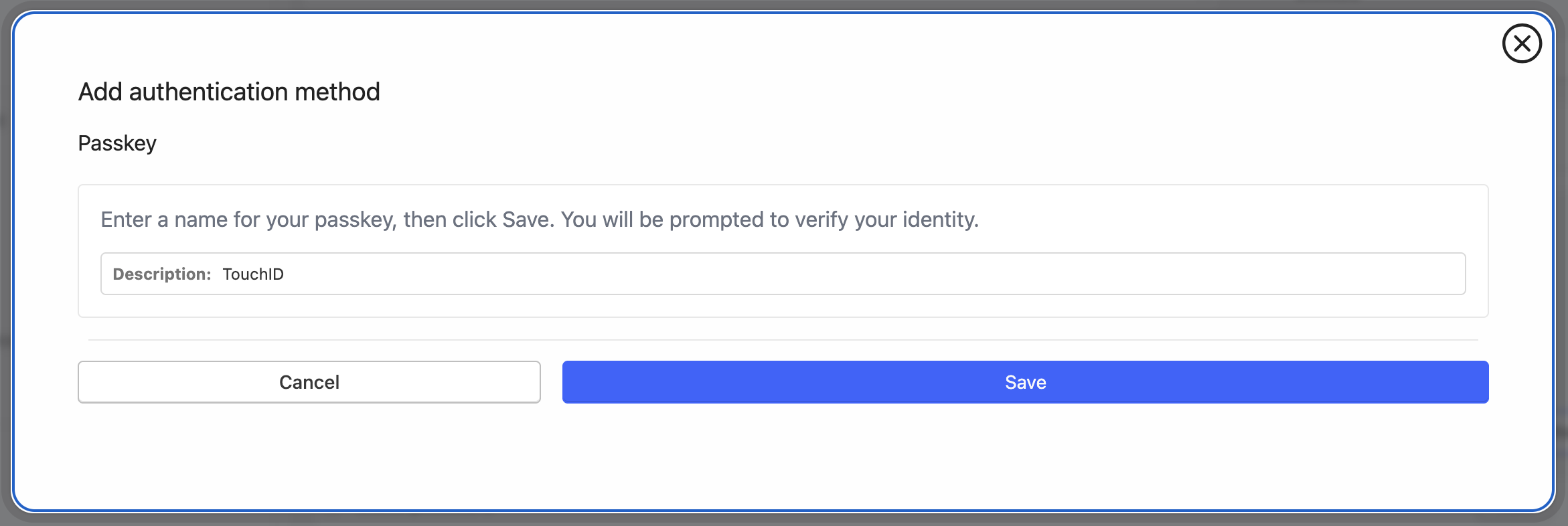
Enter a name for the authentication method being added and click . You will be prompted to verify your identity.
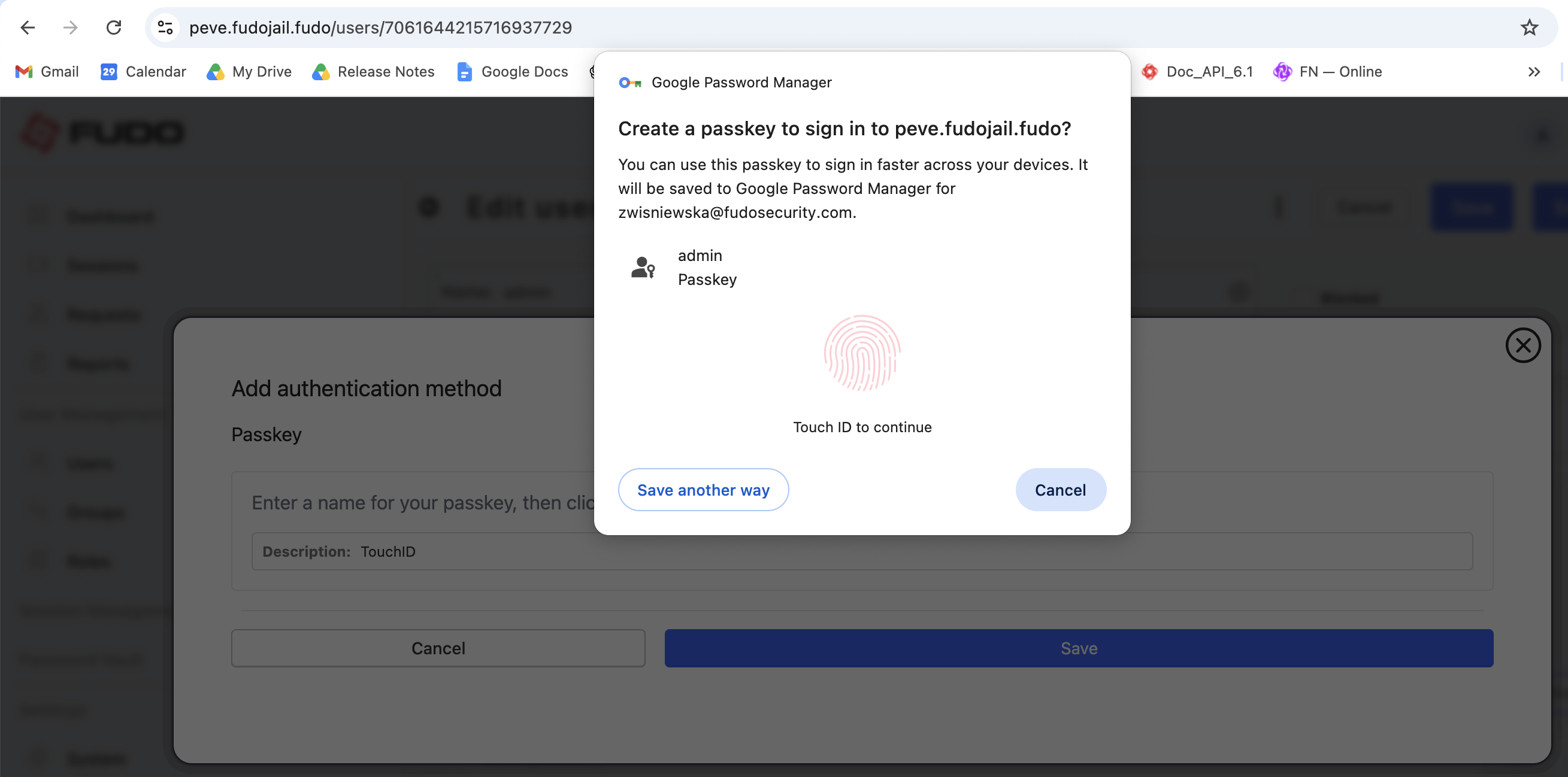
Follow the browser instructions:
Choose your authentication method (hardware key, biometrics, password manager)
Confirm your identity (touch the key, use fingerprint, Face ID)
Save the Passkey
Click to save the configuration of the new authentication method for the user.
Log in Using FIDO2
After configuring a FIDO2 method:
On the login page, enter your username.
Click the button.

Confirm your identity using the configured method.
The system will automatically verify the cryptographic signature and grant access.
Note
The Login with Passkey button only appears when the user has a FIDO2 method configured.
Users can only configure FIDO2 for their own accounts.
Passkeys created in the Admin Panel cannot be used in the User Access Gateway.
Related topics: