Azure Key Vault
Fudo Enterprise can retrieve secrets from a Microsoft Azure Key Vault and use them as passwords for monitored accounts.
Adding a new passwords repository
Note
In order to add an Azure Key Vault password repository in Fudo Enterprise you have to provide the following parameters:
the Key Vault URL, e.g.,
https://<vault-name>.vault.azure.net/,the Tenant ID of the Azure Active Directory tenant,
the Client ID of the application (service principal) authorized to read secrets from the vault,
the Client secret generated for that application.
Select > .
Click .
Specify object’s name.
Provide the Key Vault URL (HTTPS).
In the CA certificate field, provide the CA certificate used to validate the HTTPS connection to the Key Vault, or upload it from a file.
Select button in the Type section.
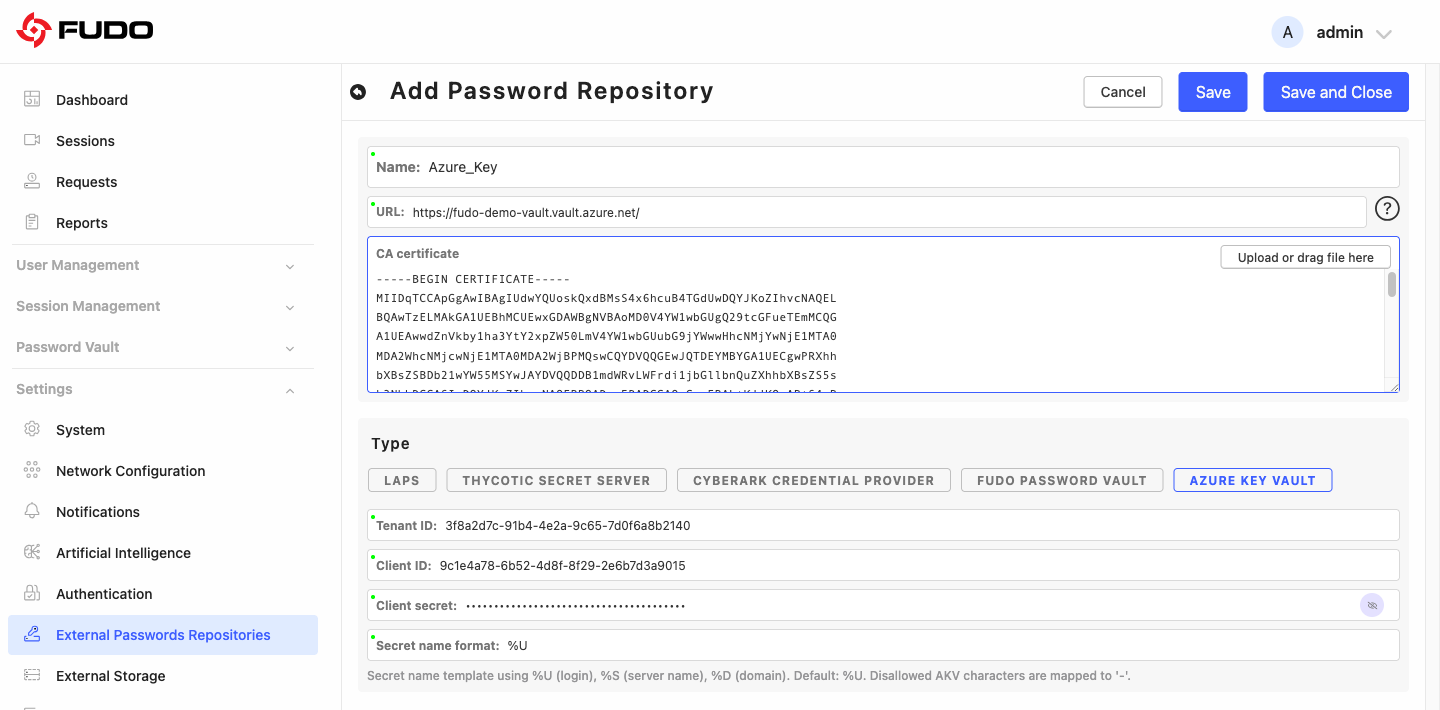
Provide the Tenant ID of the Azure Active Directory tenant.
Provide the Client ID of the application (service principal) authorized to read secrets from the vault.
Provide the Client secret generated for that application.
Define the Secret name format - the template used to build the name of the secret looked up in the Key Vault.
Note
The Secret name format supports the following variables: %U (login), %S (server name), and %D (domain). The default value is %U. Characters that are not allowed in Azure Key Vault secret names are automatically replaced with -.
Click .
Assign external password repository to an account.
Select > .
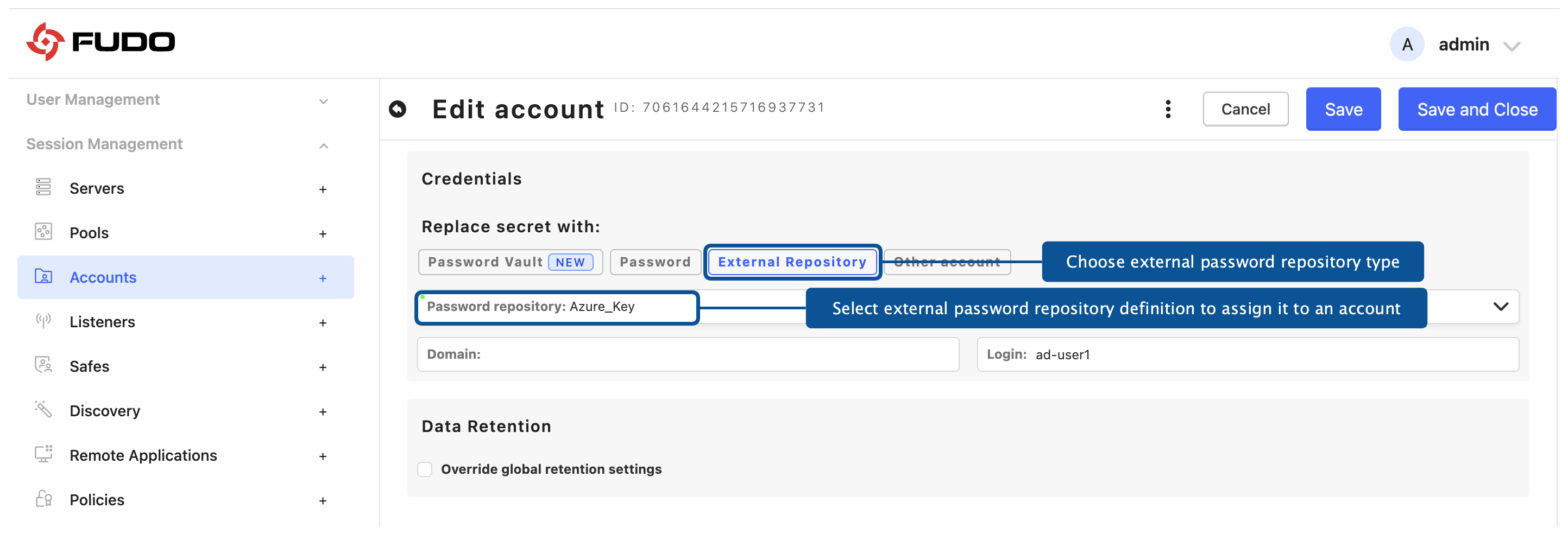
Browse objects and click an account to access the settings form.
In the Credentials section, on the Replace secret with field, select button.
From the Passwords repository drop-down list select one of the previously defined password repositories.
Click .
Editing a passwords repository
To edit a passwords repository definition, proceed as follows.
Select > .
Locate the repository definition and click on its name to edit its configuration as needed.
Click .
Deleting a passwords repository
To delete a passwords repository definition, proceed as follows.
Select > .
Find desired repository definition, select it, and click the button.
Click .
Note
You cannot delete password repository definition if it is assigned to any account.
Related topics: