Creating a safe
Warning
Data model objects: safes, users, servers, accounts and listeners are replicated within the cluster and object instances must not be added on each node. In case the replication mechanism fails to copy objects to other nodes, contact technical support department.
- Click + icon in the main menu next to the tab, or
Select > and then click .
- Enter object’s name.
- Select Blocked option to disable access to object after it’s created.
- Select Login reason option, to display prompt upon logging in, asking user to enter login reason.
Note
Login reason is not supported in HTTP connections.
- Select Access request required votes option and provide a number of the voters. This option enables a so called Just-In-Time feature that allows defining and scheduling the time when a user is allowed to access specific resources for a set period of time. The user sends requests via the Access Gateway and the voters accept or reject them on an the Admin Panel. Read more about the Just-In-Time feature in a Access requests page.
- Select Require approval option to have the administrator approve each connection to servers accessed through configured safe. Provide how many minutes the administrator has to approve or reject a request.
- Assign security policies in the Policies field.
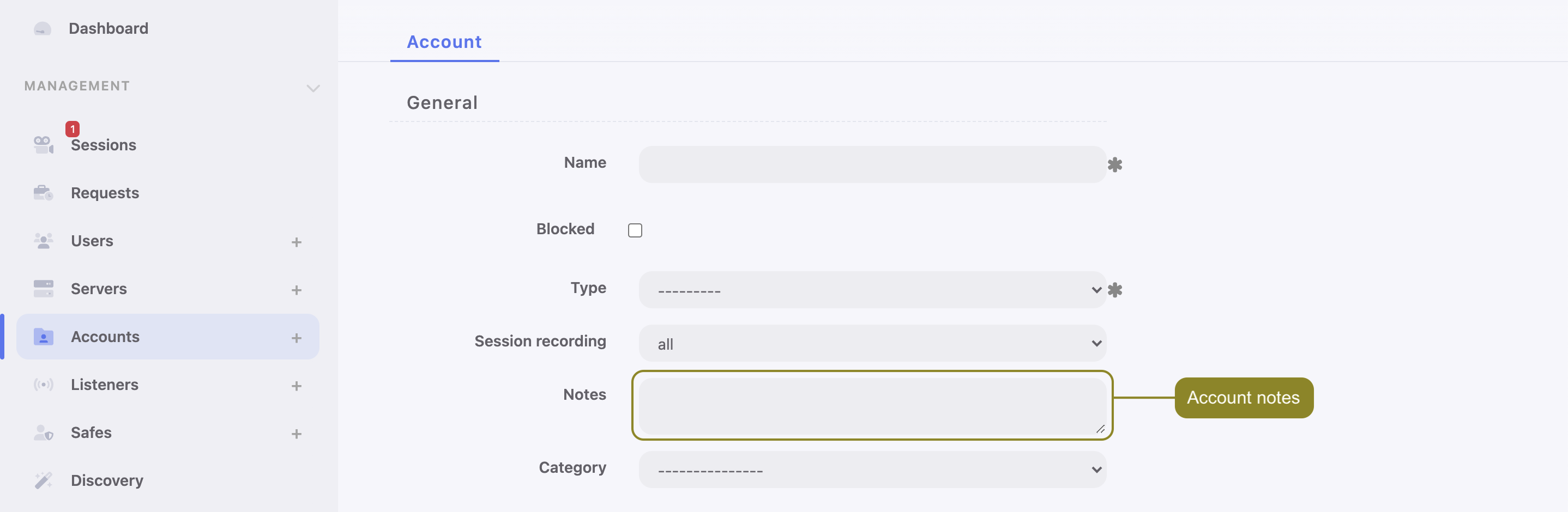
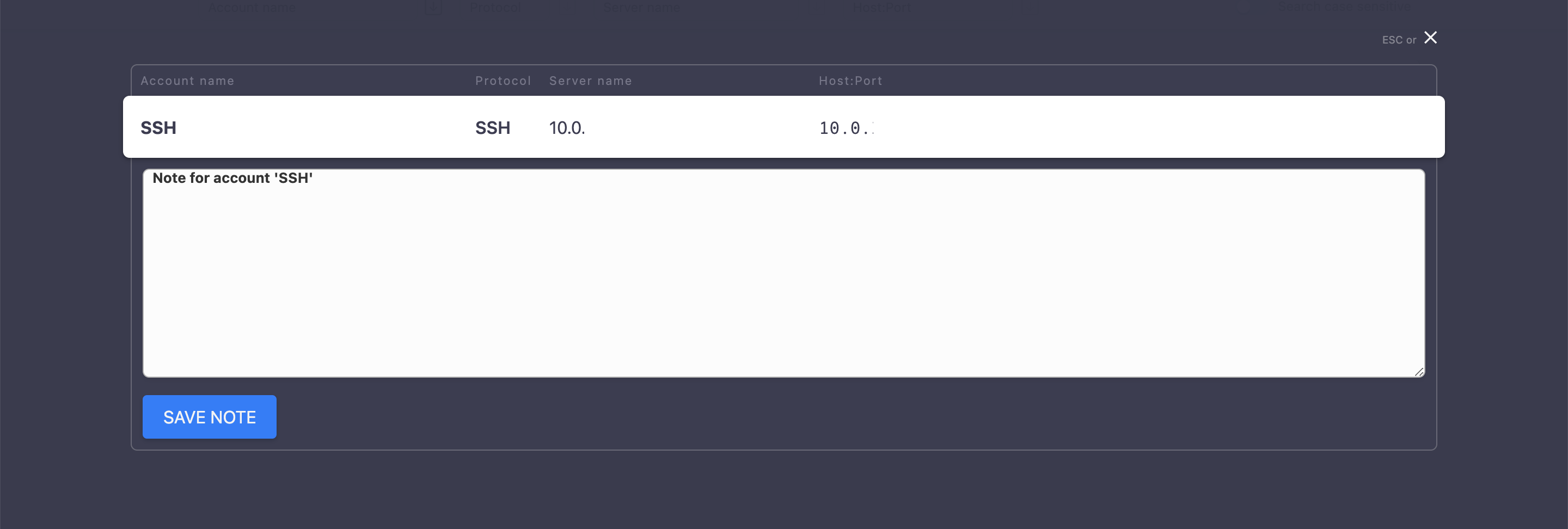
- From the Note access drop-down list, select access rights to account related notes:
read-only accessorwrite access.
Notes can be accessed either from the account edit form
or in the User Portal (Access Gateway).
- Select Session time limit option and input a minutes value.
- Select Session inactivity limit option and input a minutes value.
- The OTP in Access Gateway option is enabled by default and is responsible for generating OTP in the Access Gateway.
Warning
Disabling the OTP in Access Gateway option makes impossible connecting via the Native Client or Web Client. Access via the Access requests would be possible only.
- For RDP, VNC and SSH-based safes, select Web Client option to allow connecting to the session in browser.
Note
The Web Client option can’t be enabled when the OTP in Access Gateway option is disabled.
- Select a Backup target as a destination place for storing data.
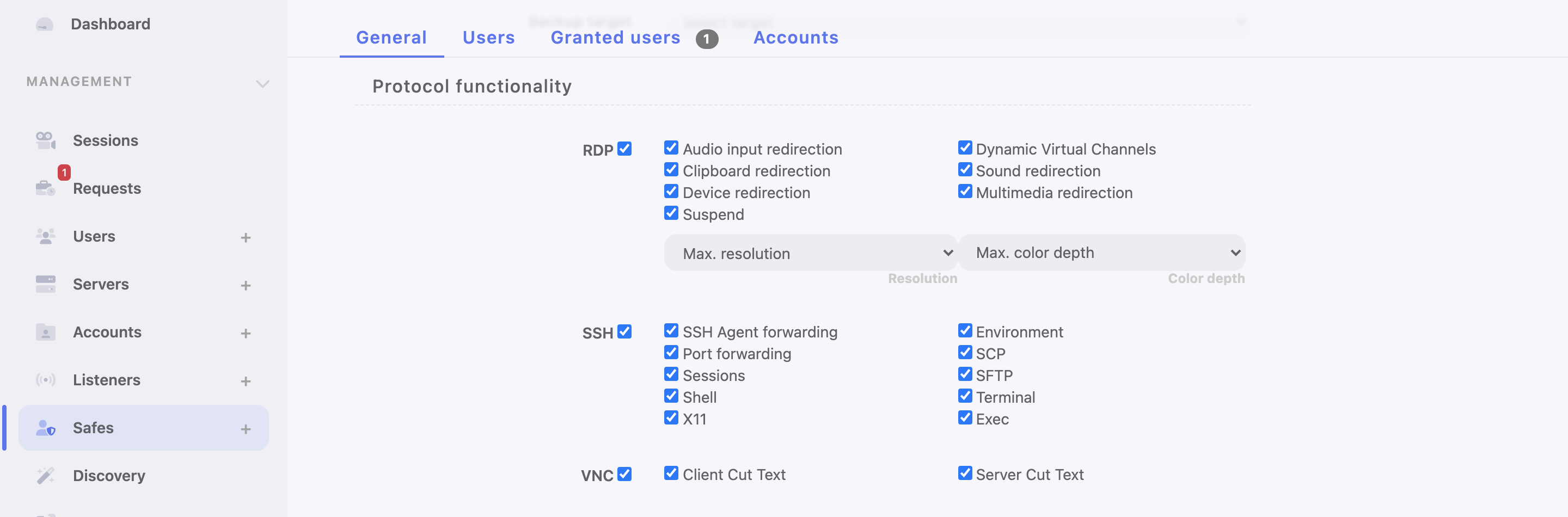
- In the Protocol functionality section, select allowed protocols’ features.
Note
With the Suspend option enabled for the RDP sessions, its content will not be available for viewing when the user minimizes its client application.
With the Client Cut Text option enabled for the VNC sessions, a user is allowed to paste text into the VNC server computer.
With the Server Cut Text option enabled for the VNC sessions, a user is allowed to copy and paste text from the VNC server computer into the user’s computer.
- Select Users tab to assign users allowed to access accounts assigned to this safe.
Click .
Click i next to desired user to enable server access over monitored safe.
Click ok to close the modal window.
Define safe access options.
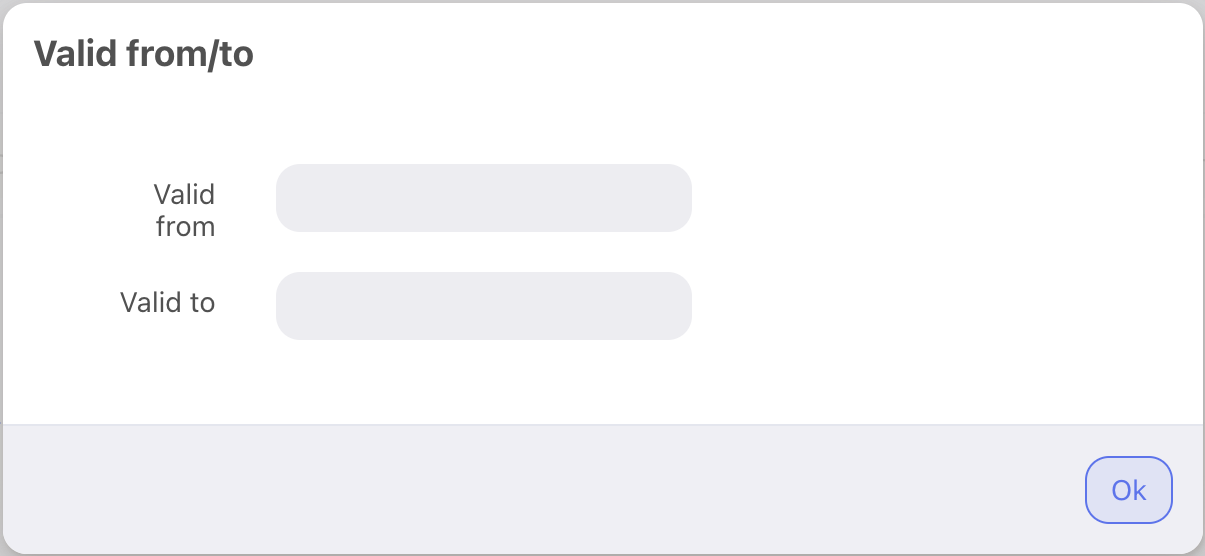
- Click . to fill out the Valid from and Valid to fields with date and time interval when user will be allowed to access servers through the given safe. When defined date and time comes, access to the given safe is granted to the user automatically.
- Click . to enable and define time intervals during which the user will be allowed to connect to servers.
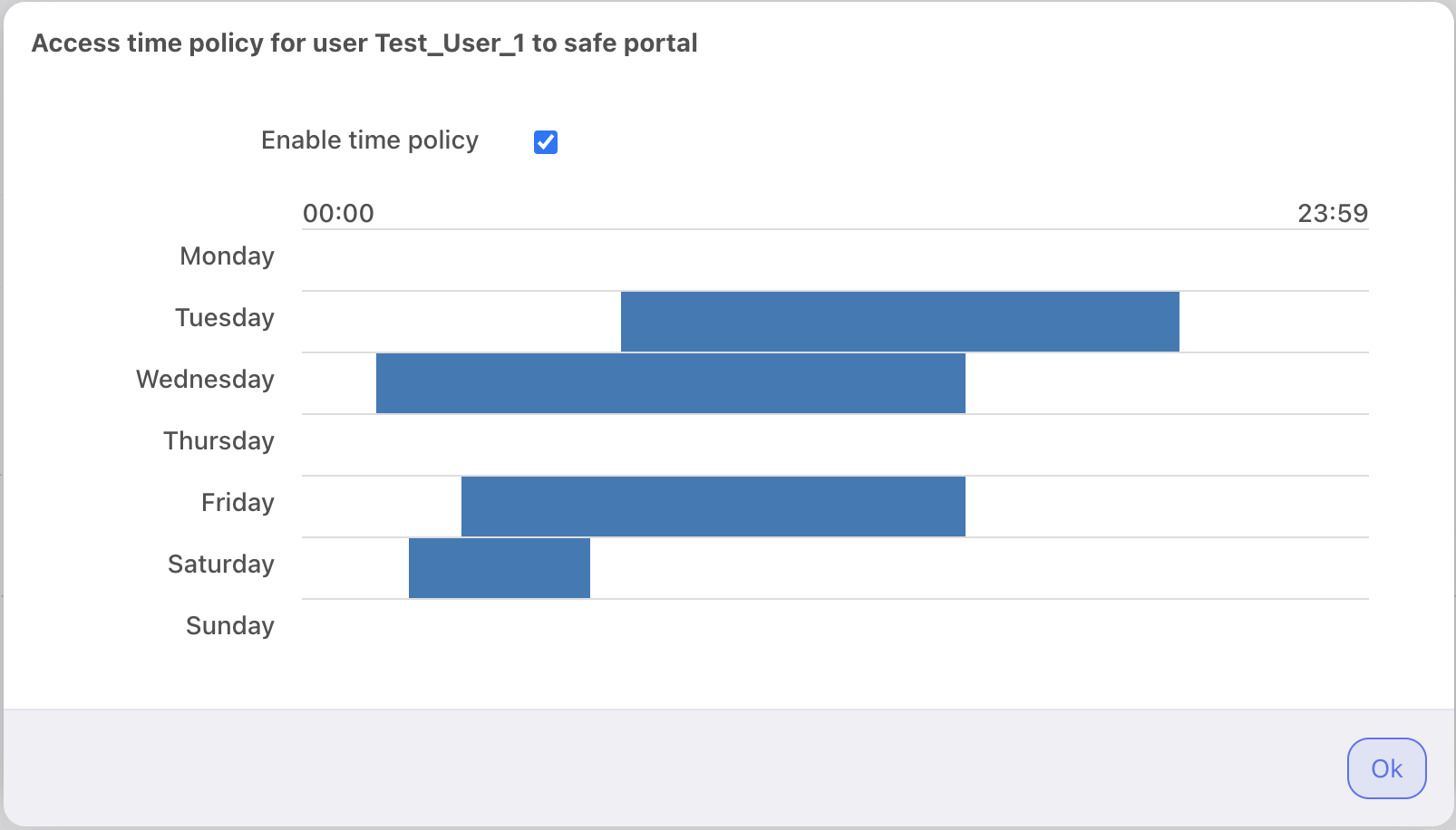
- Click . to allow user to use Secret Checkout feature and view passwords in the User Portal.
- Click . to disable access for selected user.
- Click . to delete selected user from the safe.
Note
Access time policy options are disabled when the Access request required votes option is enabled for the safe.

- Select Granted users tab to assign users allowed to manage this object.
- Click .
- Click i next to desired user to enable server access over monitored safe.
- Select notifications that will be enabled for the particular granted user. More on this subject is at the Notifications page.
- Click ok to close the modal window.

- Select Accounts tab to add accounts accessible through this safe.
- Click .
- Click . to add accounts.
- Click ok to close the modal window.
- Click . to assign listeners to accounts.
- Click . to add listeners.
- Click ok` to close the modal window.

- Click .
Related topics: