Creating a MySQL Server
Warning
The following MySQL authentication plugins are supported for communication between Fudo Enterprise and the database server:
mysql_clear_passwordmysql_native_password,caching_sha2_password.For communication between the client and Fudo Enterprise, only
mysql_clear_passwordplugin is supported, which is why TLS is enforced for MySQL listeners.
Note
A server object can be linked to only one anonymous account.
A server object can be linked to only one forward account.
Click + icon next to the tab of the sub-section, or
Select > and then click .
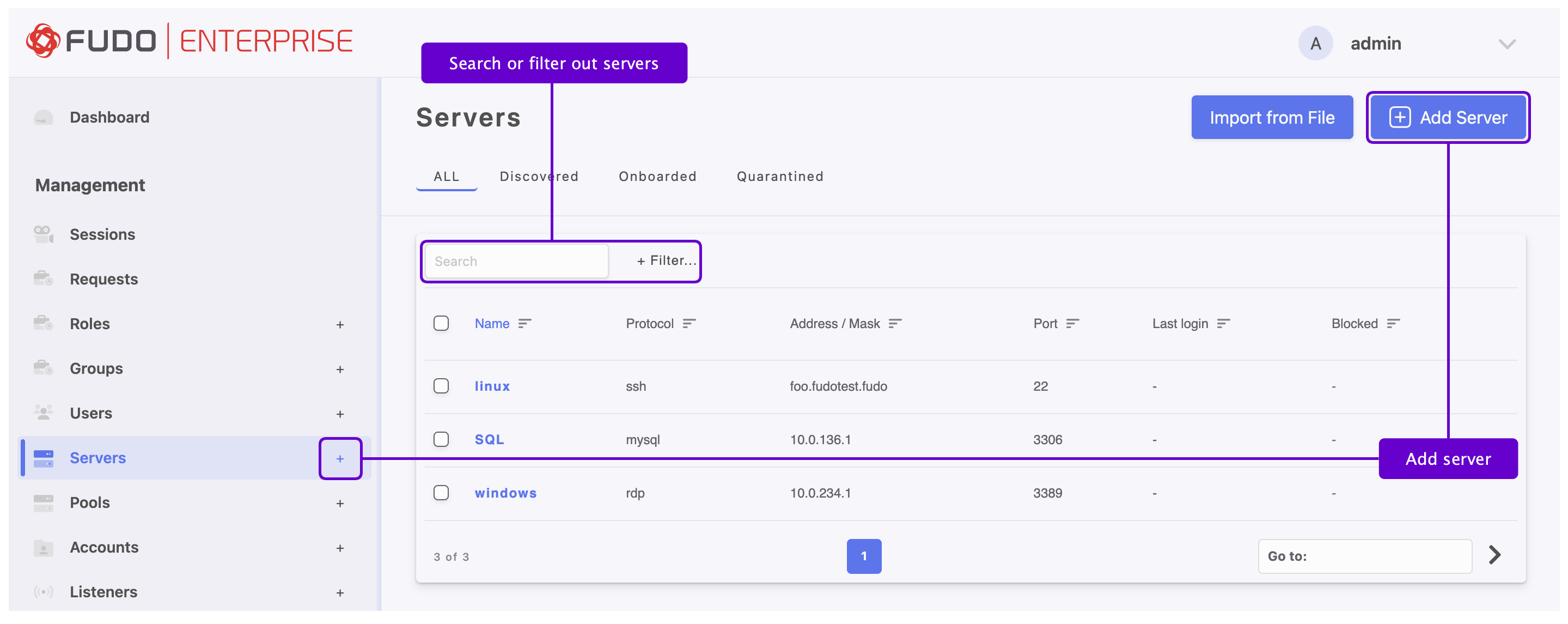
Enter server’s unique name.
Select Blocked option if the object should be unavailable after creation. A blocked server cannot be used to establish connections until it is manually unblocked. Providing a reason for blocking is required.
Optionally, click the Description checkbox and provide a text that will help identifying this server object.
SETTINGS TAB
Go to the SETTINGS tab.
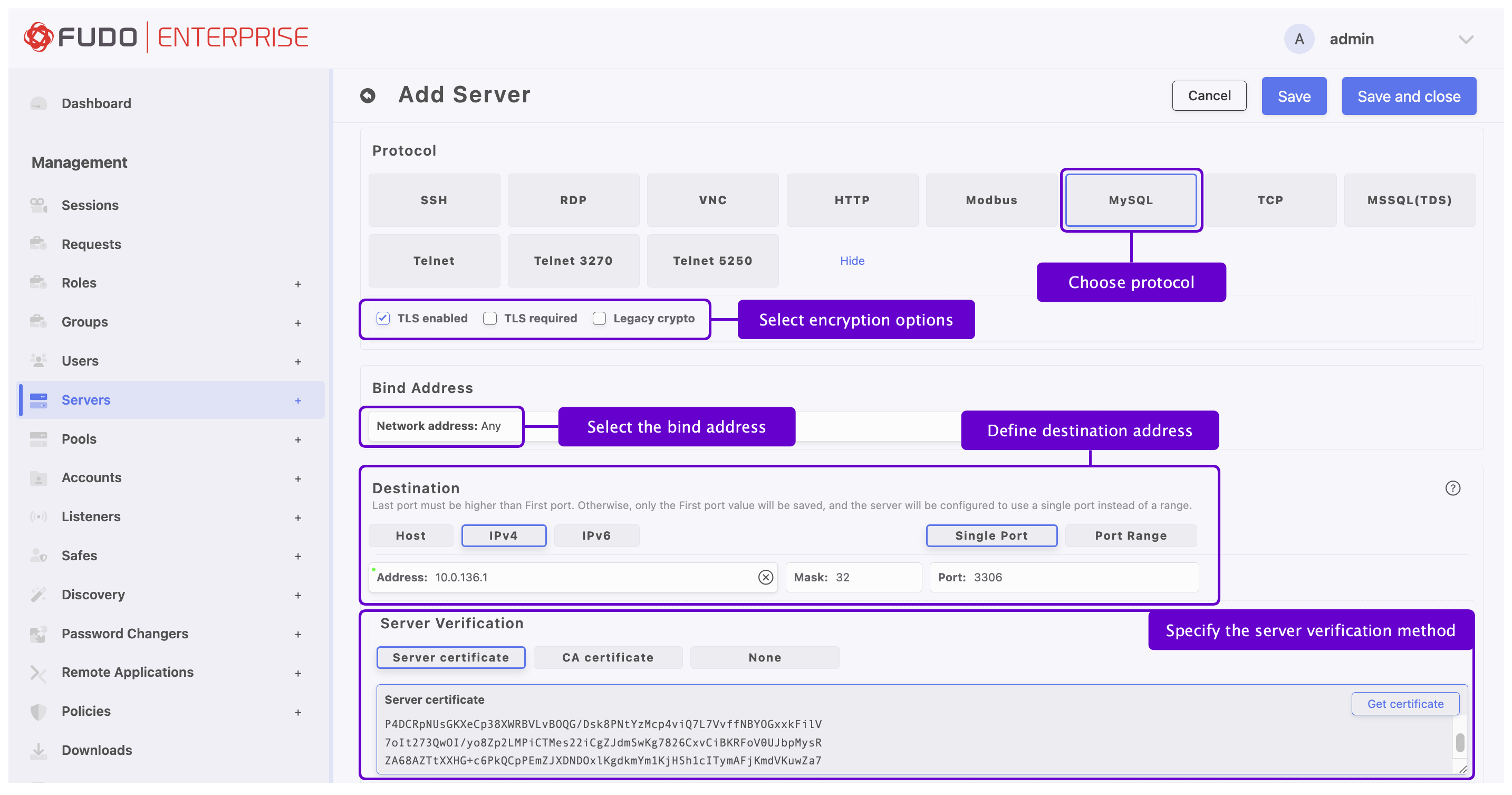
In the Protocol section, select .
Warning
After server’s definition is saved, protocol’s field is uneditable.
Select the TLS enabled to connect to monitored server over TLS.
Check the TLS required option to enforce the use of TLS when establishing the connection.
Select Legacy crypto option to allow negotiating older encryption algorithms (DSA(1024), RSA(1024)) when establishing connections.
From the Bind address drop-down list, select the IP address from which connections to the monitored server will be initiated.
Note
The Bind address drop-down list elements are IP address defined in the Network configuration menu (Network Interfaces Configuration) or labeled IP addresses (Labeled IP Addresses).
In case of cluster configuration, select a labeled IP address from the Bind address drop-down list and make sure that other nodes have IP addresses assigned to this label. For more information refer to the Labeled IP Addresses topic.
In the Destination section, define the address of the target server:
Select , , or ,
Enter the Address and Port if the port differs from the protocol default. You can also specify a port range. For details, see Port Ranges in Server Configuration.
Note
Depending on selected option, default values for the Mask and Port fields are filled out automatically. This way the Fudo Enterprise system detects server as one with unique address. In order to set up address for entire subnet, provide a dedicated value for the Address and the Mask fields.
In the case of overlapping address definitions, during connection establishment the more specific configuration (higher network mask) is always selected, even if the user does not have permissions assigned to it. This mechanism enables defining exceptions within broader access rules (e.g., granting access to
/24while explicitly excluding/32).
In the Server Verification section, specify the server verification method:
Select to verify the server based on its certificate,
Select to verify the server certificate using a trusted certificate authority,
Select to disable server certificate verification.
Click .
Related topics: