Two-Factor OATH Authentication with Google Authenticator
Google Authenticator generates verification code as a dynamic component to a static password to increase account security.
Fudo Enterprise allows configuring default settings for the OATH authentication so they are automatically added to the user definition, when administrator selects OATH as an active authentication method.
Note
When configuring two-factor OATH authentication in Fudo Enterprise you can also consider using alternative applications such as Microsoft Authenticator.
Protocols Supporting OATH Authentication Method
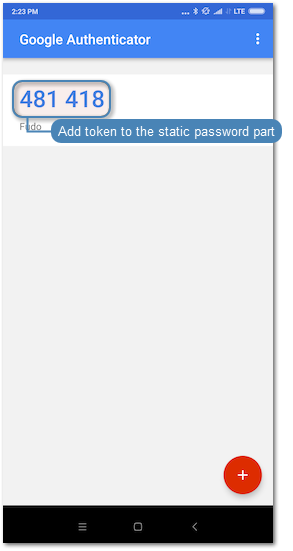
When logging in, OATH authentication can be performed either in Challenge-Response mode or by concatenating the dynamic code generated by Google Authenticator to the end of the static password defined in the authentication method, such as password481418. Please note that not all protocols support this authentication method.
OATH Availability Across Protocols¶Platform or Protocol
Challenge-Response Mode
Password + Dynamic Code
Logging into Access Gateway
available
available
Logging into Admin Panel
available
available
VNC
available
available
SSH
available
available
RDP
available
available
Telnet 3270
not available
available
Telnet 5250
not available
available
Telnet
not available
available
MySQL
not available
available
MS SQL(TDS)
not available
not available
HTTP/S
not available
not available
TCP
not available
not available
X11
not available
not available
Modbus
not available
not available
Configuring the OATH Authentication Method
In order to configure default settings for the OATH authentication method, follow the instruction:
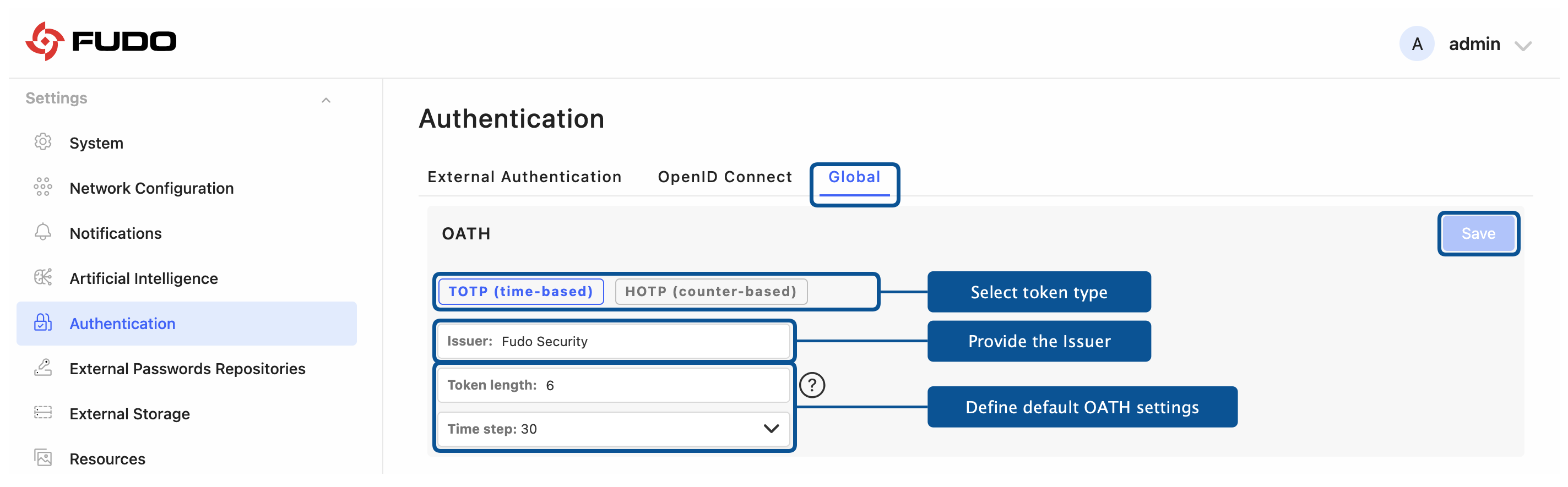
Select > > tab.
Go to OATH section and select token type:
TOTP (time-base)orHOTP (counter-base).Fill out the Issuer field.
Fill out the Token length field.
Input Time step if selected Token type was
TOTP (time-base).Click next to the OATH section name.
In order to configure OATH as an active authentication method for a user, follow the steps:
Select > .
Find and click the user for whom you want to add the OATH authentication method.
Scroll down to the Authentication section.
Choose
OATHtype from the Add authentication method drop-down list.Choose the
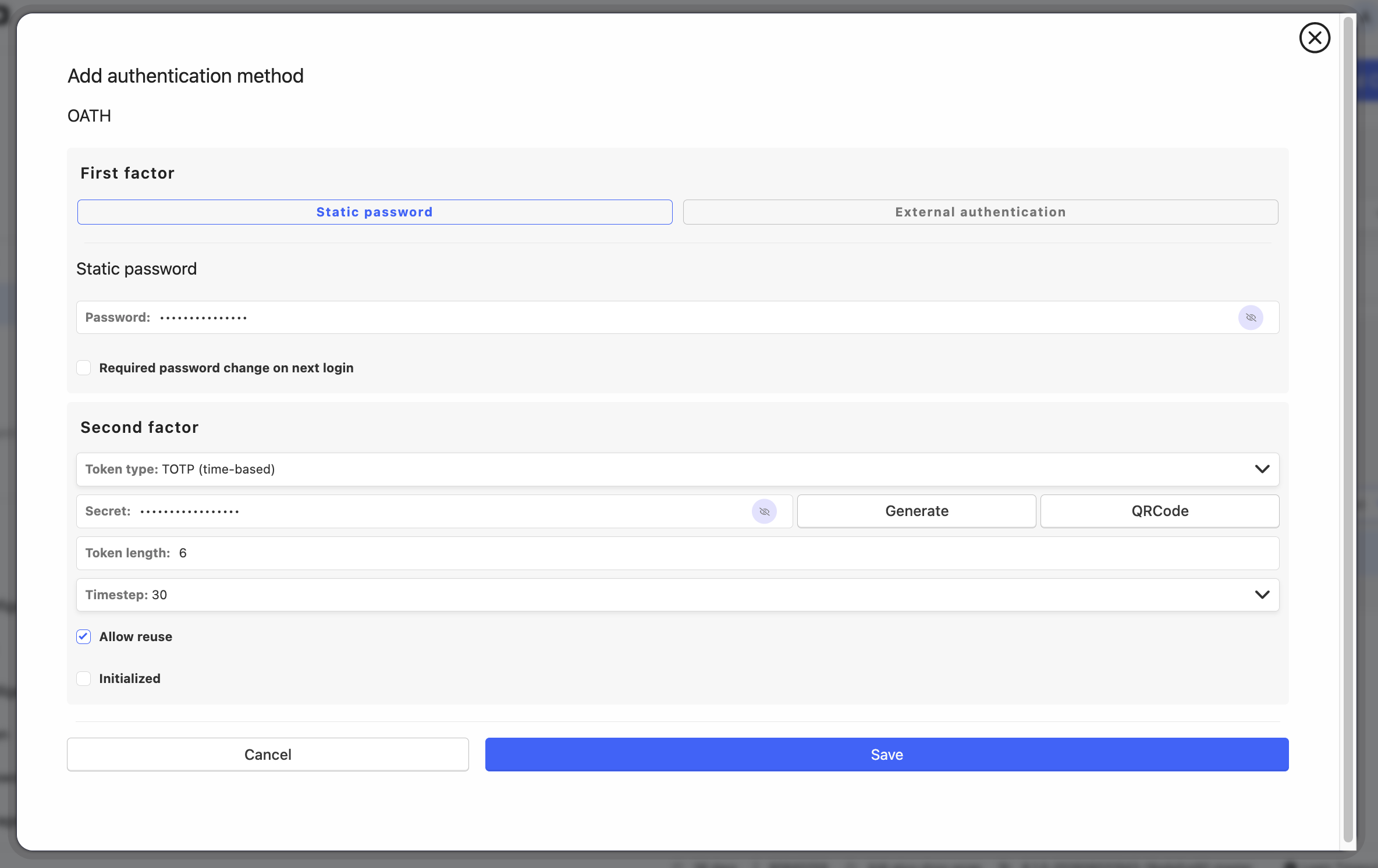
Static passwordorExternal authenticationas a first factor.
If Password is chosen:
Enter password’s static part.
Fields Token type, Token length and Time step will be filled out automatically as default settings claim. Their value is editable.
Enter a secret that will be used by Google Authenticator. Note, that the secret must be a
Base32encoded value. Alternatively, click to generate it automatically or to show the QR code.(Optional) Enable Allow reuse option to permit the same valid TOTP code to be accepted more than once within its current time window. This is useful for parallel access scenarios such as automated SSH access, CI/CD operations, or bulk file transfers.
If External authentication is chosen:
Select External authentication source.
Fields Token type, Token length and Time step will be filled out automatically as default settings claim. Their value is editable.
Enter a secret that will be used by Google Authenticator. Note, that the secret must be a
Base32encoded value. Alternatively, click to generate it automatically or to show the QR code.(Optional) Enable Allow reuse option to permit the same valid TOTP code to be accepted more than once within its current time window. This is useful for parallel access scenarios such as automated SSH access, CI/CD operations, or bulk file transfers.
Note
Optional:
Enable Allow reuse option to permit the same valid TOTP code to be accepted more than once within its current time window. This is useful for parallel access scenarios such as automated SSH access, CI/CD operations, or bulk file transfers.
The Initialized option serves for the user’s initialization via the QR code. When their static password as a First factor setting is filled or External authentication source if configured, the QR code is displayed during their first connection. After successful first authentication the Initialized option becomes checked and takes uneditable state.
Click .
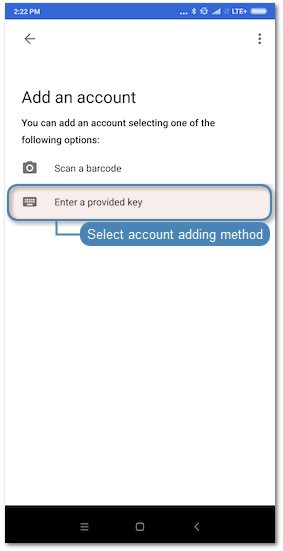
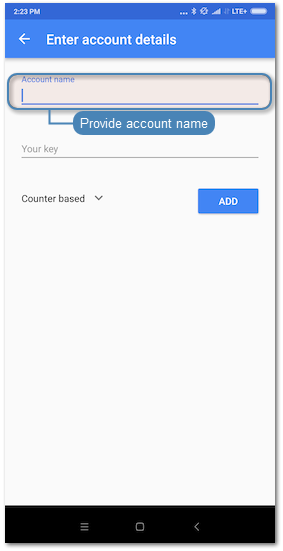
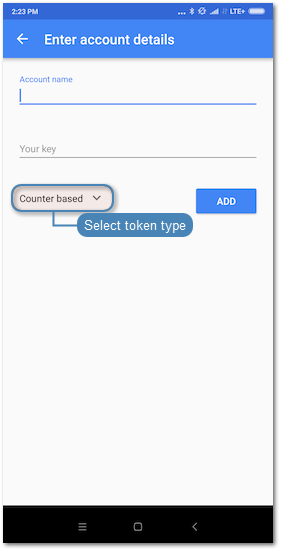
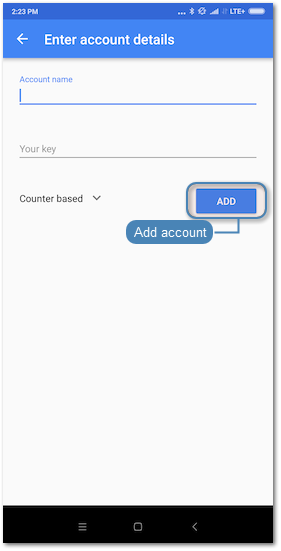
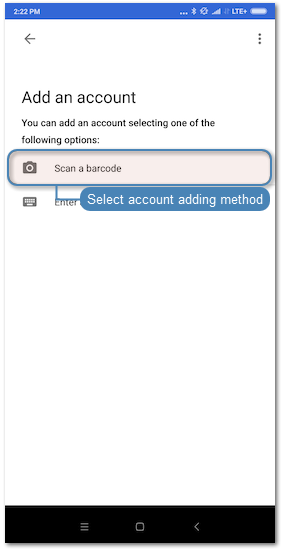
Launch Google Authenticator and add new service.
Manual entry |
QR Code |
|---|---|
Note Click . on the user edit form in the Authentication section to reveal the secret. 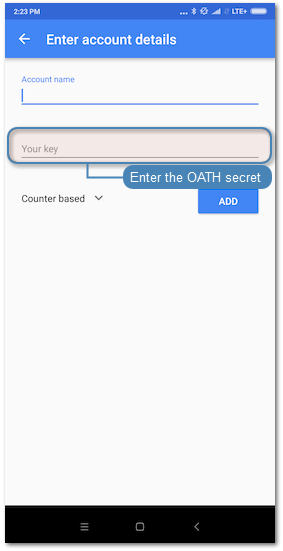
|
|
When logging in, the password string consists of a static password defined in the authentication method and dynamic part generated by the Google Authenticator, e.g.
password481418.
TOTP Code Reuse for Parallel Access
The Allow reuse option enables the same valid TOTP code to be accepted more than once within its current time window. This feature is designed for scenarios where parallel access is required and protected with two-factor authentication.
Use Cases
This feature is particularly useful for:
Scripted SSH access
Ansible playbooks
Parallel scp or rsync operations
CI runners connecting to multiple systems
Access through multiple bastion hosts
Bulk RDP gateway hand-offs
Default Behavior
By default, the Allow reuse option is disabled. Each TOTP code can be used only once. After successful verification, another attempt using the same code will be rejected. This ensures the highest security level for standard use cases.
Behavior When Enabled
When Allow reuse is enabled for an OATH/TOTP authentication method:
The same TOTP code can be accepted multiple times within its current time window
An operator can use the same TOTP code for multiple parallel connections within one timestep
Once the timestep expires, the previous code becomes invalid and a new code is required
This allows supporting automation and bulk access scenarios without changing the standard TOTP expiration model
Note
The Allow reuse option is available only for TOTP (time-based) tokens. HOTP (counter-based) and other authentication methods do not support code reuse.
Warning
Enable this option only when necessary for specific use cases. Allowing TOTP code reuse reduces the security level compared to single-use codes. Always evaluate the security implications for your specific environment before enabling this feature.
Related topics: