DNS Configuration
Note
DNS servers enable using mnemonic hosts names instead of IP addresses when configuring various network resources.
Note
Fudo Enterprise can use a dedicated DNS server per domain. A DNS server defined without a domain serves the Default zone, while a DNS server defined with a Domain acts as a Forward zone for that domain. This enables Kerberos authentication in multi-domain Active Directory environments, so the domain no longer needs to be included in the Fudo hostname.
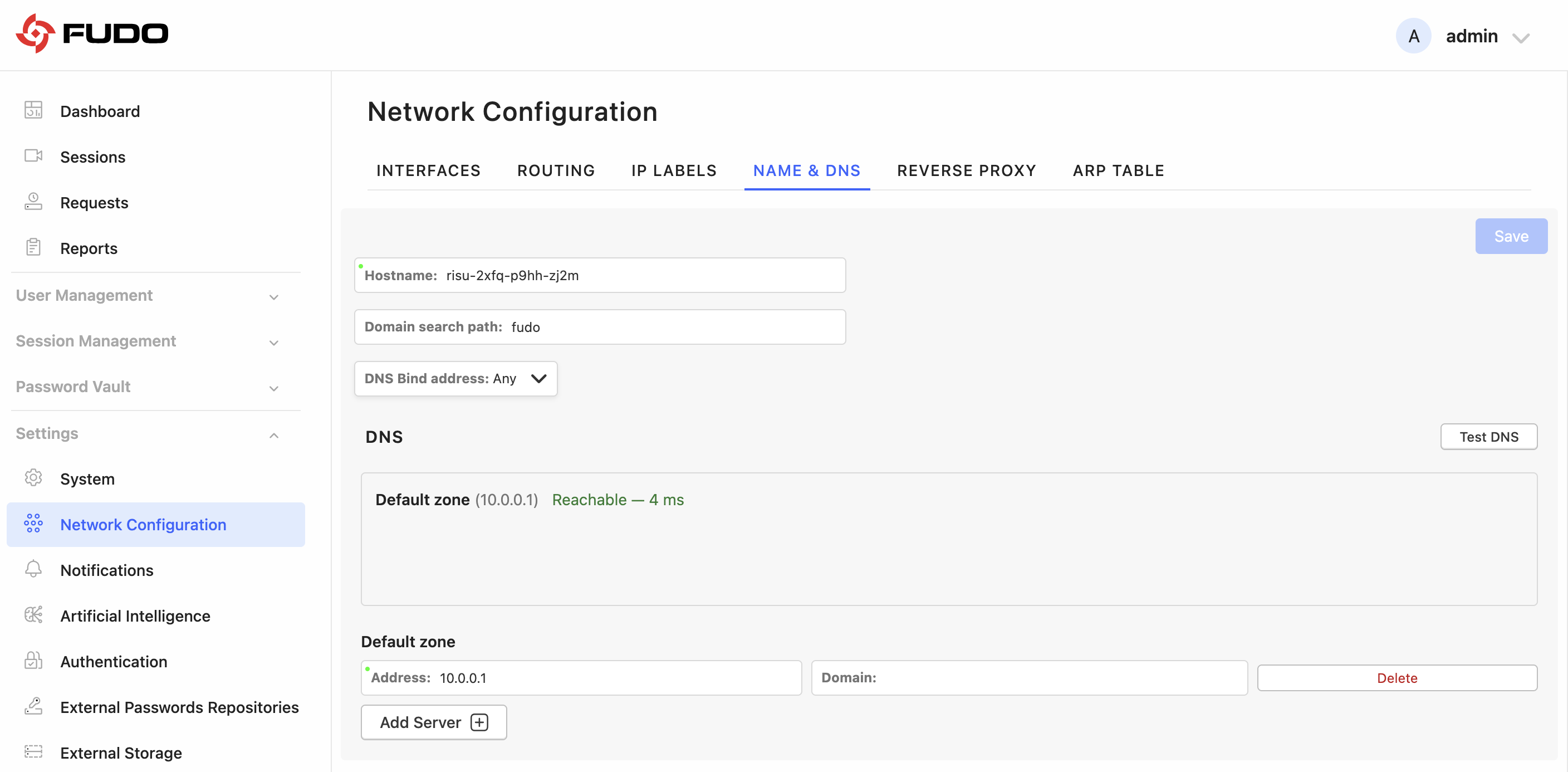
Defining Domain Search Path
Domain search path enables convenient hosts identification based on short names. For example, defining tech.whl as the domain search path, enables defining target host as ftp instead of ftp.tech.whl.
To define a domain search path, proceed as follows.
Select > .
Switch to the Name & DNS tab.
Enter the domain search path.
Note
To define more than one value, enter desired values separated by space character. E.g.
tech.whl wheel.comProtocol implementation enables defining up to six domain search paths.
Click .
Adding a DNS Server Definition
To add a DNS server definition, proceed as follows.
Select > .
Switch to the Name & DNS tab.
Click to define new DNS server.
Enter the DNS server IP address in the Address field.
Optionally, enter a domain in the Domain field to use this DNS server as a Forward zone for that domain. Leave the Domain field empty to use the server for the Default zone.
Click .
Note
Use the DNS Bind address option to select the source address used for DNS queries.
Testing the DNS Configuration
You can verify that the configured DNS servers are reachable and serve their zones using the Test DNS option.
Note
The DNS test is available only for a saved configuration. Save the configuration first, then run the test. The DNS configuration is not validated automatically on save.
Select > .
Switch to the Name & DNS tab.
Click Test DNS.
The reachability result is shown next to each DNS server, for example: Reachable, No reply from this server., Server is reachable but does not serve this zone., or Server reports that this zone does not exist..
Editing a DNS Server Definition
To edit DNS server definition, proceed as follows.
Select > .
Switch to the Name & DNS tab.
Find given DNS server, click desired field, and change parameter value as needed.
Click .
Deleting a DNS Server Definition
To delete a DNS server definition, proceed as follows.
Note
Deleting a DNS server definition may cause interruptions in device operation, if system configuration uses hosts names instead of IP addresses.
Select > .
Switch to the Name & DNS tab.
Locate the DNS server definition you want to remove and click the button next to it.
Click .
Related topics: