Deleting Secrets
Secrets can be deleted when they are no longer needed or when credentials have been decommissioned. Before deleting secrets, ensure you understand the impact on users and applications that may depend on them.
Warning
Deleting a secret is a permanent action that cannot be undone. Ensure you have backups or alternative access methods before proceeding with deletion.
There are several methods to delete secrets from the Password Vault:
Method 1: Bulk Delete in List View
This method allows you to delete multiple secrets at once.
Navigate to > .
Click to switch to list view.
Select the checkboxes next to the secrets you want to delete.
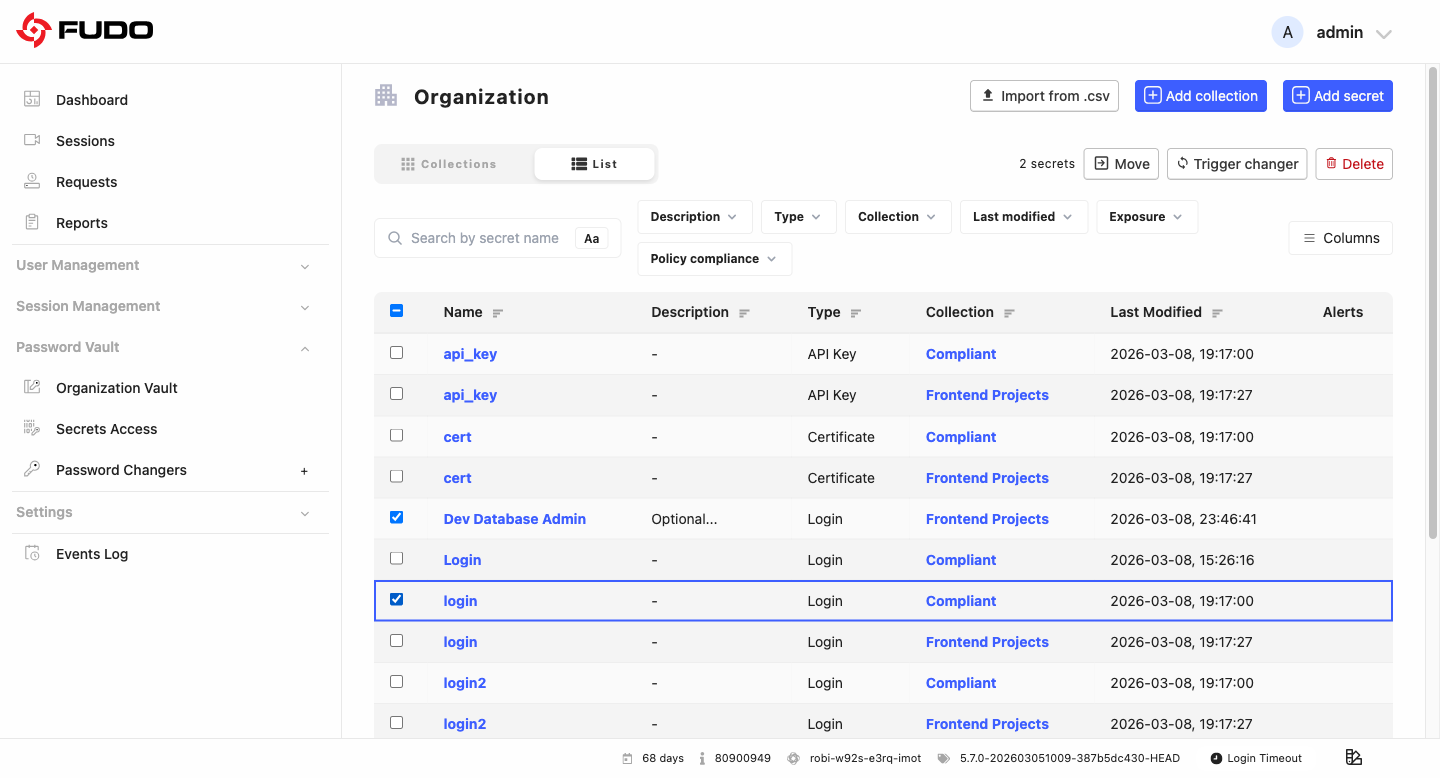
Click the button that appears in the action bar.
Review the warning message and confirm the deletion.
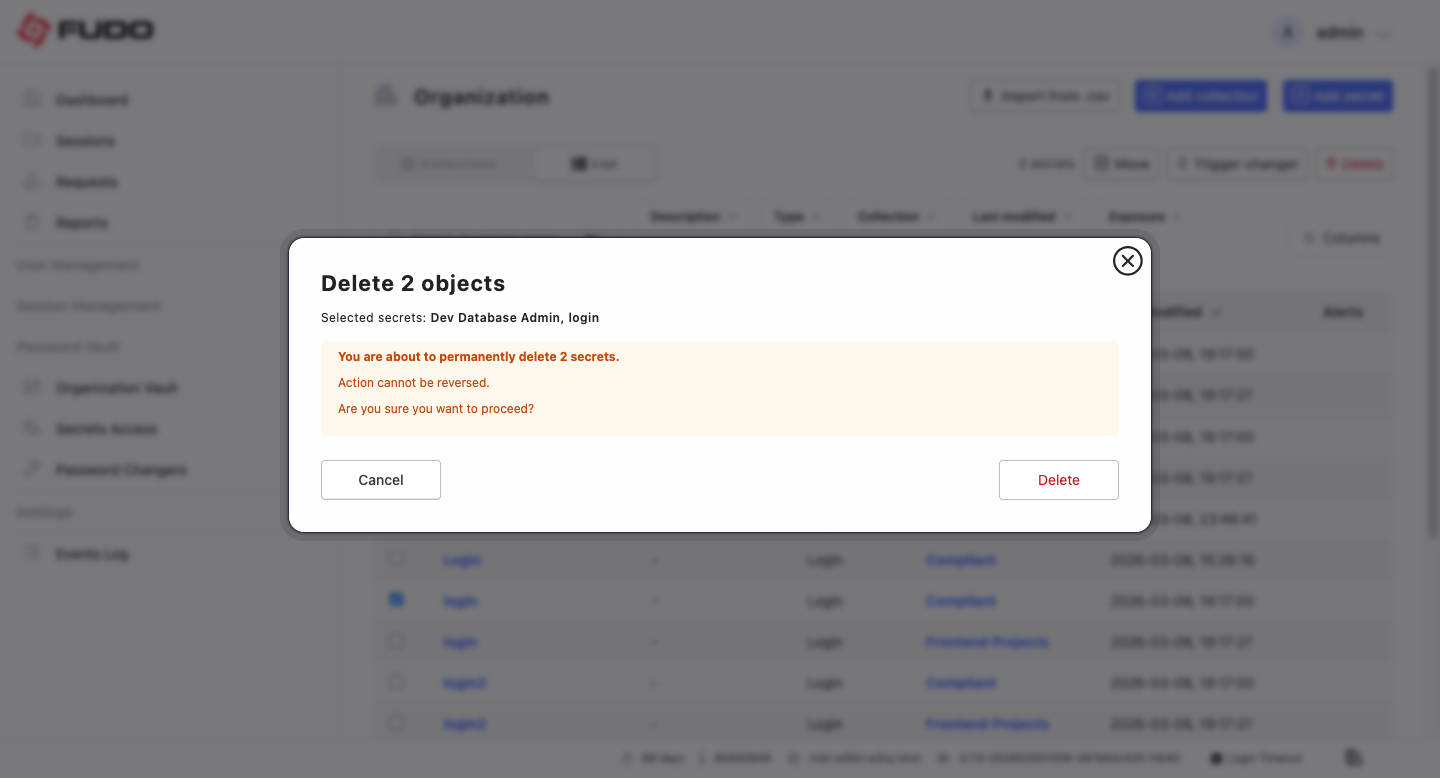
Method 2: Bulk Delete in Collections View
Navigate to > .
In view, select multiple secrets by checking their checkboxes.
Click the button that appears in the action bar.
Review the warning message and confirm the deletion.
Method 3: Delete from Edit Panel
Open any secret for editing.
Click the three dots (…) button next to the secret ID in the edit panel.
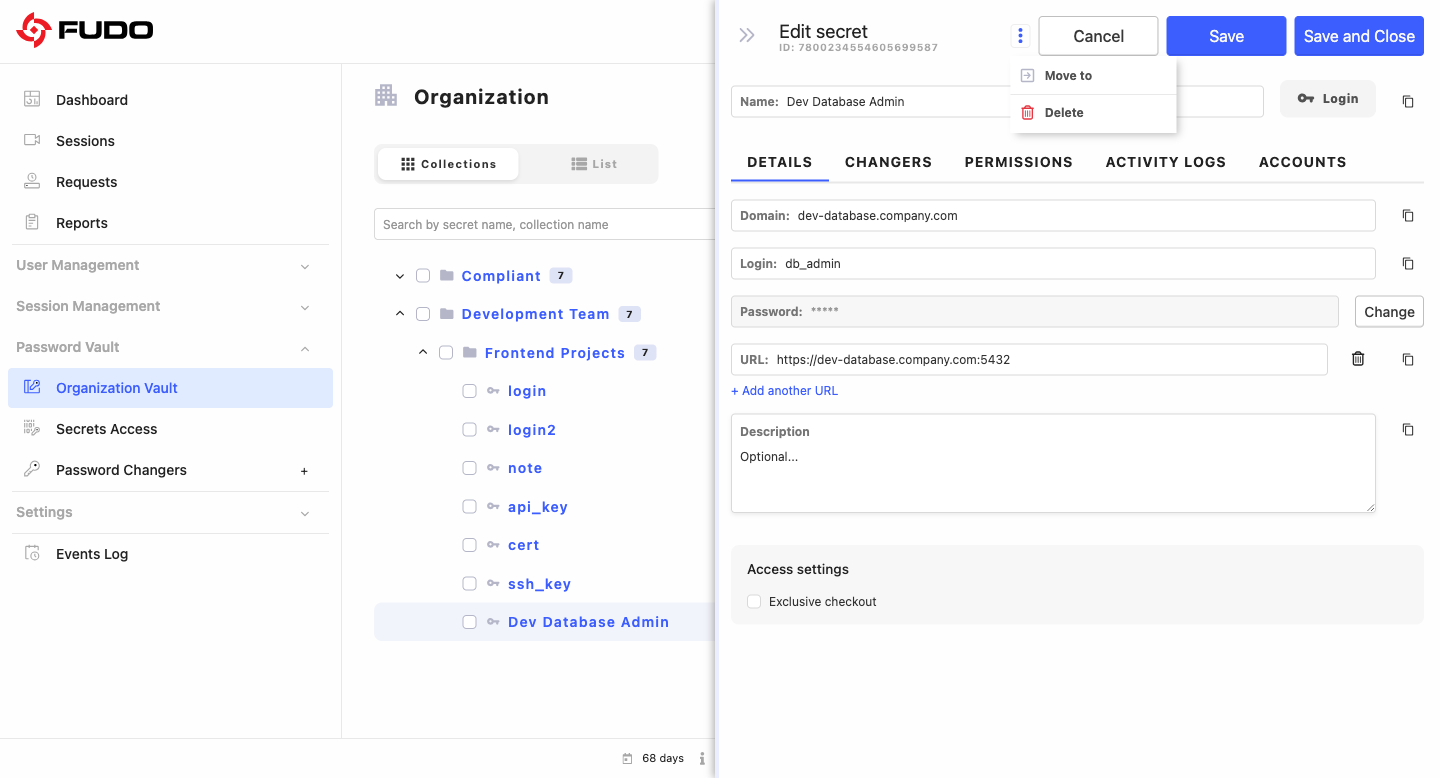
Select Delete from the dropdown menu.
Confirm the deletion in the warning dialog.
Method 4: Using Context Menu
Hover over the secret you want to delete to reveal the options menu.
Click the three dots (…) button to open the context menu.
Select Delete.
Confirm the deletion in the warning dialog.
Related topics: