Creating a Safe
Warning
Data model objects: safes, users, servers, accounts and listeners are replicated within the cluster and object instances must not be added on each node. In case the replication mechanism fails to copy objects to other nodes, contact technical support department.
Click + icon in the main menu next to the tab, or
Select > and then click .
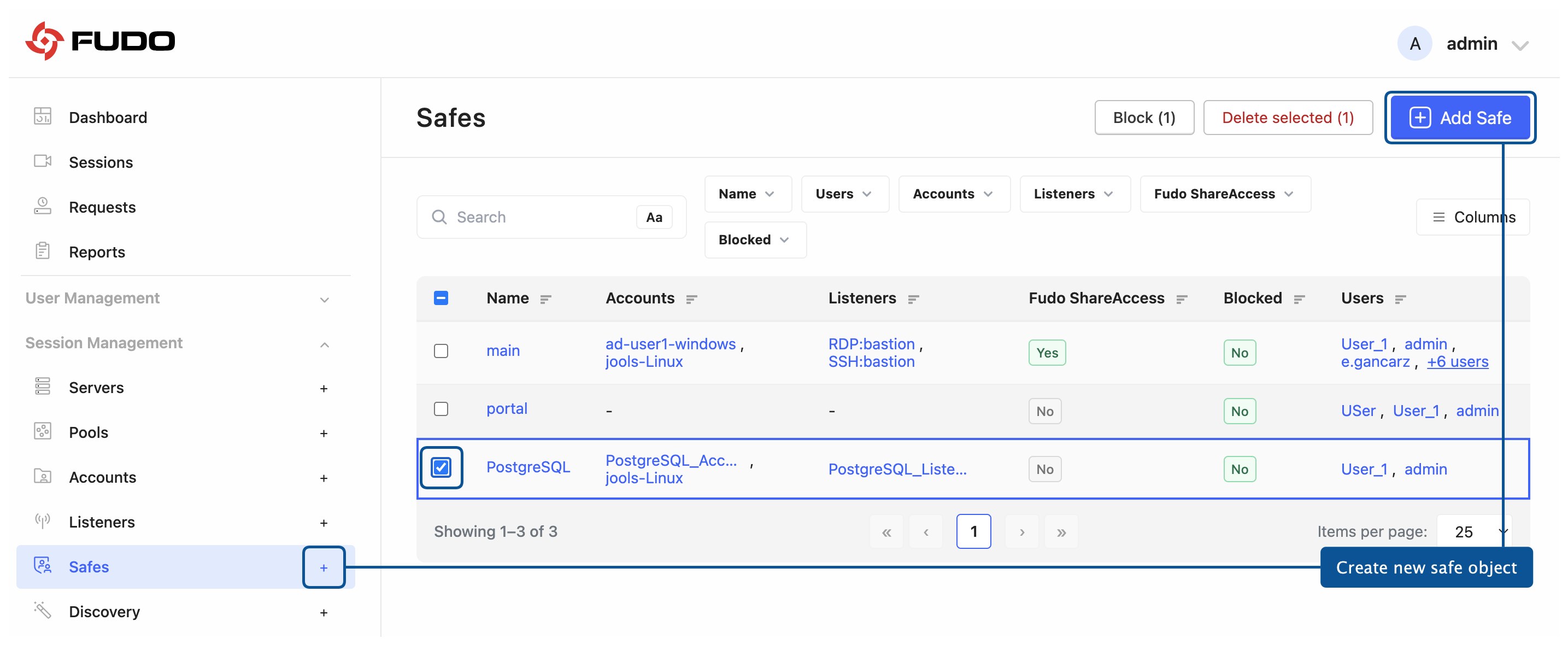
Enter object’s name.
Select Blocked option if you want to disable access to object after it’s created.
Click to save the object and proceed with further configuration.
GENERAL TAB
In the GENERAL tab, in the Connection field, select Login reason option, to display prompt upon logging in, asking user to enter login reason.
Note
Login reason is not supported in HTTP connections.
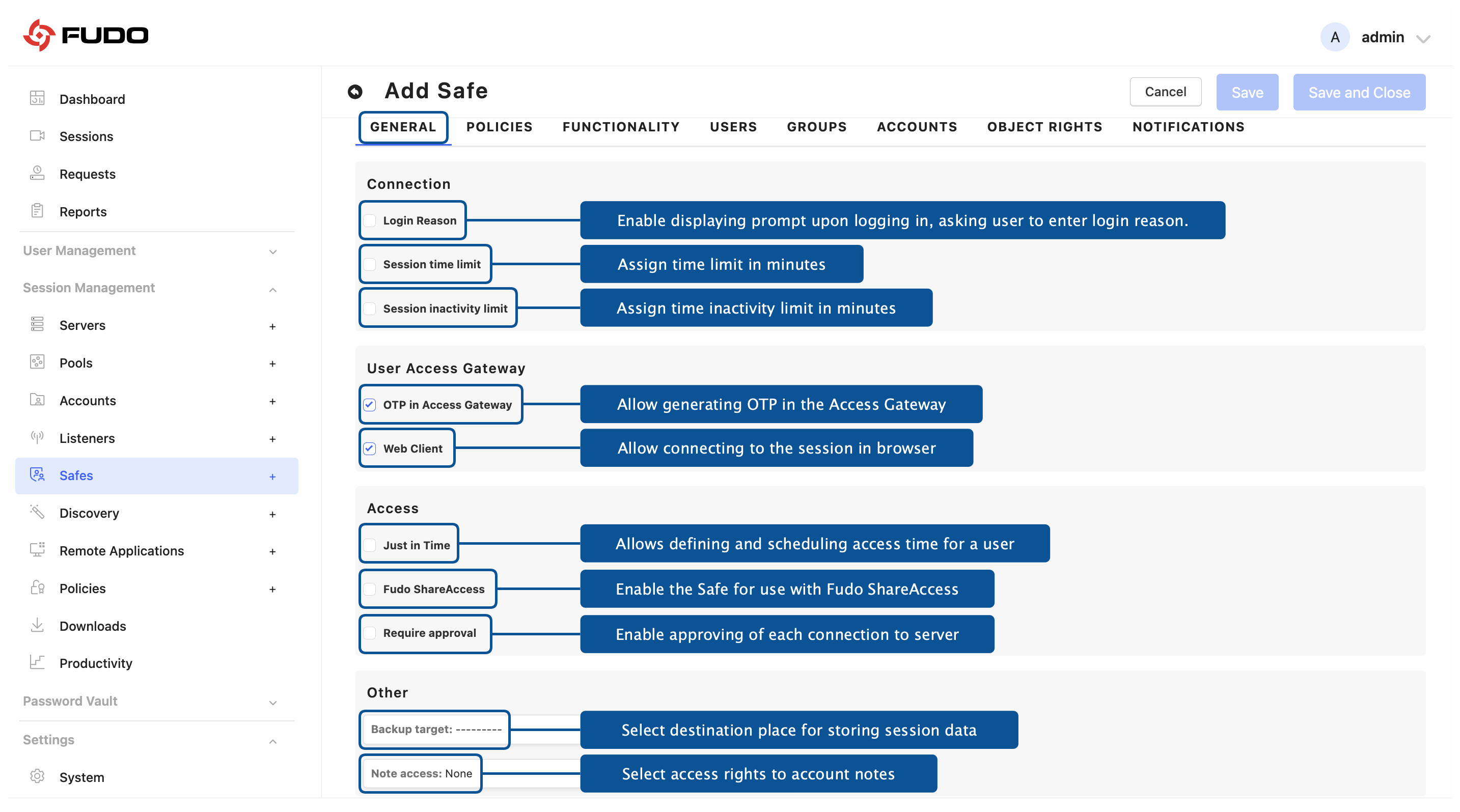
Select Session time limit option and enter a value in minutes after which the session will be terminated.
Select the Session inactivity limit option and enter the number of minutes of inactivity after which the session will be terminated.
The OTP in Access Gateway option is enabled by default and is responsible for generating OTP in the User Access Gateway.
Warning
Disabling the OTP in Access Gateway option makes it impossible to connect via the Native Client through the User Access Gateway. Access via the Access Requests would be possible only.
For RDP, VNC and SSH-based safes, select Web Client option to allow connecting to the session using the built-in browser client.
Select Allow users to share live sessions option to let users share their own running sessions directly from the User Access Gateway, without involving an administrator. Links created this way always require the recipient to sign in and expire when the session ends. For more information, refer to the Sharing Sessions section.
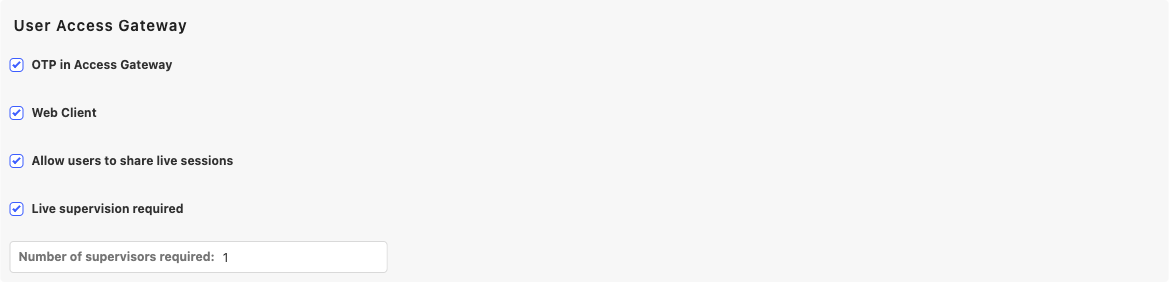
With this option enabled, you can additionally select Live supervision required and provide the Number of supervisors required, so that sessions established through this safe are watched by the given number of signed-in supervisors invited with a share link.
Select Just in Time option and provide a number of the voters (at least
1). This feature allows defining and scheduling the time when a user is allowed to access specific resources for a set period of time. The user sends requests via the Access Gateway, and the voters accept or reject them on in the Admin Panel. Read more about the Just-in-Time feature in a Access Requests section.
Optionally, select the Skip approval during Daily Access Policy hours sub-option to make the approval requirement time-based: inside the time windows defined by the user’s daily access policy the user connects directly, and outside them an approved access request is required. For details, refer to the Time-Based Access Requests section.
Select Require approval option to have the administrator approve each connection to servers accessed through configured safe. Provide how many minutes the administrator has to approve or reject a request. For more information, refer to the Require Approval for Access section.
Select Block concurrent sessions through other safes to prevent users from having simultaneous sessions through this safe and any other safe. For details, refer to Blocking Concurrent Sessions Through Other Safes.
In the Other field, select a Backup target as a destination place for storing data. To create a backup target, please refer to the Backup and Retention section.
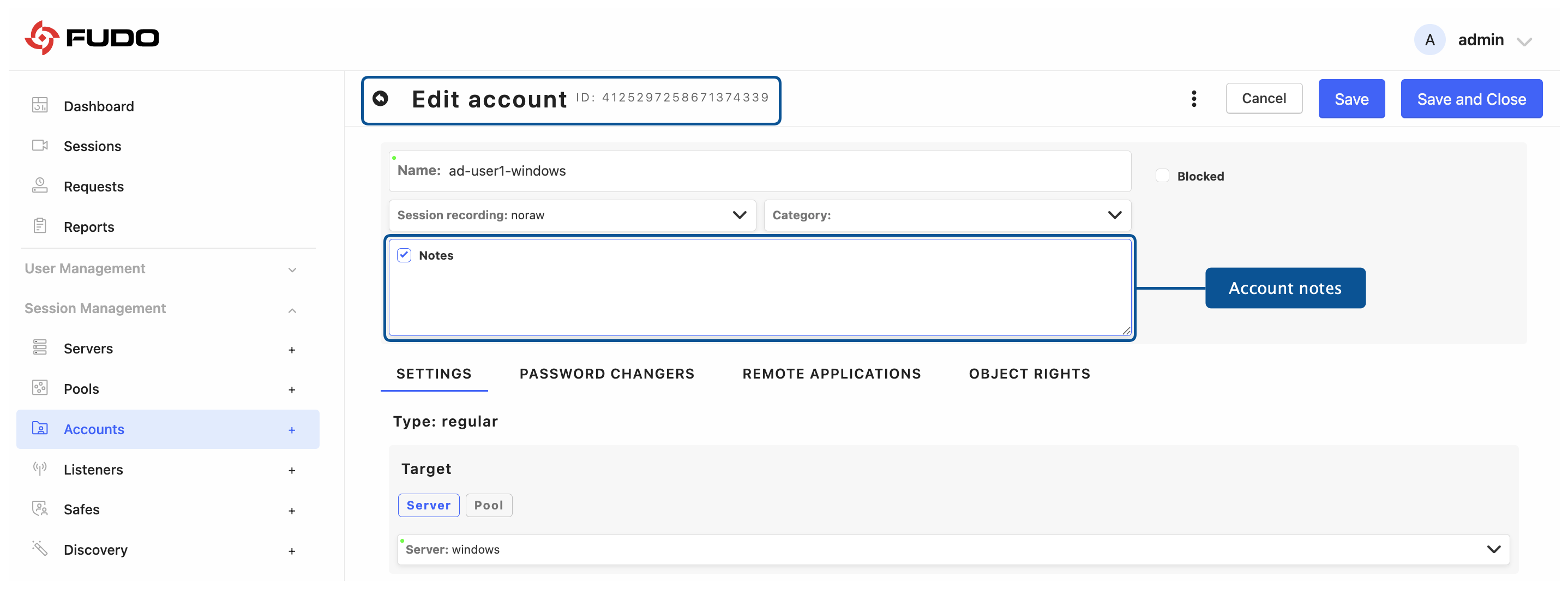
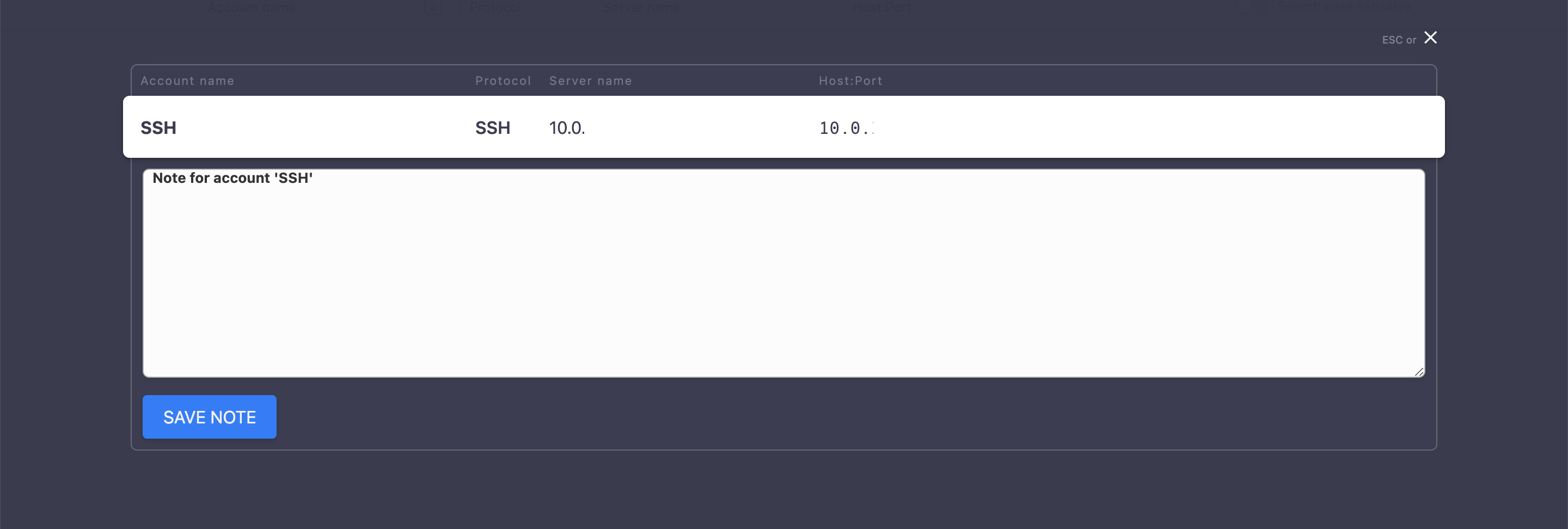
From the Note access drop-down list, select access rights to account related notes:
read, writeornone.
POLICIES TAB
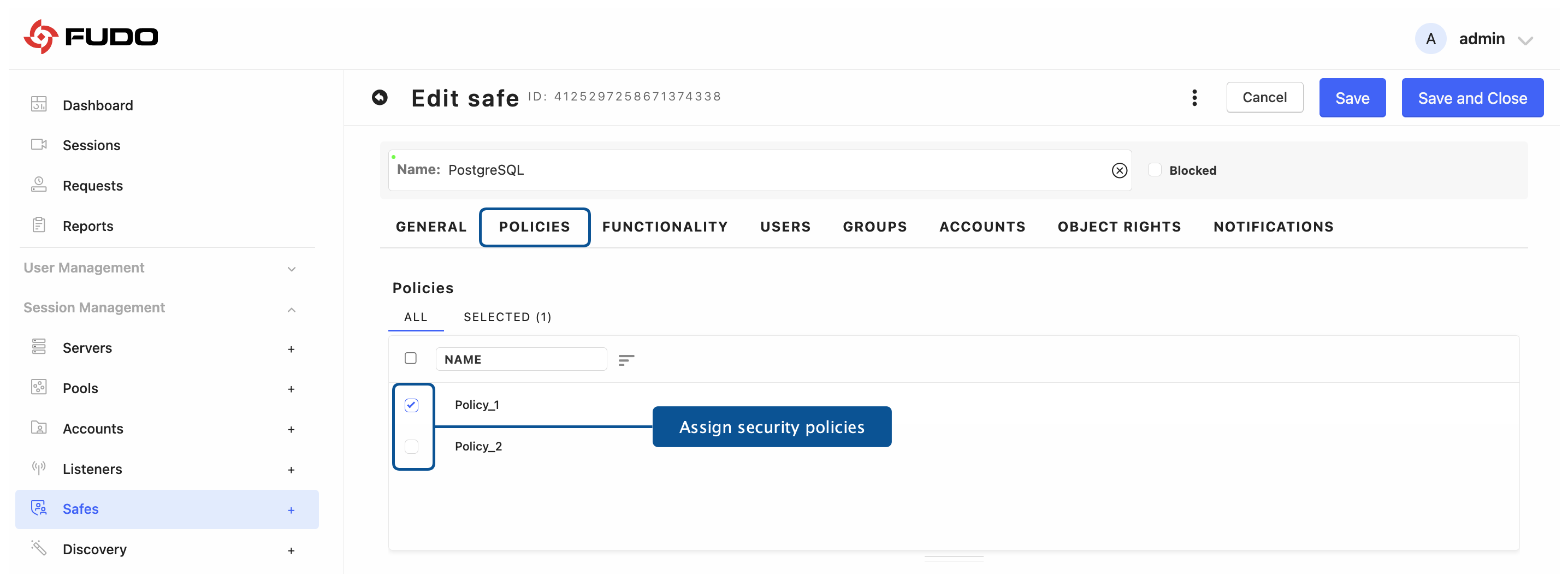
Go to the POLICIES tab, and assign desired security policies by selecting checkboxes in front of the policies names.
FUNCTIONALITY TAB
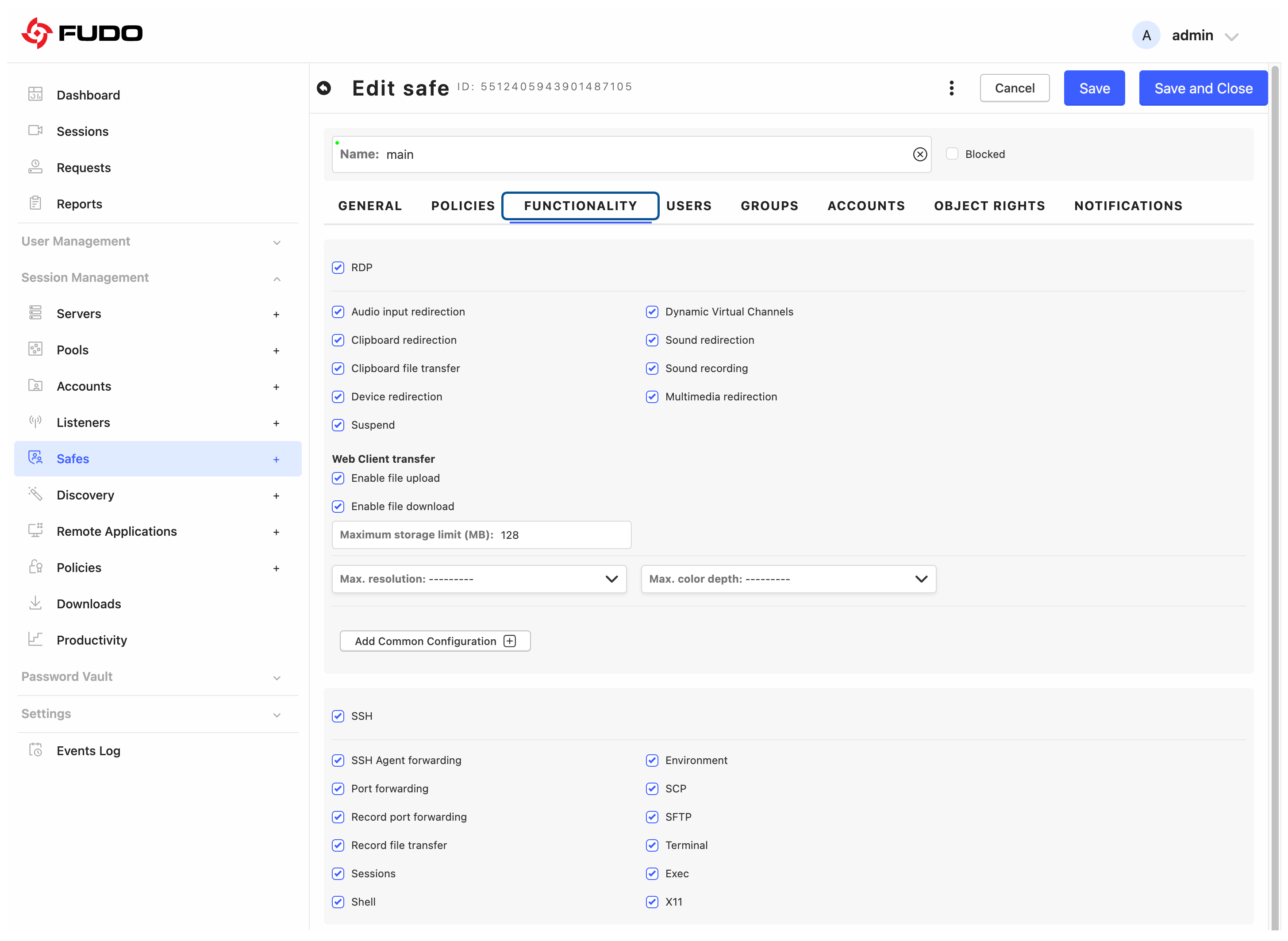
Go to the FUNCTIONALITY tab, and select allowed protocols’ features.
Note
Protocol functionality options overview:
RDP
Audio Input Redirection - Redirects audio input from the client device to the remote desktop, allowing voice input applications to function.
Dynamic Virtual Channels - Enables support for the feature of multiple virtual channels over a single RDP session. DVC is directly related with GFX driver support. Turn off this option to disable GFX support if you experience performance issues. Disabling this option is also required to restore xrdp compatibility.
Clipboard Redirection - Shares clipboard contents between the client and remote desktop, enabling copy-paste functionality.
Clipboard File Transfer - Allows files to be copied through the clipboard. Clearing this option blocks copying files while ordinary copying and pasting of text remains available. The option is selected by default and requires Clipboard Redirection to be enabled.
Sound Redirection - Redirects audio output from the remote desktop to the client device.
Sound Recording - Saves the sound of the session in the recording. This option is independent of Sound Redirection: with Sound Recording cleared and Sound Redirection selected, the user still hears the sound of the remote desktop, but nothing is saved in the recording. The option is selected by default and works only on listeners using the new RDP implementation (refer to Selecting the RDP implementation).
Device Redirection - Allows peripherals (e.g., printers, USB devices, smart cards) connected to the client device to be used within the remote desktop session. In RDP Web Client sessions, this option is also required for file upload and download, which is configured in the Web Client transfer section below.
Web Client transfer - Available only when Device Redirection is selected. Controls file transfer in RDP Web Client sessions through the shared session drive; native RDP clients are not affected.
Enable file upload - Allows users to upload files from their local device to the session.
Enable file download - Allows users to download files from the session to their local device.
Maximum storage limit (MB) - Sets the space available on the shared session drive for uploaded and downloaded files combined.
Multimedia Redirection - Improves multimedia playback by offloading the decoding process to the client device for smoother video and audio.
Suspend - Pauses and saves the current session, allowing it to be resumed later without restarting. With the Suspend option enabled, the session content will not be available for viewing when the user minimizes the client application.
Max. Resolution - Sets the maximum resolution for the remote desktop session, affecting display quality and bandwidth usage.
Max. Color Depth - Sets the maximum color depth for the remote desktop session, affecting visual quality and bandwidth usage. Caution: Older Windows systems require a color depth lower than 32 bpp, whereas newer versions need 32 bpp. To ensure compatibility, you can assign servers with older Windows versions to separate safes and configure a lower color depth for them while maintaining a 32 bpp limit for newer systems.
Native client .rdp file - Settings of the .rdp file that the User Access Gateway generates for the Native client option:
Common configuration - Allows custom content to be added to the RDP configuration file. For example, to share the
/tmpdirectory, the following line can be included in the generated .rdp file:drivestoredirect:s:/tmp.Sign .rdp files - Selected by default, also for safes created before the upgrade. Signs the generated .rdp file with the server certificate of the RDP listener, so that the Remote Desktop client can verify its publisher. Clear the option to serve unsigned files for this safe. For the certificate requirements, refer to the RDP listener topic.
SSH*
SSH Agent Forwarding - Enables the User to utilize the SSH Agent Forwarding option during authentication.
Environment - Disabling this option will prevent the passing of environment variables to the server using
-o SendEnv=. This option does not block the use of environment variables on the destination server.Port Forwarding - Enables redirecting network traffic from one port to another, allowing secure connections to services behind firewalls or NAT.
Record port forwarding - Enabled by default. Fudo records the nested sessions created by SSH port forwarding (tunnelled connections). Disable this option to stop recording port-forwarding subsessions and reduce the system load caused by creating database entries and file directories for them. The master SSH session is still recorded.
Record file transfer - Enabled by default. Fudo records SCP and SFTP file transfers performed within an SSH session as nested sessions. Disable this option to stop recording file-transfer subsessions and reduce the system load. The master SSH session is still recorded.
SCP (Secure Copy Protocol) - Enables secure file transfer between local and remote systems using SSH.
Sessions - Disabling this option will prevent the initiation of interactive sessions and the execution of remote commands. Nevertheless, certain options, such as port forwarding, will remain available.
SFTP (Secure File Transfer Protocol) - Enables secure file transfer and management over SSH.
Shell - Disabling this option will prevent the initiation of interactive sessions. However, it will still be possible to execute remote commands and forward ports.
Terminal - Enables pseudo-terminal functionality.
X11 - Enables support for X11 protocol.
Exec - Enables executing a single command on the remote server without starting an interactive shell session.
VNC
Client Cut Text - User is allowed to paste text into the VNC server computer.
Server Cut Text - User is allowed to copy and paste text from the VNC server computer into the user’s computer.
Rendered HTTP
Kiosk browser - Runs the rendered HTTP session in a controlled browser with optional URL navigation and a configurable tab limit.
Full browser access - Provides a full browser experience: a multi-tab browser with back/forward navigation and an address bar. This option does not grant access to Chrome developer tools, settings, or other restricted browser tools.
Address bar - For Kiosk browser, sets how the URL bar is presented: Hidden, Read-only, or Editable.
Limit number of tabs - For Kiosk browser, limits the number of open tabs. When the limit is reached, the user is notified and can choose whether to open the requested link in the current tab. The maximum is set with Maximum tabs.
Convert popups to tabs - For Full browser access, opens pop-up windows as new browser tabs. Selected by default. When the option is cleared, pop-up windows may open outside the browser view and cover the session content.
Data transfer
Enable file upload - Allows users to upload files from their local device to the rendered HTTP session.
Enable file download - Allows users to download files from the rendered HTTP session to their local device.
Total file storage quota (MB) - Sets the maximum storage space available for files uploaded and downloaded during rendered HTTP sessions. Required when file upload or file download is enabled. The default value is 500 MB, the minimum is 1 MB, and there is no upper limit.
*For detailed information about SSH functionalities please refer to RFC 4254 - The Secure Shell (SSH) Connection Protocol.
Note
The VNC protocol supports only clipboard text transfer through the Client Cut Text and Server Cut Text options. File copying and file transfer are not supported over VNC.
Note
Files transferred in rendered HTTP sessions can be scanned by an antivirus engine. Scanning is not enabled in the safe form but in Settings > System > File scanning - see File Scanning in Rendered HTTP Sessions.
USERS TAB
Go to the USERS tab to assign users allowed to access accounts assigned to this safe.
Click .
Mark the checkbox in front of the users’ names to enable their server access through the monitored safe.
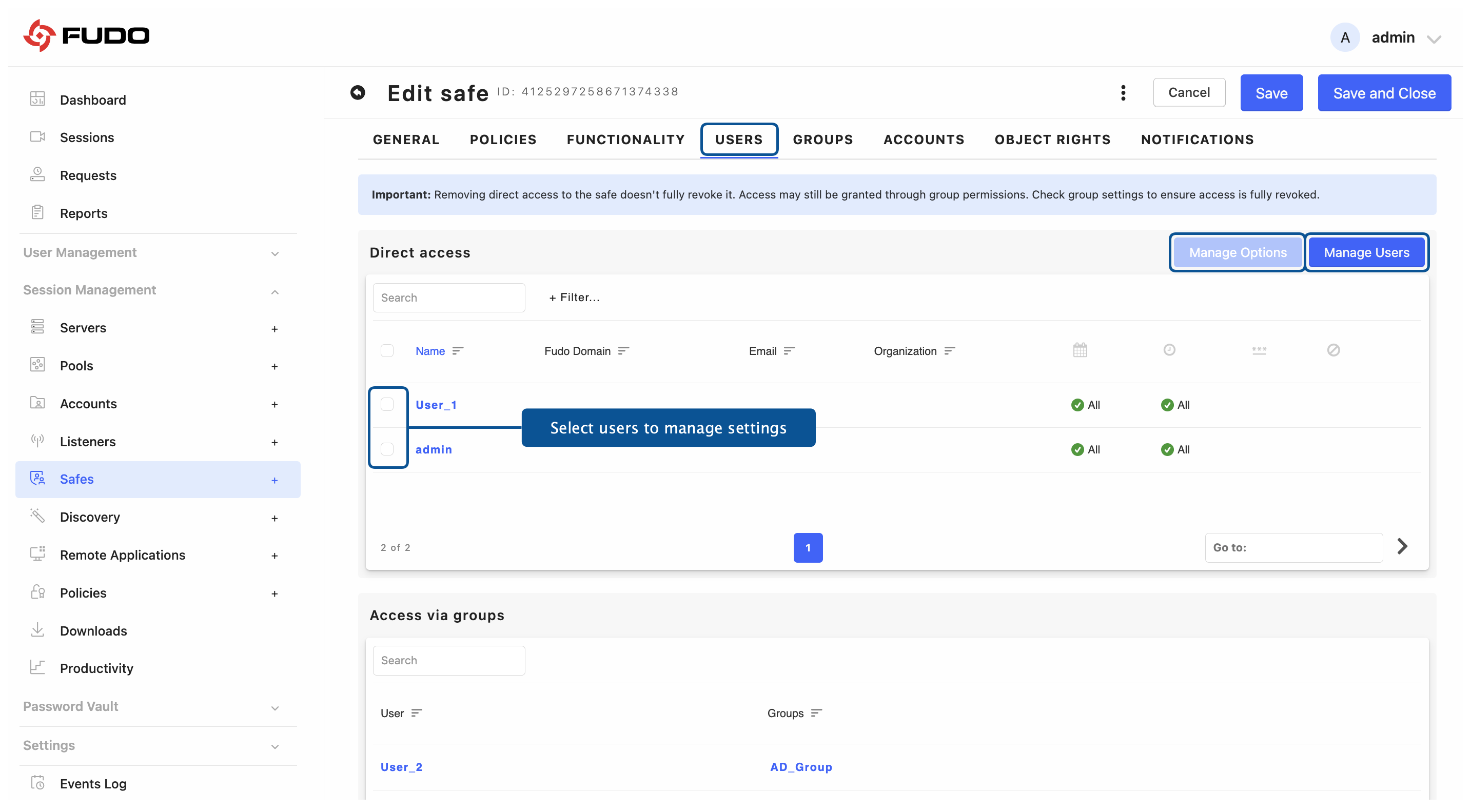
Click to close the modal window.
To define safe access options for a user, select the checkbox in front of the desired users’ names and click .
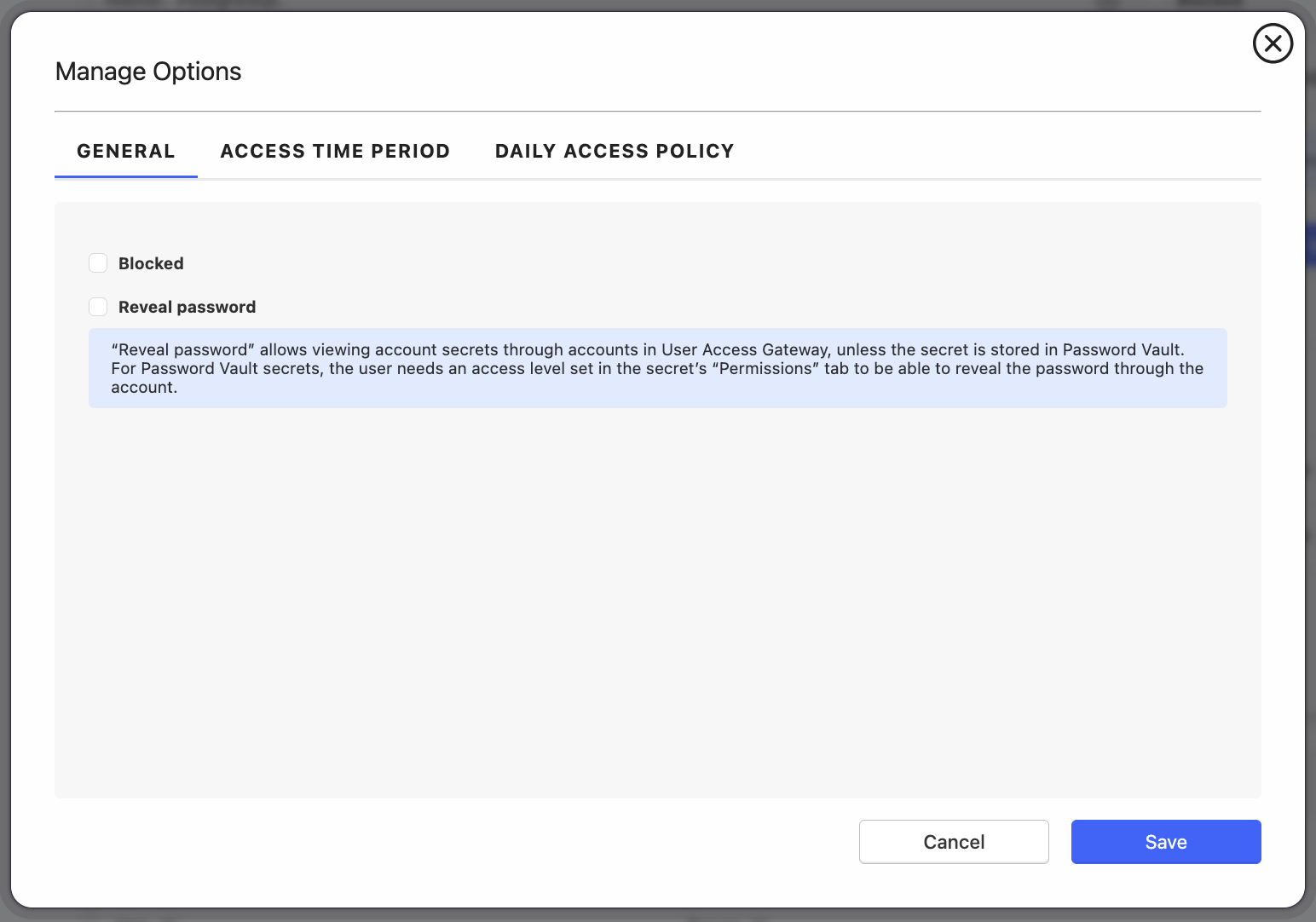
Go to GENERAL tab and select Blocked option if you want to block the users selected in previous step.
Select Reveal password to allow selected users to use Secret Checkout feature and view passwords in the User Access Gateway.
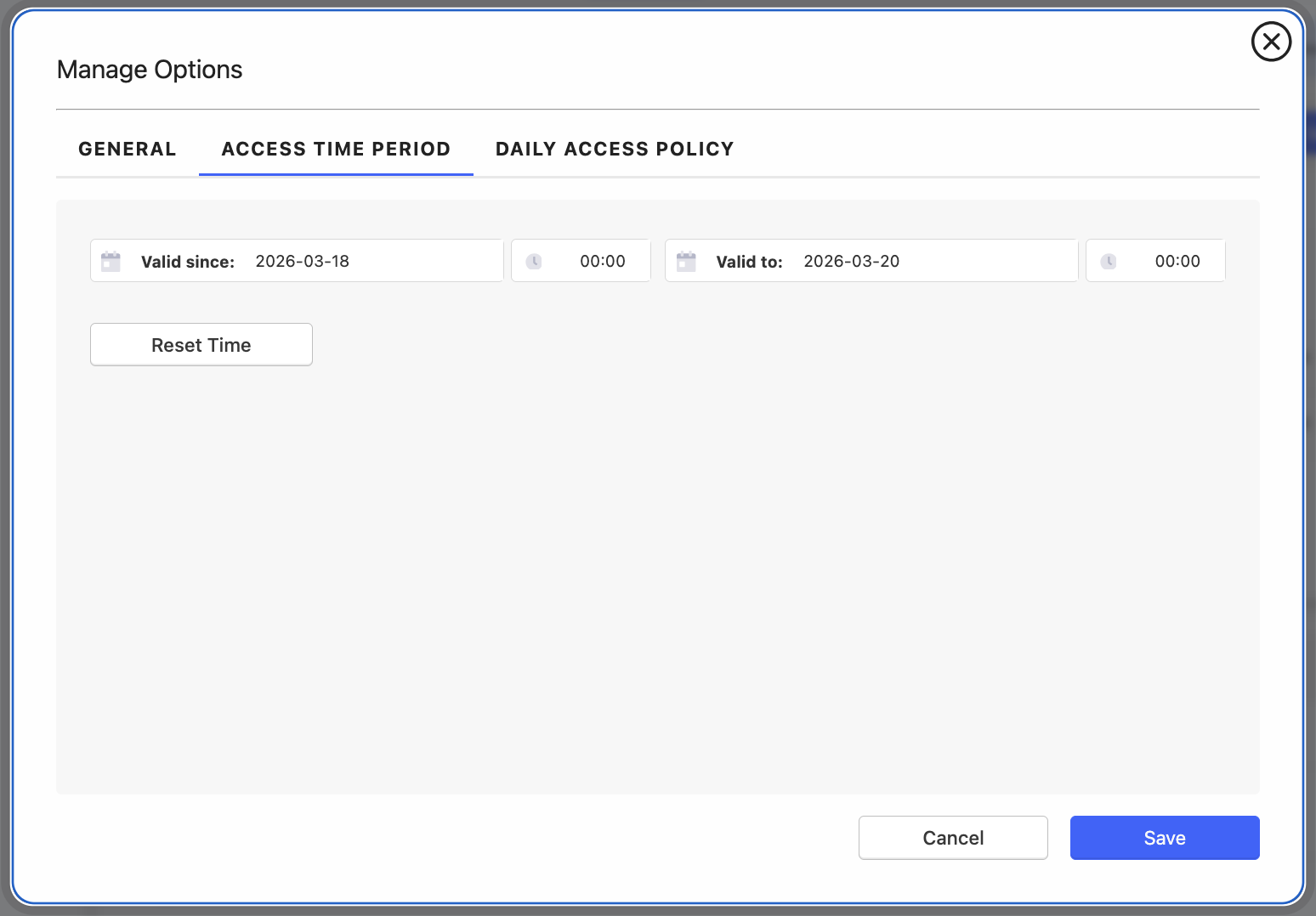
Select ACCESS TIME PERIOD tab to fill out the Valid since and Valid to fields with date and time interval when user will be allowed to access servers through the given safe. When defined date and time comes, access to the given safe is granted to the user automatically.
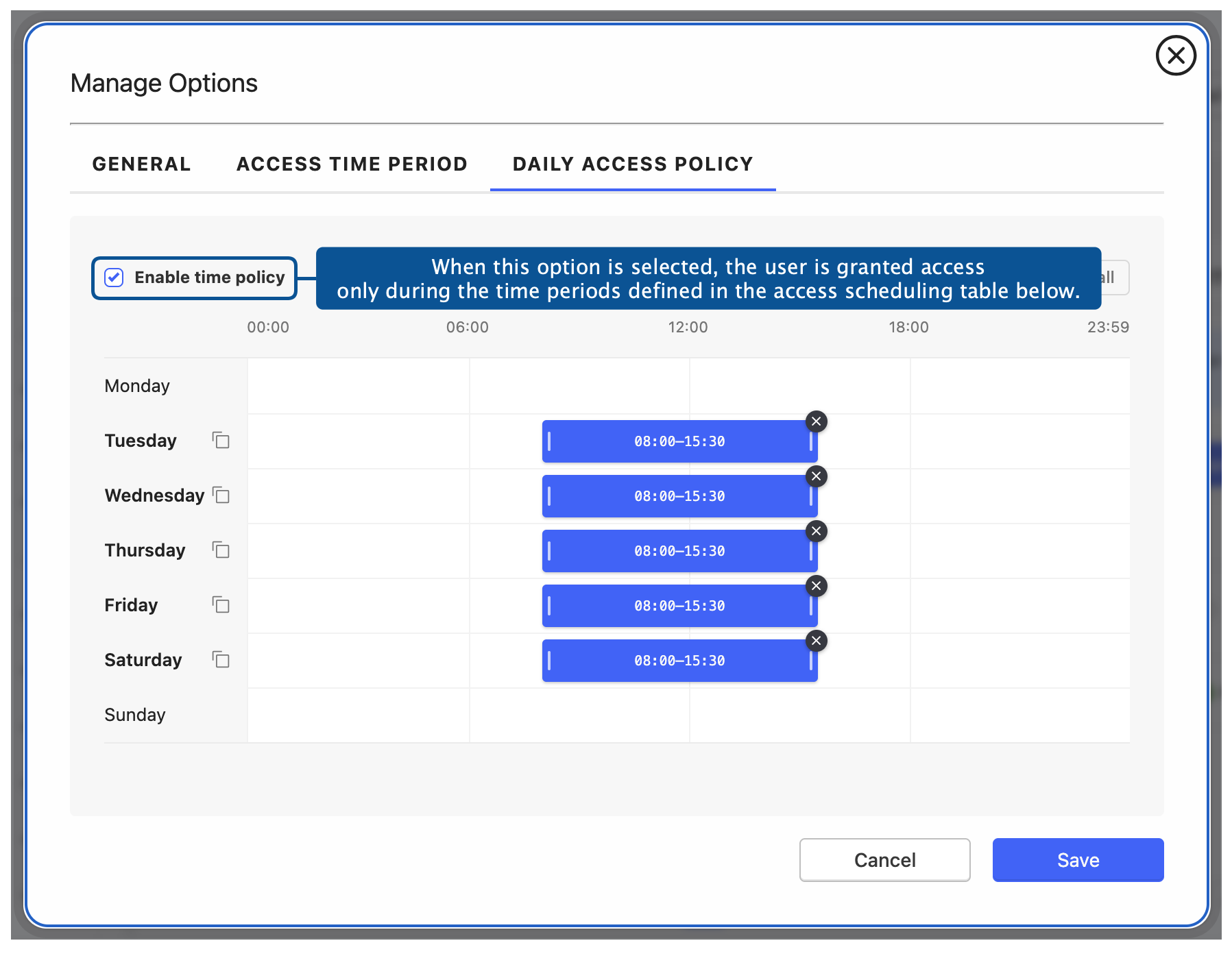
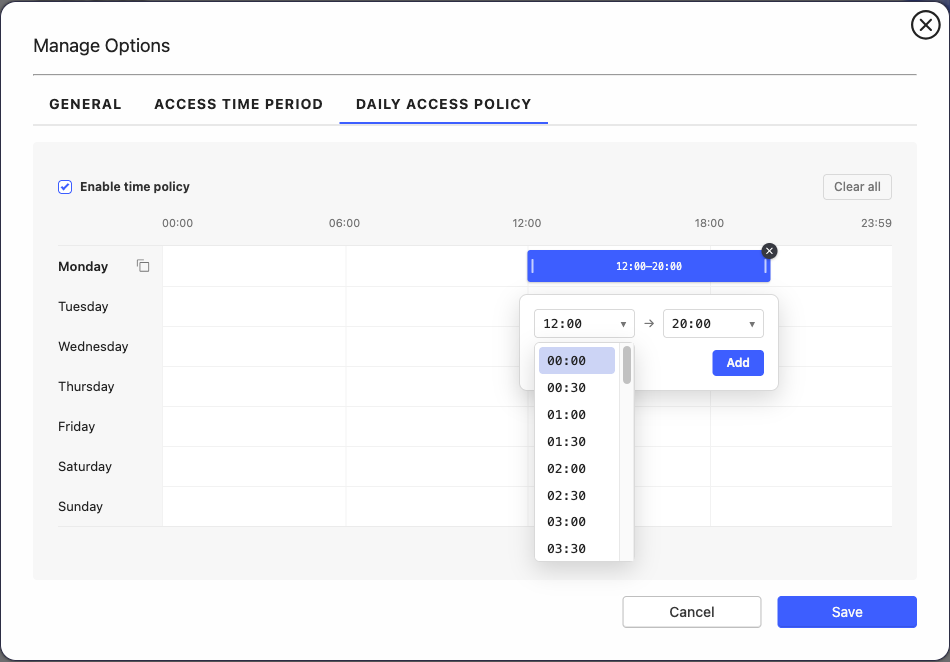
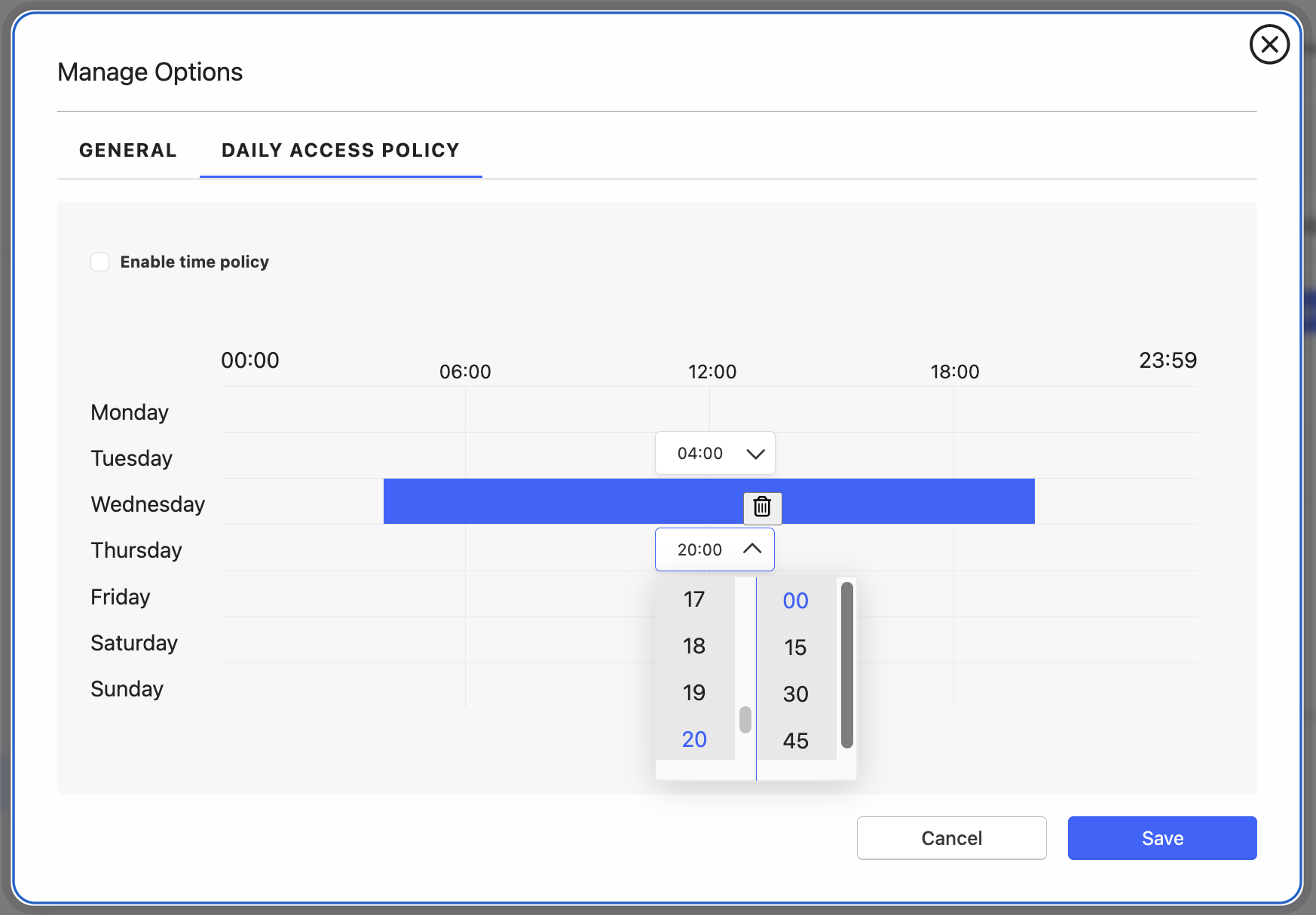
Select DAILY ACCESS POLICY tab to enable and define time intervals during which the user will be allowed to connect to servers. Click the row of the chosen day of the week to add an access window, or drag across the row to draw one; dragging vertically covers several days at once. Windows snap to a 30-minute grid and can be moved or resized by their edges; touching or overlapping windows are merged automatically. Click a window to set exact start and end times, use the copy icon next to a day name to copy that day to all days, and use Clear all to remove the whole schedule.
Caution
To make the time policy active, select the Enable time policy checkbox above the access scheduling table.
Note
The daily access policy defined here is always enforced. When the Just in Time option is enabled without the Skip approval during Daily Access Policy hours sub-option, every connection requires an approved access request and, outside the policy hours, access is denied even when a request has been approved. With the sub-option selected, the daily access policy decides when the user connects directly and when an access request is required - see Time-Based Access Requests.
Time Policy for a Single User With Group-Derived Access
The settings above apply to users assigned to the safe directly. A user who reaches the safe through a group can be given a time policy of their own, without being assigned to the safe directly. The Users tab lists such users in the Access via groups section, together with the groups that grant the access and an indication of whether a policy is already defined for them.
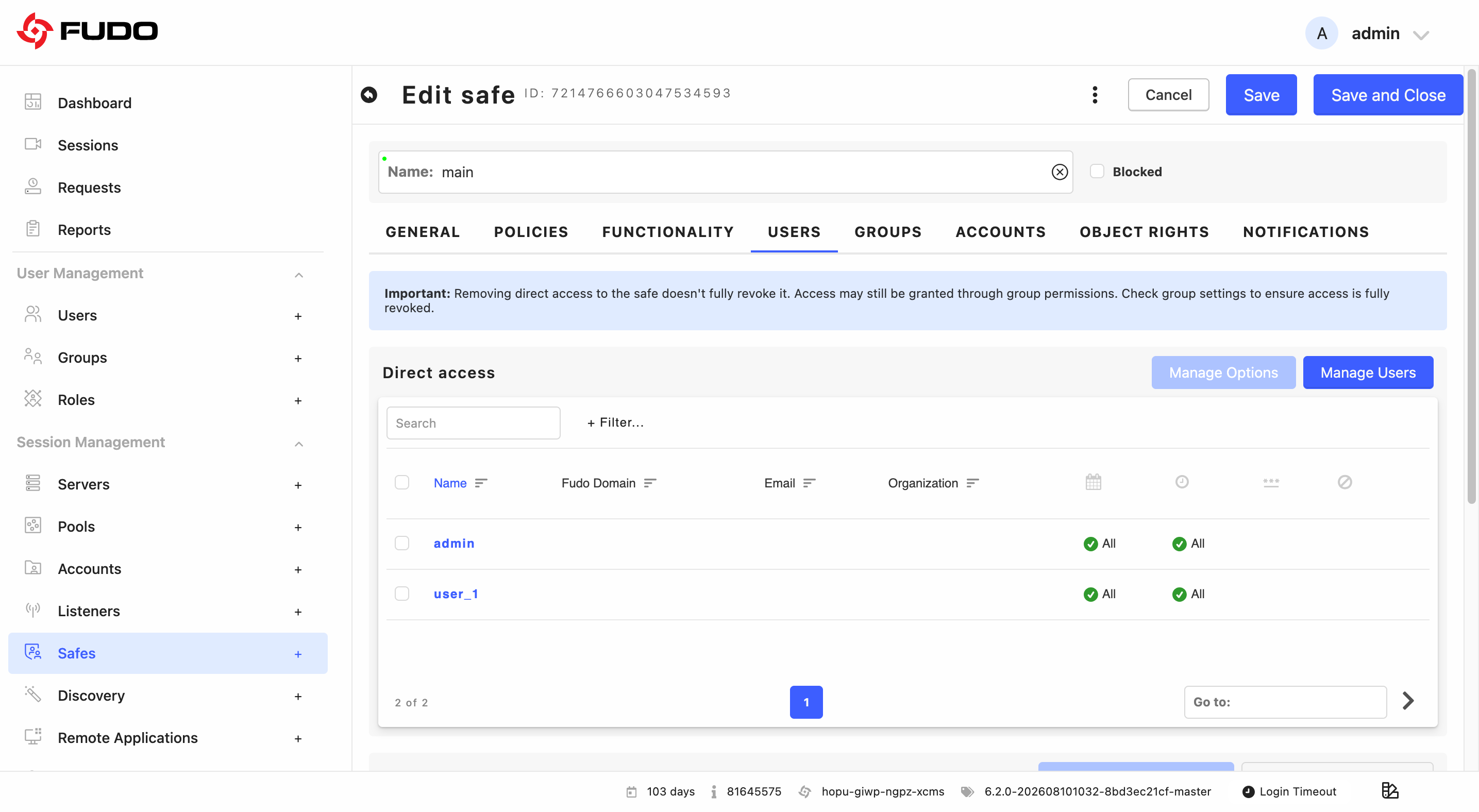
Select the users whose access you want to change.
Click .
Set the options on the GENERAL, ACCESS TIME PERIOD and DAILY ACCESS POLICY tabs. The GENERAL tab holds the Blocked switch.
Click .
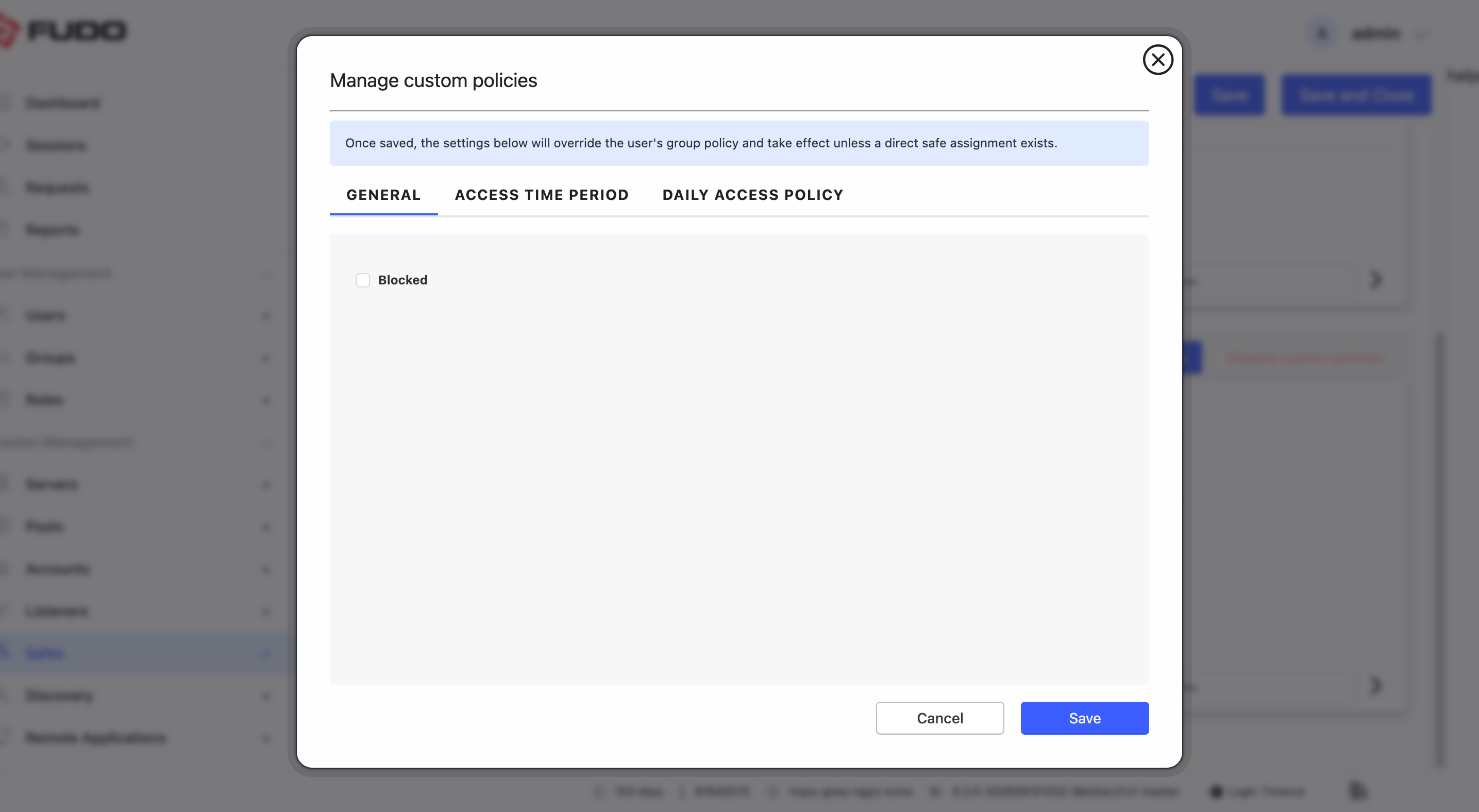
To return a user to the policies of their groups, select them and click . The user is then in exactly the state they were in before any policy was defined for them.
Important
Disable custom policies and the Enable time policy checkbox are two different things. Clearing Enable time policy switches off the weekly schedule but keeps the policy, so its Blocked switch and Access time period still apply. Disable custom policies removes the policy altogether.
Note
Such a policy can only be defined for a user who already reaches the safe through a group - it limits an existing access and does not grant one.
It is tied to the user and the safe, not to a particular group. If the user reaches the safe through several groups, detaching one of them leaves the policy in place.
Warning
When the user loses every group path to the safe - the last granting group is detached from the safe, or the user is removed from the last group that grants it - the policy is deleted automatically. Granting group access again later does not restore it; the policy has to be defined once more.
Note
A user denied by such a policy sees the account as unavailable in the User Access Gateway, in the same way as any other denial. If the access time period ends while a session is running, the session is terminated; removing the policy during a session does not terminate it, provided the groups still permit the access.
GROUPS TAB
In the GROUPS tab, you can specify the user groups that will be allowed to access the accounts assigned to this safe.
Note
To understand how access for users and groups to the safe is prioritized, see the Access Resolution and Prioritization section.
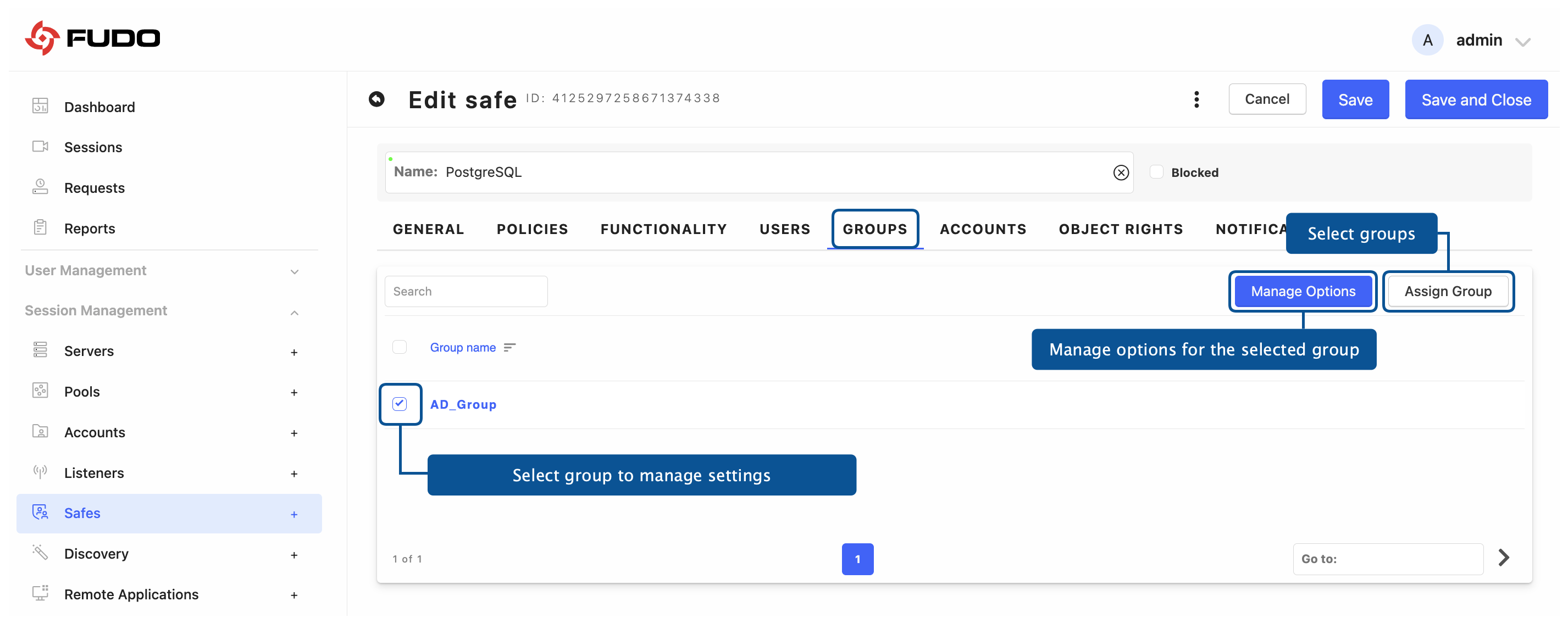
Click .
Mark the checkbox in front of the groups’ names to add it.
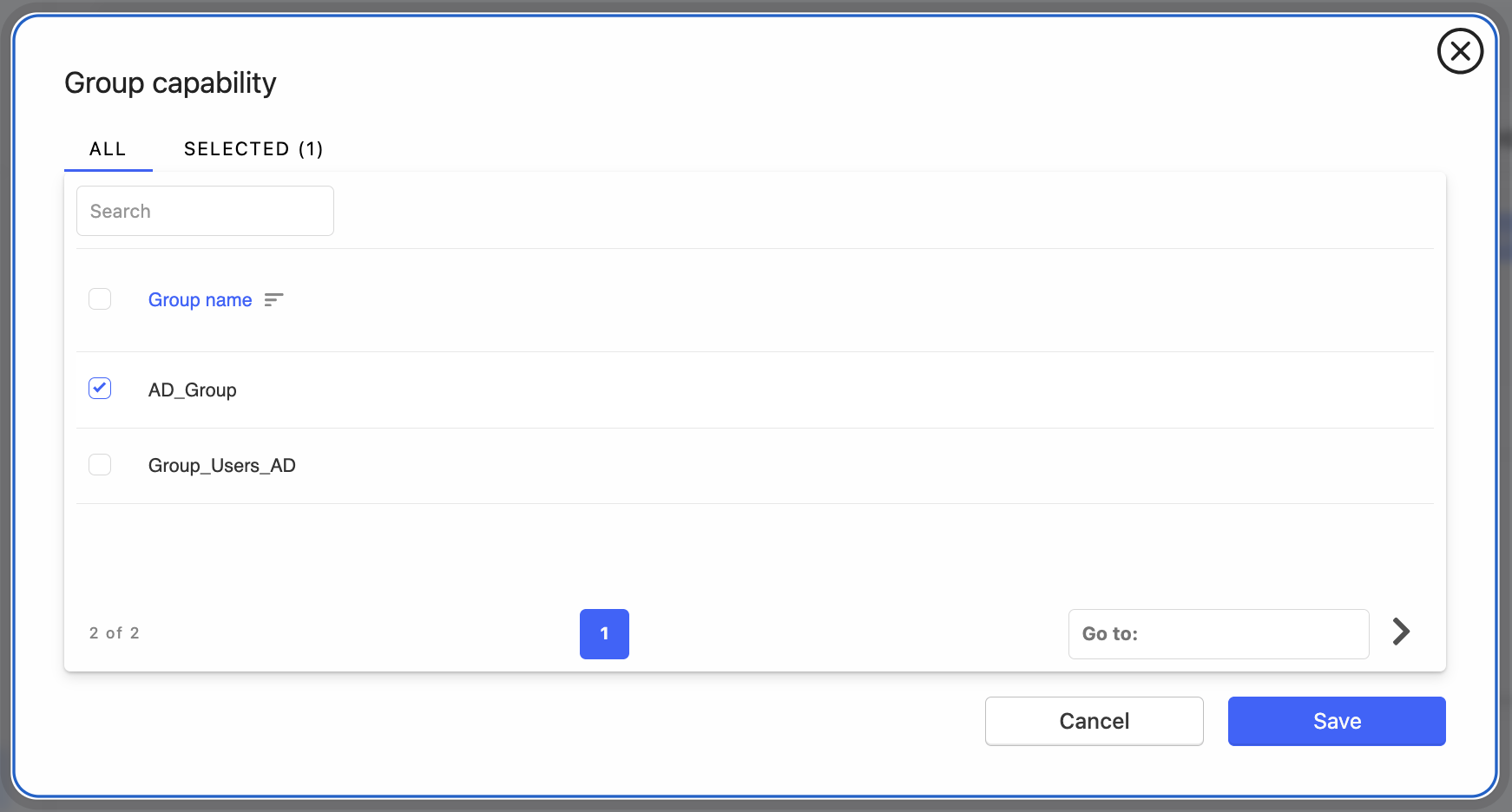
Click to close the modal window.
Select desired group and click to define general settings, the access time period and daily access rules. On the GENERAL tab you can select Blocked to withhold this safe from the group, and on the ACCESS TIME PERIOD tab you can limit the assignment to a date and time interval.
Click to close the modal window.
Note
A group that is blocked, or that falls outside its access time period, contributes no access to any of its members for this safe. The same options are available from the group’s side, in User Management > Groups, and show identical values.
ACCOUNTS TAB
Note
To manage accounts within the safe, the user must also have assigned the listener-read privilege.
Select ACCOUNTS tab to add accounts accessible through this safe.
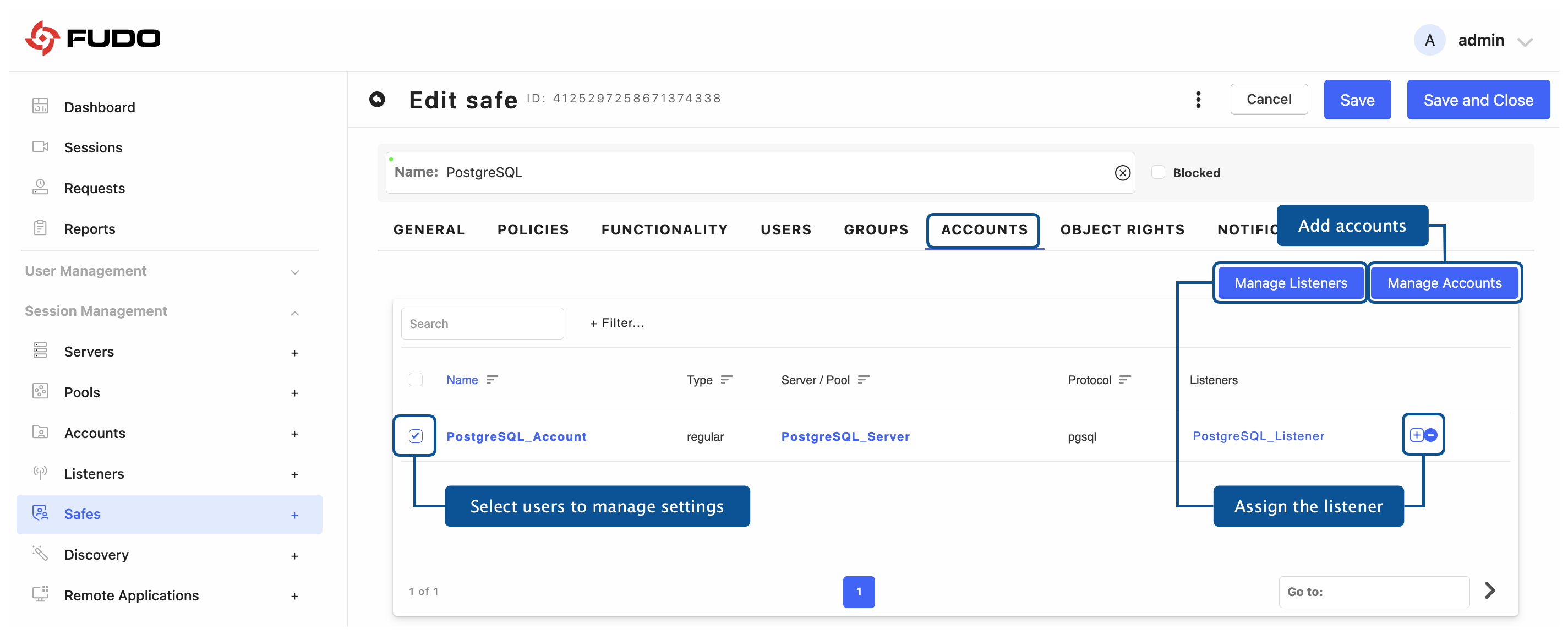
Click .
Mark the checkbox in front of the accounts’ names to add it.
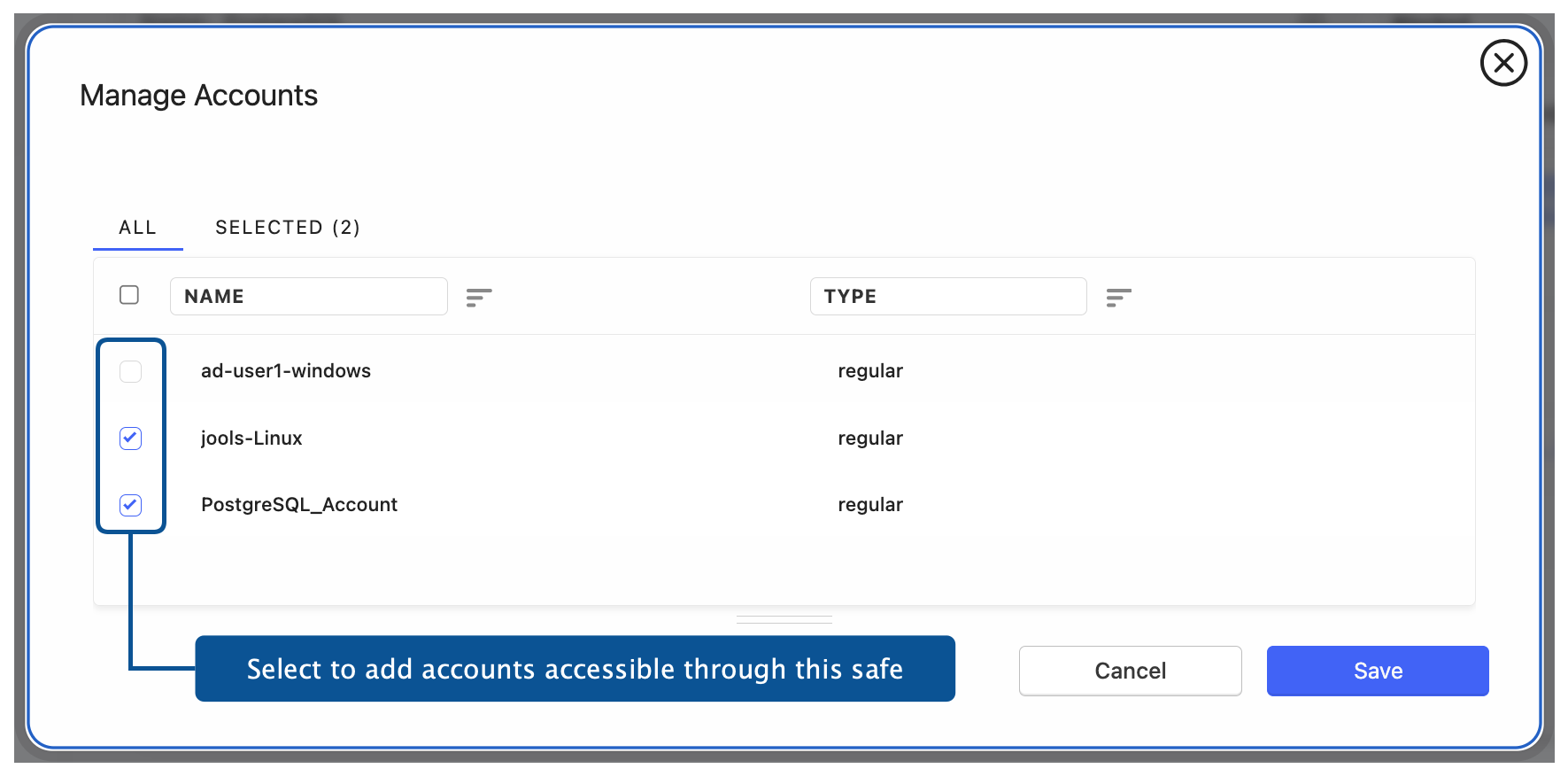
Click to close the modal window.
Select desired account and click to assign listeners to accounts.
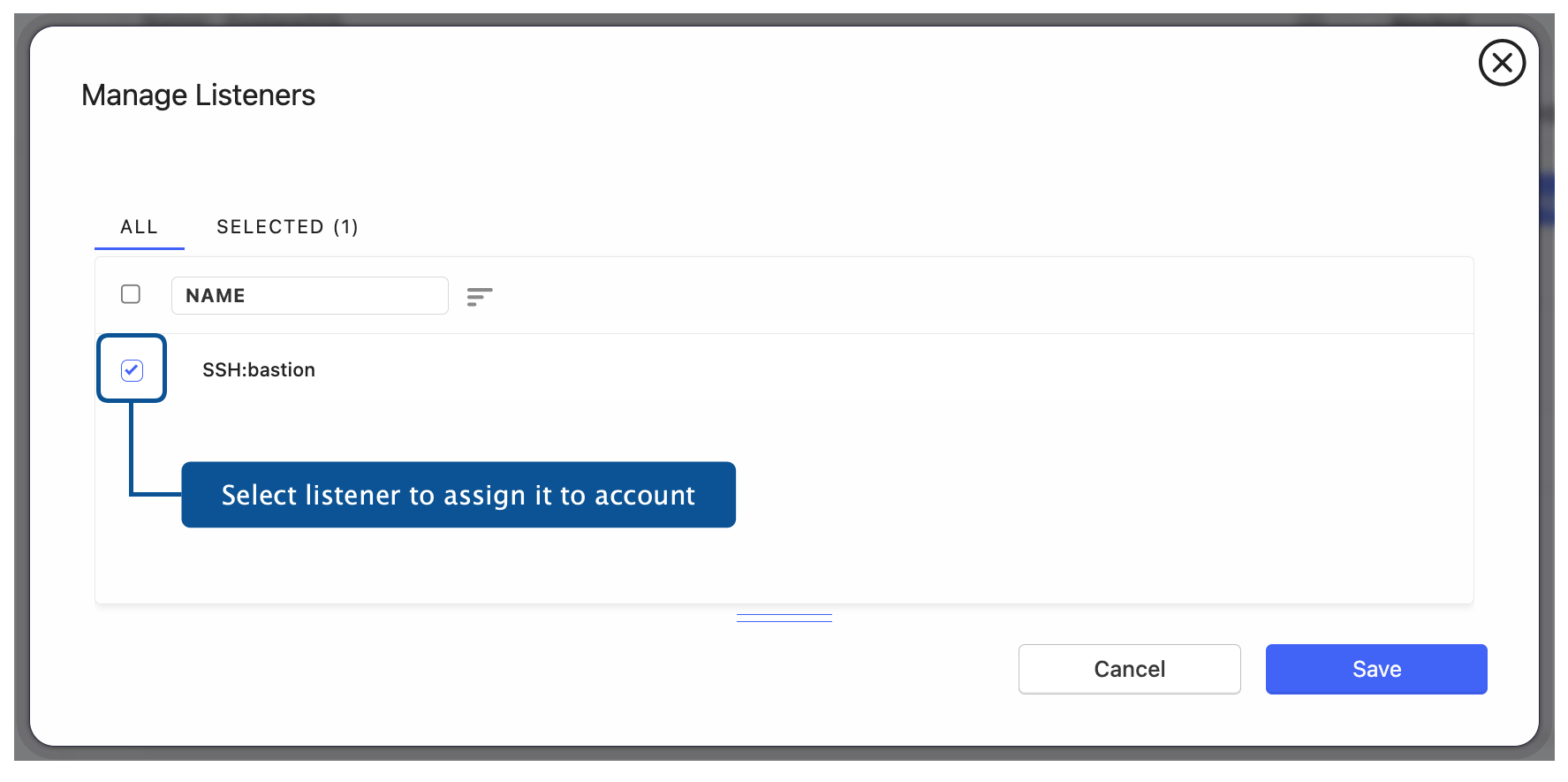
Click to close the modal window.
OBJECT RIGHTS TAB
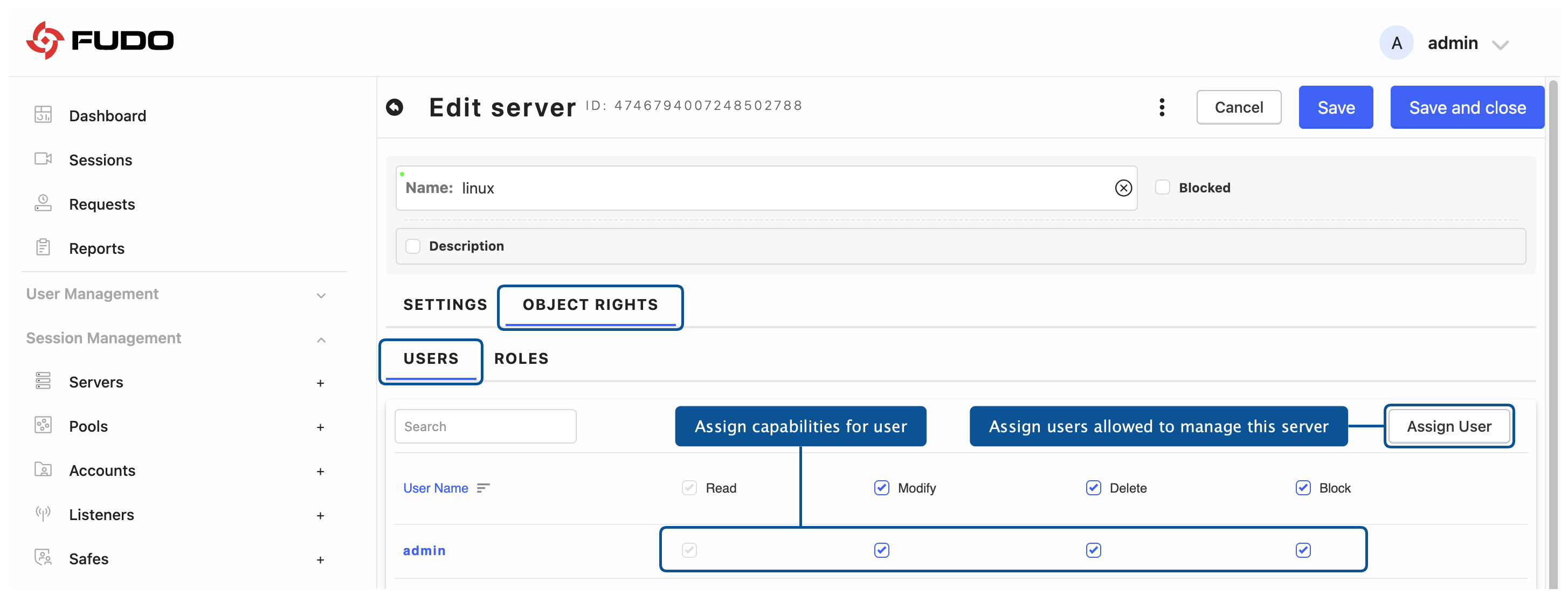
The OBJECT RIGHTS tab is used to define which users and roles are allowed to manage the object and which capabilities (Read, Modify, Delete, Block) are assigned to them.
Go to the OBJECT RIGHTS tab.
Open the USERS sub-tab.
Click , select the users from the list, and click .
In the Users list, select the capabilities for each user by enabling the options available for the given object, such as Read, Modify, Delete, or Block.
Open the Roles sub-tab.
Click , select the roles from the list, and click .
In the Roles list, select the capabilities for each role by enabling the options available for the given object, such as Read, Modify, Delete, or Block.
NOTIFICATIONS TAB
Select NOTIFICATIONS tab to specify notifications that will be enabled for the particular users. For detailed information about notification types follow the Notifications section.
To define specific notification types for a user, select the checkbox in front of the desired users’ names and click .
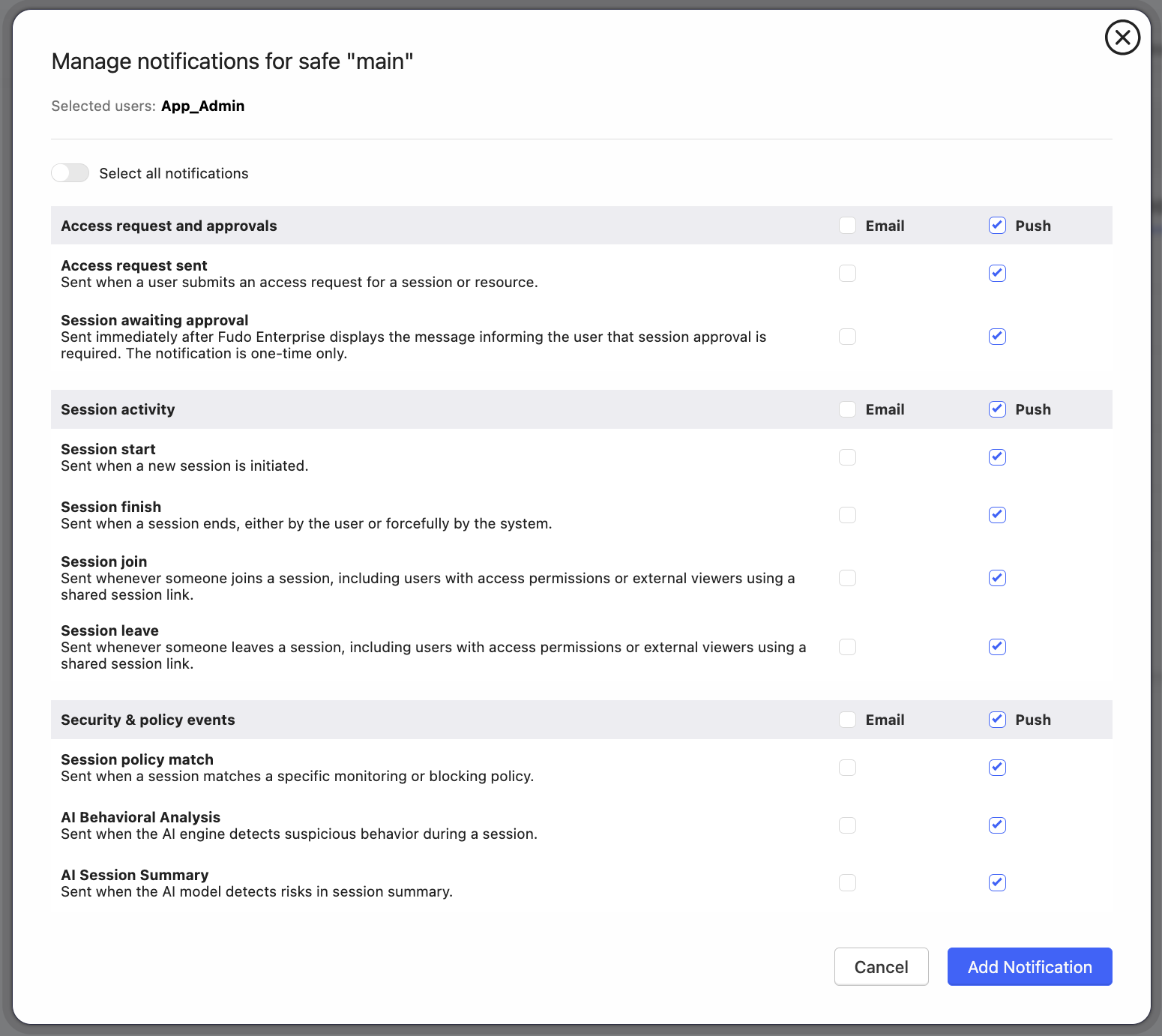
From the list, select the notification types you want to assign to the user.
Click to close the modal window.
Click or to save the safe configuration.
Related topics: