Settings
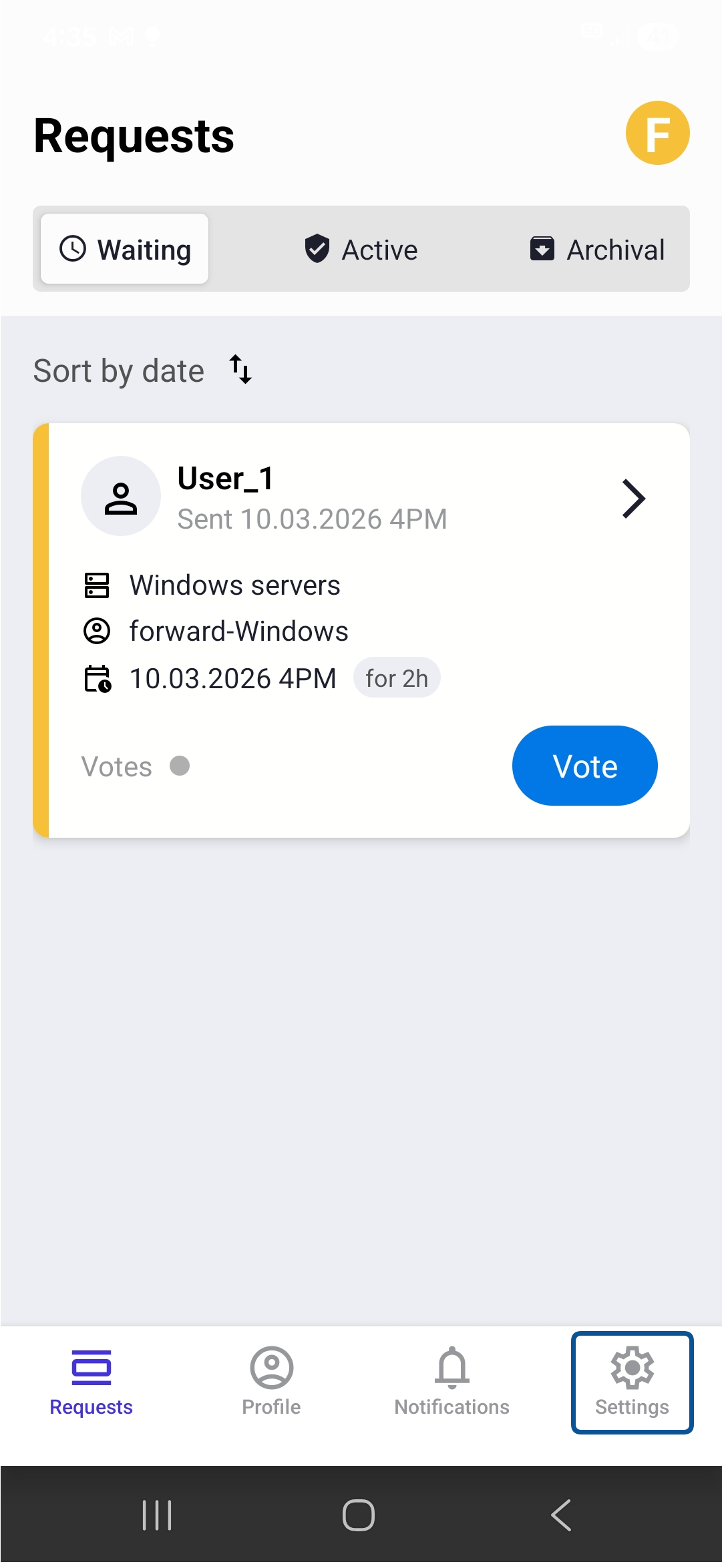
To access the application settings, click on the gear icon in the bottom right corner of the screen.
Biometric Authentication
To enable Biometric Authentication option:
Choose the gear icon in the bottom right corner of the screen.
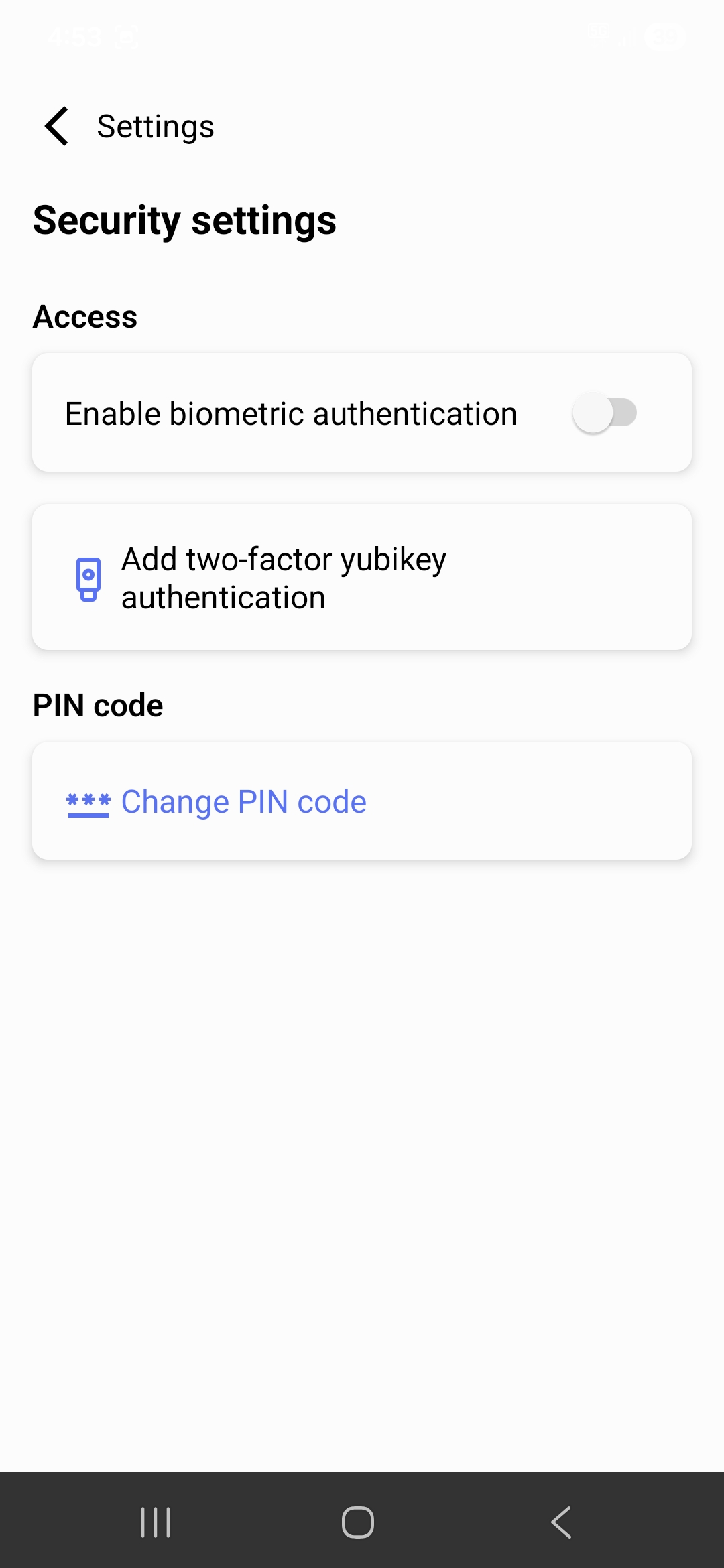
Choose Security settings.
Switch on the Enable Biometric Authentication option.
Scan your fingerprint to complete the procedure.
Note
Once the option is enabled, biometric authentication will be set as the default method when launching the application.
After updating the application to version 2.4, biometric authentication is switched off. Enable it again to continue using it.
On iOS, biometric authentication is required for autofill. Switching it off also stops autofill.
Change PIN Code
Choose the gear icon in the bottom right corner of the screen.
Choose Security settings.
Choose Change PIN code.
Provide a new 6 digits PIN code.
Repeat provided 6 digits PIN code to confirm the change.
Note
The current PIN is not required. The new PIN protects all profiles in the application.
Change PIN code is not available when you signed in with biometric authentication. Sign in with your PIN to change it.
Two-Factor YubiKey Authentication
To use YubiKey as your profile access method:
Choose the gear icon in the bottom right corner of the screen.
Choose Security settings.
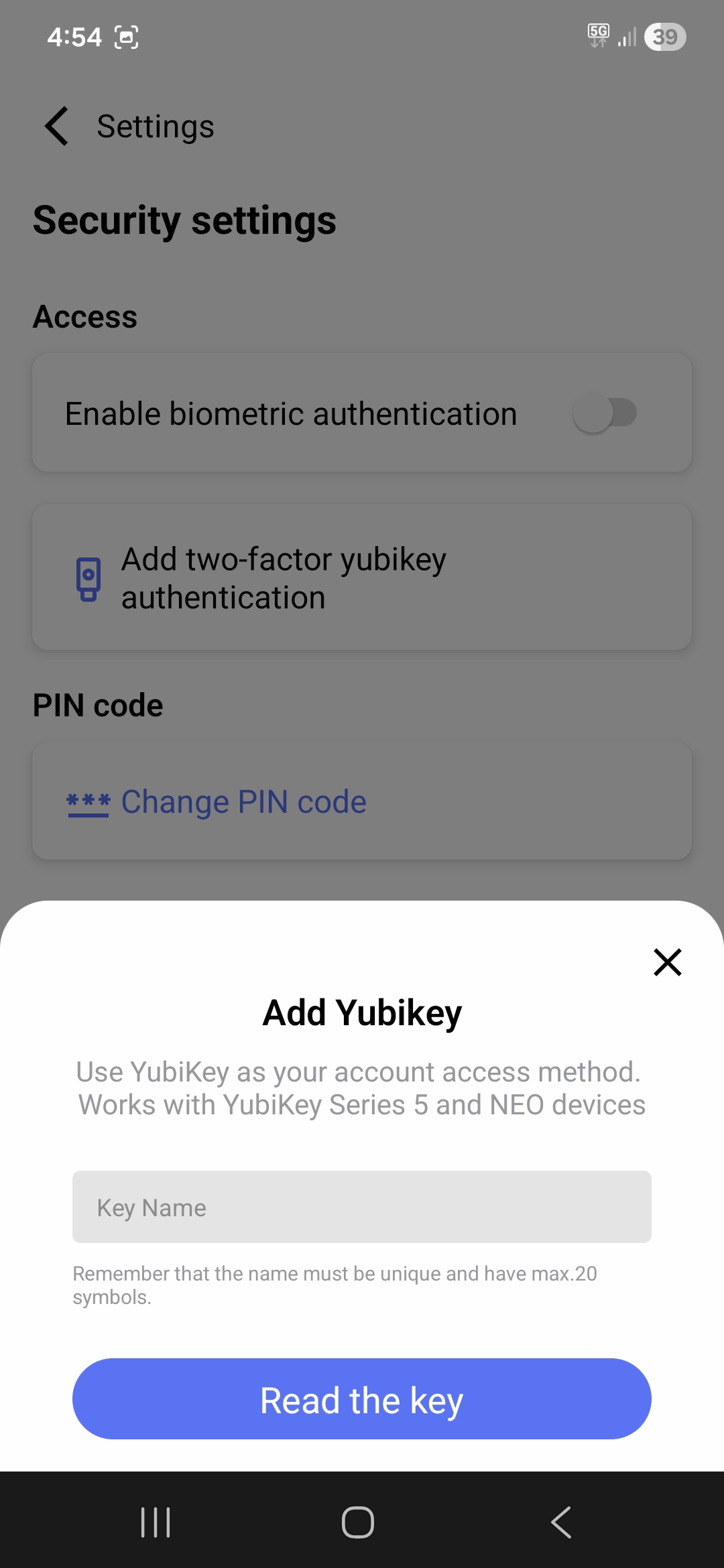
Tap the Add Two-Factor YubiKey Authentication option.
Enter the Key Name and tap button.
Touch the YubiKey to your mobile device to complete the procedure.
Note
Fudo Officer supports NFC connection with YubiKey 5 Series, YubiKey 5 FIPS Series and YubiKey NEO devices.
Autofill
The Security settings screen also contains the Enable system autofill service option, which lets Fudo Officer fill in logins and passwords from the Password Vault in other apps. For more information, refer to the Autofill section.
Application Lock
Fudo Officer protects access to the application in the following ways:
When the application stays in the background for more than 30 seconds, you need to enter your PIN or use biometric authentication again.
After three incorrect PIN attempts, signing in with the PIN is blocked for 5 minutes. You can still sign in with biometric authentication. The lock remains in place when you restart the application.
The PIN is verified by Fudo Enterprise, so the device must be able to connect to Fudo Enterprise to unlock the application.
Note
If an administrator has deactivated your profiles, each sign-in attempt is treated as an incorrect PIN, and repeated attempts block signing in with the PIN.
Clearing App Data
Clearing app data removes all profiles, keys and databases from the device. Use it, for example, when you no longer remember your PIN.
On the PIN screen, tap the three-dot icon in the top right corner, or tap Clear app data in the window shown when signing in with the PIN is blocked.
Tap to confirm.
Warning
This operation cannot be undone. To use the application again, you need to pair it with Fudo Enterprise again, as described in the Configuration section.
Updating from earlier versions
After updating from an earlier version, the application migrates the profiles to the new storage the first time you enter your PIN. The migration requires a connection to the Fudo Enterprise instance of each profile.
If a profile is not available, the application offers the following options:
Retry migration - try again, for example after restoring the connection.
Delete profile “<name>” and retry - remove the unavailable profile and migrate the remaining ones.
Clear app data - remove all profiles from the device.
Language
The application language is set according to the phone’s language settings.
Related topics: