External Authentication Server Definition
To add an external Active Directory, LDAP, Cerb, or Radius authentication server, proceed as follows.
Select > .
Choose External authentication tab.
Click .
Provide a name for this specific configuration.
Select the bind address - IP address used for sending requests to given host.
Note
In case of cluster configuration, select a labeled IP address from the Bind address drop-down list and make sure that other nodes have IP addresses assigned to this label. For more information refer to the Labeled IP Addresses topic.
In the General section, select authentication service type:
Active Directory, LDAP, CERB,orRadius.
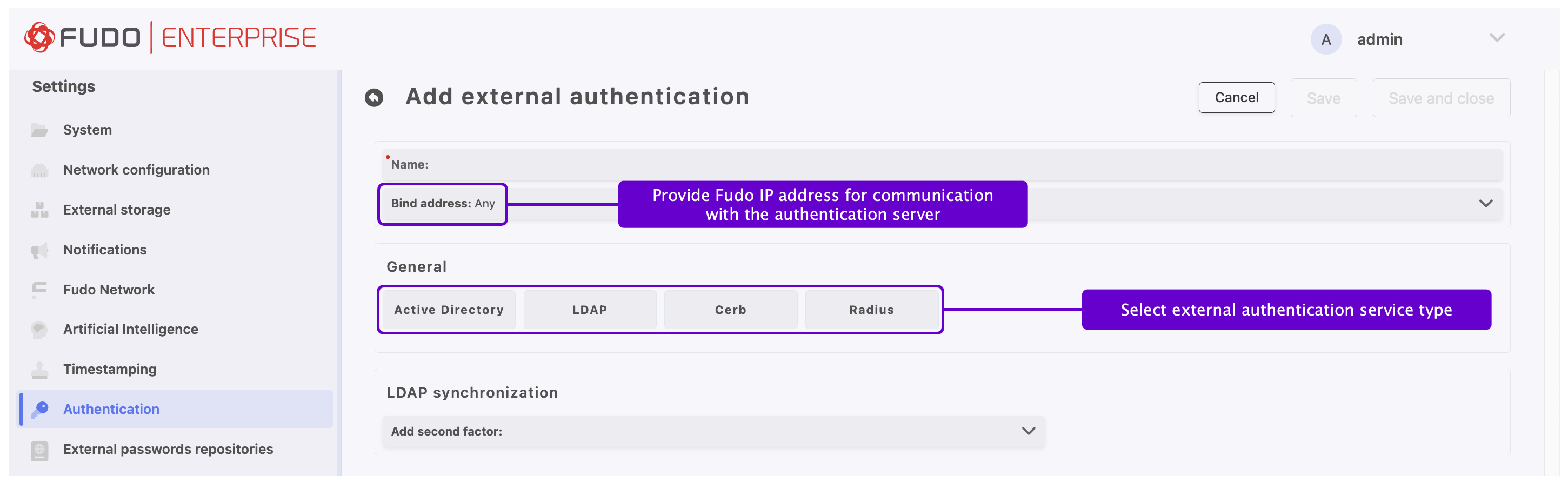
Provide configuration parameters depending on selected external authentication system type. Configuration details are described in the sections below.
Click .
Field Descriptions and Configuration Based on Chosen Method
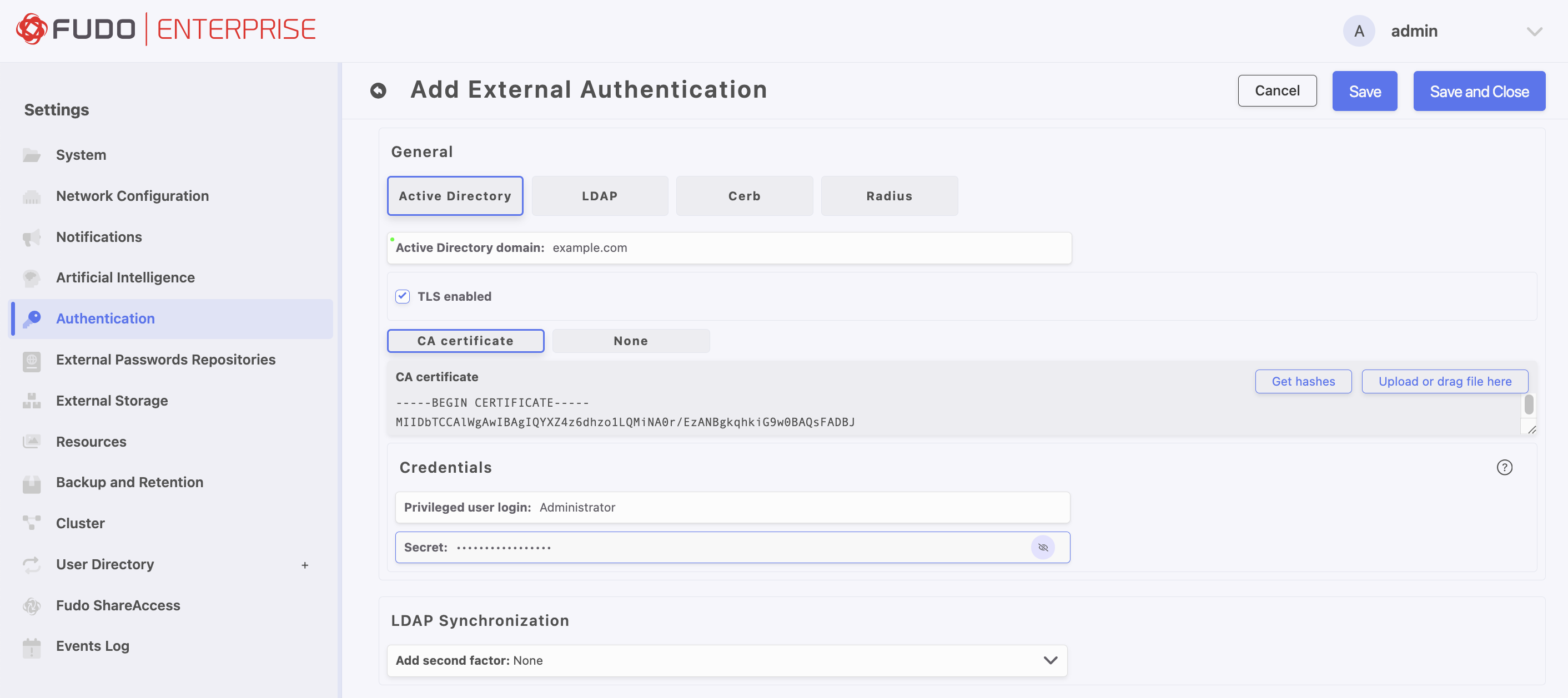
Active Directory
Parameter |
Description |
|---|---|
Active Directory domain |
Domain which will be used for authenticating users in Active Directory. |
TLS enabled |
This option is required to be checked for the domain users who change their passwords in the User Access Gateway. |
CA Certificate |
Available when TLS enabled option is activated. |
Privileged user login |
The privileged account’s login name to modify a user password on the Active Directory server. |
Secret |
Secret used to establish server connection to modify a user password on the Active Directory server. |
Add second factor |
Additional verification step with authentication methods |
Note
The Active Directory external authentication method uses the Kerberos protocol as the first step.
This functionality is enabled by default.
Please refer to Kerberos Authentication Settings section to learn how to disable it.
If Active Directory authentication is successfully completed using Kerberos, the configured certificate will not be applied, as it is only utilized when a fallback to LDAP is required.
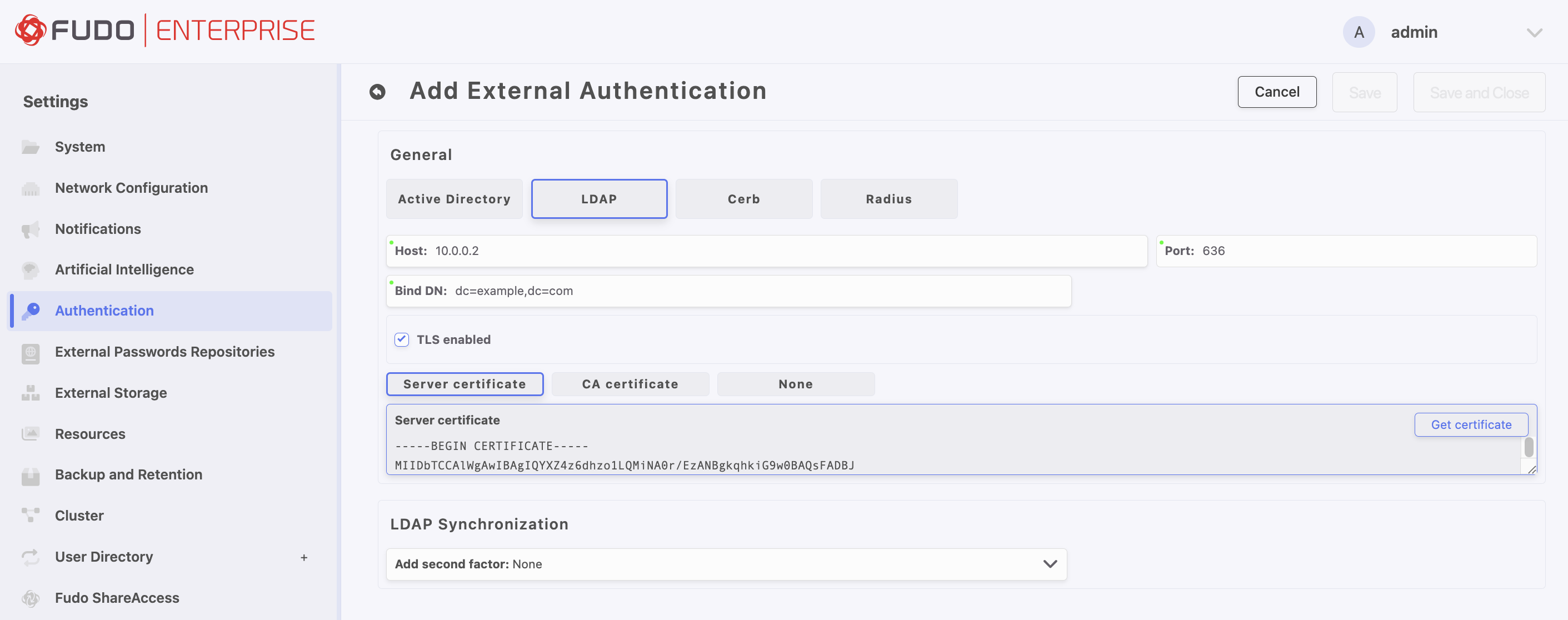
LDAP
Parameter |
Description |
|---|---|
Host |
Server’s IP address. |
Port |
Port used to establish connections with given server. |
Bind DN |
Template containing a path which will be used to create queries to LDAP server (for example: |
TLS enabled |
This option is required to be checked for the domain users who change their passwords in the User Access Gateway. |
Server certificate / CA Certificate |
LDAP server certificate or CA certificate. Available when TLS enabled option is activated. |
Add second factor |
Additional verification step with authentication methods |
Note
The value of Bind DN field may include variable substitution, allowing the DN to be dynamically generated based on the username of the user logging in to the system, for example: cn=##username##,dc=example,dc=com
In that case, when configuring a user, leave the LDAP Base field empty in > > User Data tab.
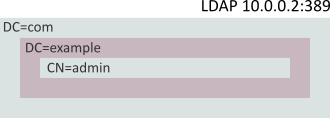
The following description assumes that user’s authentication data is stored on LDAP server accessible through 10.0.0.2 IP address and default LDAP service port number - 389. User definition is stored under dc=example,dc=com.
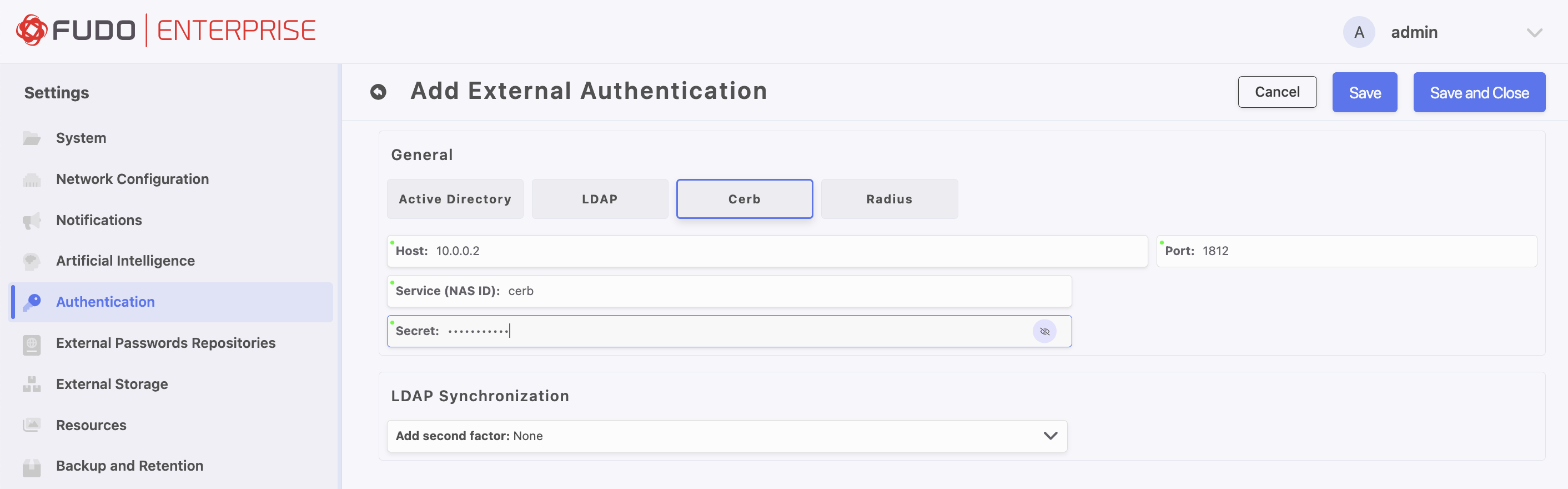
Cerb
Parameter |
Description |
|---|---|
Host |
Server’s IP address. |
Port |
Port used to establish connections with given server. |
Service (NAS ID) |
CERB service used for authenticating Fudo Enterprise users. |
Secret |
Secret used to establish server connection. |
Add second factor |
Additional verification step with authentication methods |
Note
The AD domain field from the user configuration is included in the initial Access-Request packet used to authenticate the user against the RADIUS/Cerb server.
If the AD domain is populated:
For RADIUS, the AD domain value is appended to the username in the
User-Namefield, formatted as:{name}@{ad_domain}.For Cerb, the
MS-CHAP-Domainfield is set to the value from the AD domain, and theUser-Namefield contains only{name}.If the AD domain is not populated, the
User-Namefield in theAccess-Requestpacket for both methods contains only the username:{name}.
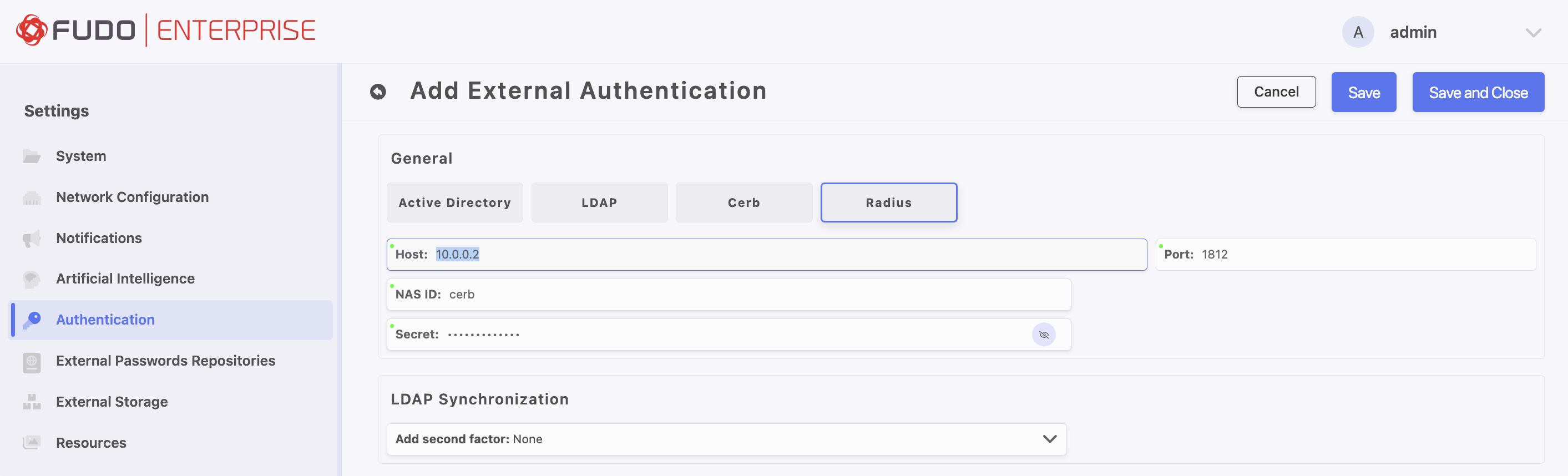
Radius
Parameter |
Description |
|---|---|
Host |
Server’s IP address. |
Port |
Port used to establish connections with given server. |
NAS ID |
RADIUS server NAS-Identifier parameter. |
Secret |
Secret used to establish server connection. |
Authentication method |
Select authentication method PAP, CHAP, MS-CHAPv2 |
Add second factor |
Additional verification step with authentication methods |
Note
Please note that when configuring Radius authentication within Fudo Enterprise, only the Password Authentication Protocol (PAP) is supported.
Make sure to read the note for the Cerb method as well.
Assigning an External Authentication Method to a User
Select > .
Find and click the user definition for which you want to assign an external authentication method (e.g.
admin).Go to the User Data tab, in the LDAP Base field specify the location of this user object in the directory structure (e.g.
cn=admin,dc=example,dc=com).
Note
Leave the LDAP Base field empty if you specified where users are stored in the LDAP server configuration (cn=##username##,dc=example,dc=com).
To add authentication method, go back to the Settings tab and select External authentication from the Add authentication method drop-down list.
Choose method and click .
Click to save user definition.
Second Authentication Factor
If an additional verification step (the Add second factor option) is configured in the external authentication server definition using the OATH, SMS, or DUO authentication methods, the method selected as the second factor must be chosen as the authentication method in the user configuration. Then, in its configuration window, External Authentication must be selected as the first authentication factor.
Select > .
Find and click the user definition for which you want to assign an external authentication method (e.g.
admin).Go to the User Data tab, in the LDAP Base field specify the location of this user object in the directory structure (e.g.
cn=admin,dc=example,dc=com).
Note
Leave the LDAP Base field empty if you specified where users are stored in the LDAP server configuration (cn=##username##,dc=example,dc=com).
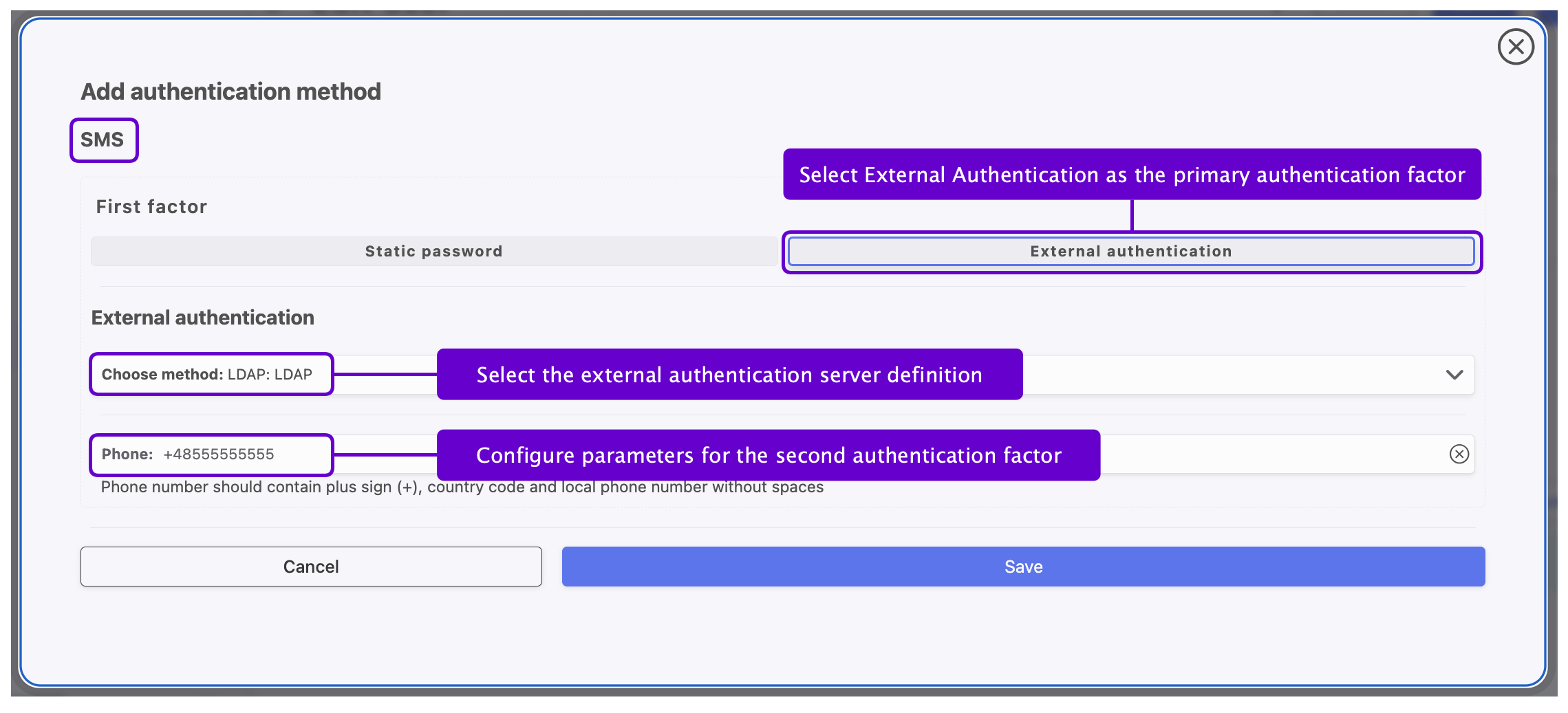
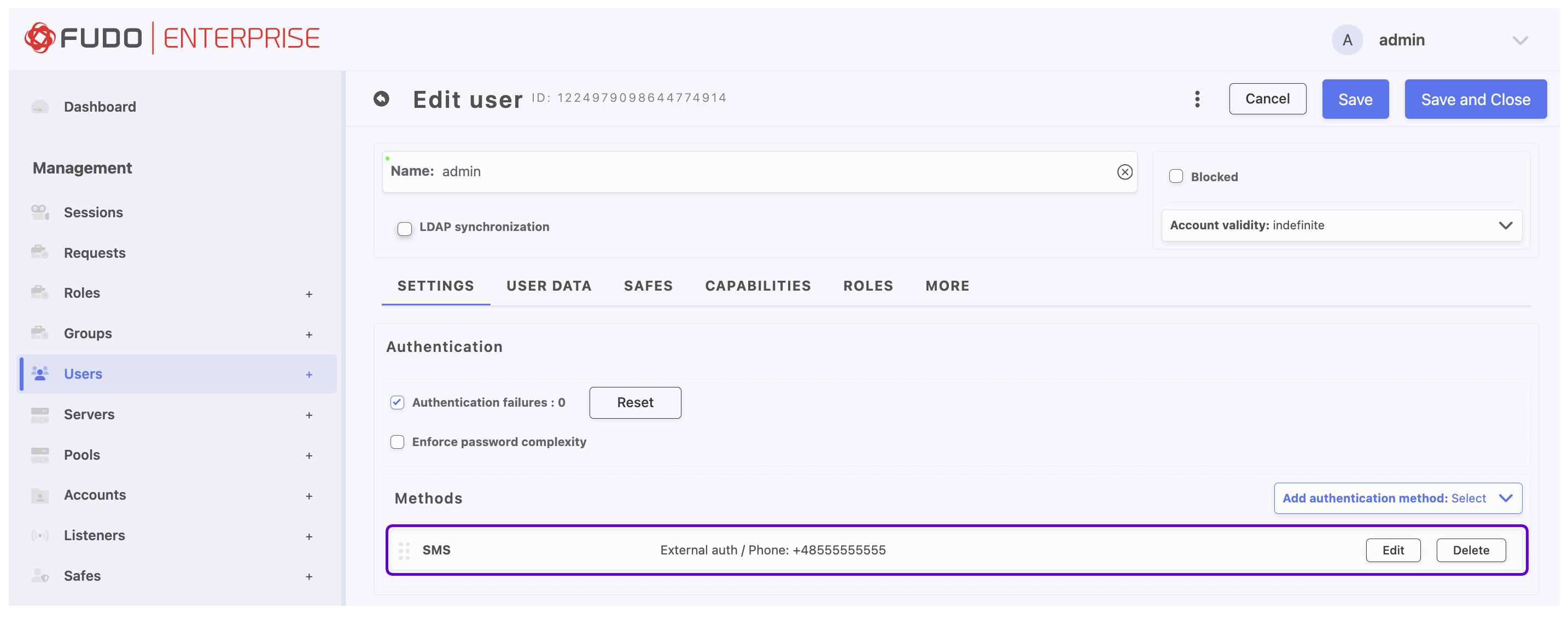
To add external authentication method with second factor, go back to the Settings tab and select the name of the method used in the configuration (e.g. SMS) from the Add authentication method drop-down list.
In the modal window, select External Authentication as the first authentication factor.
From the Choose method list, select the external authentication method configured with a second authentication factor, according to the scenario described above.
Configure parameters of the second factor.
Click .
Click to save user definition.
Related topics: